
A Microsoft 365 Copilot user license is a paid per-user add-on that activates AI-powered features inside Microsoft 365 applications for qualifying subscriptions. The standard price is $30 per user per month on an annual commitment, with a promotional rate of $28.80 per user per month available for Business Premium subscribers through September 30, 2026. This license is not bundled with any base Microsoft 365 plan, including enterprise tiers like E3 or E5. For IT managers and business leaders in professional services, understanding exactly what you are buying, who qualifies, and how to assign it correctly is the difference between a productive AI rollout and a budget line that delivers nothing.
What are the Copilot user license prerequisites?
The Copilot user license is an add-on, not a standalone product. It requires one of several qualifying base subscriptions: Microsoft 365 E3, E5, Business Basic, Business Standard, or Business Premium. Without one of these plans already active, you cannot purchase or assign the Copilot add-on.
Microsoft offers two distinct add-on products based on organization size. Microsoft 365 Copilot Business targets small and midsize businesses on eligible Business plans and supports up to 300 seats. Organizations with more than 300 users must purchase the standard Copilot add-on instead. Choosing the wrong product for your headcount creates procurement delays and requires reprocessing through your Microsoft admin or reseller.
Government and education tenants face additional eligibility constraints. Microsoft maintains separate licensing tracks for these sectors, and not all Copilot features are available across every government cloud configuration. Confirm your tenant type before purchasing.
One restriction catches many firms off guard. Guest and cross-tenant users cannot be assigned a Copilot license. If your law firm or accounting practice relies on external consultants working inside your Microsoft 365 environment, those users will not have access to Copilot features regardless of how many licenses you hold.
Pro Tip: Before purchasing, run a tenant audit to identify how many users are on qualifying base plans. Firms that skip this step often discover mid-rollout that a subset of employees is on legacy or non-qualifying plans, which delays deployment.
How do you obtain and assign a Microsoft 365 Copilot license?

License purchase and assignment both happen inside the Microsoft 365 admin center, under Billing, then Licenses. The process is straightforward once your base subscriptions are confirmed.
A phased rollout is the most effective approach for professional services firms. Bulk assignment to every employee on day one produces low adoption and wastes spend. The recommended sequence is:
- Pilot group selection. Identify 10–20 power users across practice areas who will actively test Copilot in Word, Outlook, and Teams. Choose people who handle high-volume drafting, summarizing, or data work.
- License assignment. Assign licenses individually or via group-based licensing in Azure Active Directory. Group-based assignment scales better for firms with 100 or more users.
- Eligibility verification. Run the Copilot License Details diagnostic tool for each pilot user. This tool confirms whether the user’s account meets all technical requirements to access Copilot features.
- Feedback and adjustment. Collect usage data from the pilot group over 30–60 days before expanding. Microsoft 365 usage reports show which Copilot features are actually being used.
- Full deployment. Roll out to remaining eligible users based on role-specific need, not blanket assignment.
Avoid assigning licenses to users who only need basic AI chat. Copilot Chat is included free in many Microsoft 365 plans and covers general-purpose AI queries. Paying for a full Copilot license for a user who will only ever use chat is unnecessary spend.
Pro Tip: Use Microsoft Entra ID group-based licensing to tie Copilot access to job roles. When an employee changes roles, the license assignment updates automatically, which prevents orphaned licenses from accumulating.
What features does the Microsoft 365 Copilot license unlock?
The full Copilot user license activates AI assistance directly inside the Microsoft 365 applications your teams already use. The core capability set covers Word, Excel, PowerPoint, Outlook, and Teams, with each app receiving context-aware AI that draws on your organization’s own data through Microsoft Graph integration.
In practice, this means a lawyer can ask Copilot in Word to draft a contract clause based on a prior agreement stored in SharePoint. An accountant can ask Copilot in Excel to identify anomalies across a financial dataset without writing a single formula. A consultant can ask Copilot in Teams to summarize a one-hour meeting and extract action items in under 30 seconds.
The distinction between Copilot Chat and the full license matters for budgeting. Copilot Chat is included free in many Microsoft 365 plans and provides basic AI chat without access to organizational data or in-app integration. The paid license unlocks advanced in-app AI, Microsoft Graph data access, and the ability to build and deploy Copilot agents.
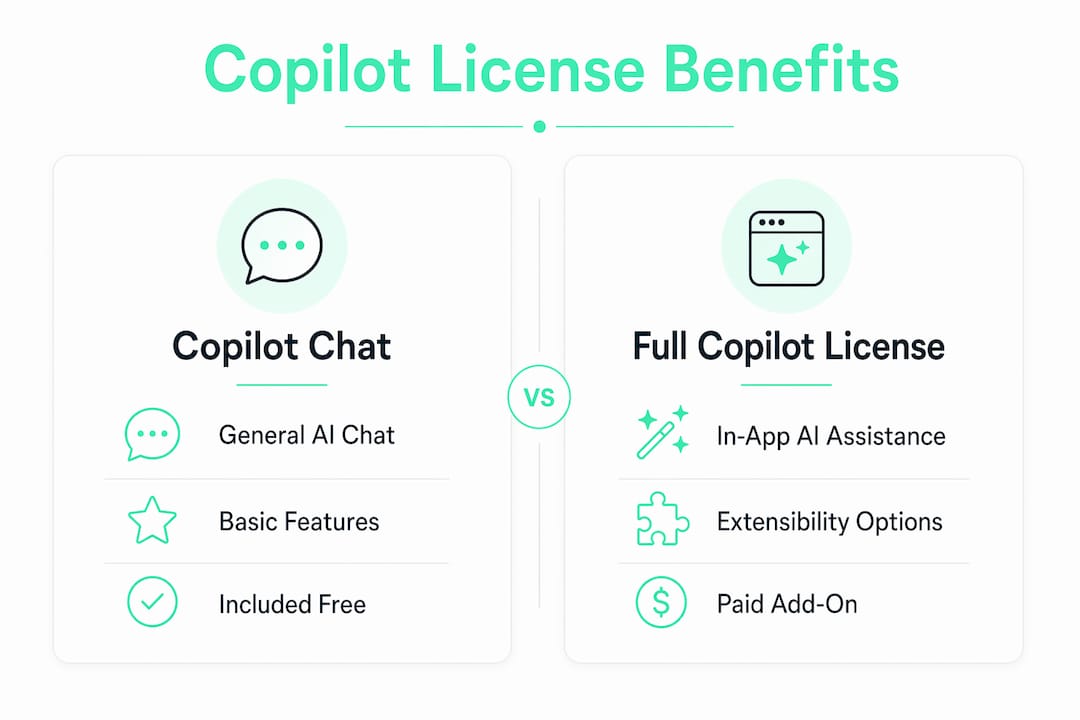
| Capability | Copilot Chat (free) | Full Copilot license |
|---|---|---|
| General AI chat | Yes | Yes |
| In-app AI in Word, Excel, PowerPoint | No | Yes |
| Microsoft Graph data access | No | Yes |
| Meeting summaries in Teams | No | Yes |
| Copilot agent creation | No | Yes |
| Pay-as-you-go extensibility features | No | Additional cost |
Pay-as-you-go billing applies to extensibility scenarios, such as custom agents that connect to external data sources or third-party APIs. These costs sit on top of the fixed per-user subscription and can surprise firms that build out complex automation workflows without budgeting for consumption charges.
Best practices for managing Copilot licenses and maximizing ROI
The most common waste pattern in Copilot deployments is assigning licenses to users who never activate the features. Auditing actual user behavior before and after assignment is the single most effective way to control costs and prove value.
Practical management practices for IT managers and business leaders include:
- Segment users by role before purchasing. Paralegals, senior associates, and partners have different AI use cases. Assign licenses where the productivity gain is measurable, not where it feels logical.
- Use Microsoft 365 usage reports. The admin center provides Copilot adoption reports that show feature activation rates by user. Review these monthly and reclaim licenses from inactive accounts.
- Set a 90-day review cycle. Licenses assigned during a pilot that go unused after 90 days should be reassigned. Holding idle licenses at $30 per user per month adds up quickly across a 50-person firm.
- Educate users on specific workflows, not general AI. Telling a team that “Copilot can help you work faster” produces no behavior change. Showing a billing associate exactly how to use Copilot in Outlook to draft client update emails produces measurable time savings.
- Budget separately for extensibility. If your firm plans to build custom agents or integrate Copilot with practice management software, account for pay-as-you-go charges in addition to the per-user subscription.
- Communicate the Copilot user agreement terms clearly. Users need to understand what organizational data Copilot can access and how Microsoft handles that data. Transparency reduces resistance and accelerates adoption.
Pro Tip: Zera uses telemetry-based measurement to identify dormant Copilot licenses inside professional services firms. This approach pinpoints exactly which users are generating value and which seats are idle, giving IT managers the data they need to make reassignment decisions without guesswork.
Licensing thresholds also affect which product you should purchase. If your firm is approaching 300 users, plan your Copilot licensing strategy before crossing that threshold. Migrating from the Business add-on to the standard enterprise add-on mid-year creates administrative friction and potential billing gaps.
Key Takeaways
A Microsoft 365 Copilot user license is always a separate paid add-on, and firms that treat it as included in their base enterprise plan will face procurement delays and budget shortfalls.
| Point | Details |
|---|---|
| Always a paid add-on | Copilot is never included in E3, E5, or Business plans; purchase it separately at $30/user/month. |
| Base plan eligibility matters | Only E3, E5, Business Basic, Standard, and Premium qualify as prerequisite subscriptions. |
| Audit before you assign | Review actual user behavior before bulk assignment to avoid paying for idle licenses. |
| Guest users are excluded | External consultants and cross-tenant users cannot receive a Copilot license assignment. |
| Phased rollout outperforms bulk deployment | Pilot groups generate adoption data that makes full deployment faster and more cost-effective. |
The licensing assumption that costs firms the most
The single most expensive mistake I see professional services firms make is assuming Microsoft 365 E5 includes Copilot. It does not. E5 is a prerequisite, not a bundle. Firms that discover this after budget approval face a procurement cycle they did not plan for, and Copilot rollout stalls for months.
The second mistake is buying licenses for everyone at once. I understand the appeal. You want the whole firm on AI, and bulk purchasing feels decisive. But a 100-person firm that assigns 100 licenses on day one and sees 30% activation after 60 days has just spent $21,600 on features nobody used. A phased approach with real usage data behind it produces better outcomes and costs less to correct when something does not work.
The guest user restriction is also underestimated in professional services. Law firms and consulting practices routinely bring in external specialists who work inside the firm’s Microsoft 365 environment. Those users cannot hold a Copilot license. Misconceptions about licensing like this one cause procurement delays and frustrated partners who expected AI access for their entire project team. Know the boundary before you promise it.
How Zera helps professional services firms get real value from Copilot
Professional services firms that invest in Microsoft 365 Copilot without a structured adoption plan consistently underuse their licenses. Zera specializes in fixing exactly that problem.
Zera measures actual Copilot usage through telemetry, identifies dormant licenses, and rebuilds workflows so that AI features generate recoverable billable time. Led by Cale Werake, the team combines enterprise governance expertise with hands-on automation using tools like Python and n8n. If your firm is paying for Copilot adoption consulting and not seeing measurable ROI, Zera delivers a data-driven path from idle licenses to productive daily use, without a lengthy change management process. Learn more about Zera’s Copilot consulting services.
Related: Co Pilot Coaching for Microsoft 365: 2026 Guide
FAQ
What is a Microsoft 365 Copilot user license?
A Microsoft 365 Copilot user license is a paid add-on that activates AI-powered features inside Word, Excel, PowerPoint, Outlook, and Teams. It costs $30 per user per month on an annual commitment and requires a qualifying base Microsoft 365 subscription.
Which Microsoft 365 plans qualify for the Copilot add-on?
Qualifying plans include Microsoft 365 E3, E5, Business Basic, Business Standard, and Business Premium. Without one of these active subscriptions, you cannot purchase or assign the Copilot add-on.
Can guest users be assigned a Copilot license?
No. Microsoft does not support assigning Copilot licenses to guest or cross-tenant accounts. External consultants working inside your Microsoft 365 environment will not have access to Copilot features.
What is the difference between Copilot Chat and the full Copilot license?
Copilot Chat is a basic AI chat tool included free in many Microsoft 365 plans. The full Copilot user license adds in-app AI across core Microsoft 365 apps, Microsoft Graph data access, and the ability to create and deploy Copilot agents.
How do you assign a Microsoft 365 Copilot license?
Licenses are purchased and assigned through the Microsoft 365 admin center under Billing, then Licenses. Use the Copilot License Details diagnostic tool to verify that each user meets eligibility requirements before activating access.