
Microsoft 365 Copilot with iManage connects your firm’s governed document repository directly to Copilot’s generative AI, so every answer Copilot produces is grounded in your actual matters, contracts, and emails rather than generic training data. The integration respects iManage’s existing permission model, meaning Copilot only surfaces content the signed-in user is already authorized to view.
Your first move: confirm that your iManage instance has the MCP server enabled and that your Microsoft 365 tenant supports Copilot Studio or Power Platform connectors. Then designate a service account with the narrowest folder and matter permissions your pilot scope requires.
- The iManage Work MCP connector is available in the Microsoft connector store and as a custom connector in Copilot Studio, and it defaults to read-only access.
- Documents stay inside iManage. No bulk export, no replication to an external index.
- Supported operations include search, fetch, get_document_profile, download_document, and get_document_versions.
- Regional exclusions apply: US Government GCC, GCC High, DoD, and China Cloud tenants are not supported.
Pro Tip: Before your first test query, verify your iManage subdomain URL. The generic cloudimanage.com endpoint will fail for custom tenant instances. You need the exact format: https://[yoursubdomain].cloudimanage.com/mcp/work.
Table of Contents
- What does the iManage–Copilot integration actually do?
- What licenses and prerequisites do you need before deploying?
- How do you deploy the connector, step by step?
- How does the integration preserve iManage security and governance?
- What are the known limits and how do you fix common errors?
- How do you run a pilot that proves ROI?
- Key Takeaways
- What the connector docs won’t tell you about adoption
- How Gozera helps you deploy Copilot with iManage and measure the return
- Useful sources for your deployment team
What does the iManage–Copilot integration actually do?
The integration grounds Copilot responses in content stored inside iManage Work, covering documents, emails, and matter workspaces. When a user asks Copilot a question, the MCP connector queries iManage in real time, retrieves relevant content the user is permitted to see, and passes it to Copilot as context. The answer reflects your firm’s actual work product, not a generic language model response.

Architecturally, you have three paths:
| Deployment Path | How It Works | Best For |
|---|---|---|
| Connector store (prebuilt) | Add iManage Work MCP directly from Microsoft’s connector gallery | Fastest setup; standard subdomain tenants |
| Custom MCP connector in Copilot Studio | Configure a custom MCP server URL with your exact subdomain | Custom subdomains, bespoke auth flows |
| Federated vs. indexed | MCP uses federated real-time access; no data sync required | Governance-sensitive environments |
The Microsoft Connectors gallery lists both Microsoft-built and partner-built connectors, including the iManage Work connector, and distinguishes between federated real-time access (what MCP provides) and synced/indexed models that copy data out of iManage.
Practical use cases that legal and professional-services teams are already running:
- Matter research: Ask Copilot to surface relevant precedents or prior work product from a specific matter workspace.
- Document summarization: Get a plain-language summary of a lengthy contract or due diligence report without leaving Teams or Outlook.
- Clause extraction: Query for specific clause types (indemnification, limitation of liability) across a set of agreements.
- Drafting assistance: Reference governed templates and prior drafts stored in iManage while generating a new document.
- Version history review: Retrieve document version history to understand how a contract evolved before a negotiation.
The read-only default is not a limitation for these use cases. It is a deliberate governance choice: Copilot reasons over your content without modifying it.
What licenses and prerequisites do you need before deploying?
Missing a license or a misconfigured service account is the most common reason deployments stall. Confirm every item below before your first configuration session.
Microsoft-side requirements:
| Requirement | Details |
|---|---|
| Microsoft 365 Copilot license | Required for each user who will query iManage content through Copilot |
| Copilot Studio or Power Platform Premium | Required if deploying via custom MCP connector; check tenant entitlements |
| Tenant admin access | Needed to add connectors and authorize OAuth2 flows |
| Supported cloud region | US Gov GCC, GCC High, DoD, and China Cloud are excluded |
iManage-side requirements:
| Requirement | Details |
|---|---|
| iManage Work subscription | Active cloud subscription required; on-premises configurations vary |
| MCP server enabled | Must be activated in your iManage environment by your iManage admin |
| Exact environment subdomain | You need the precise subdomain, not the generic cloudimanage.com URL |
| Service account | Least-privilege account scoped to the matters and folders in your pilot |
The four roles that must be in the room before you start:
- Tenant admin: Adds the connector and manages OAuth2 authorization.
- iManage admin: Enables MCP, confirms the subdomain, and creates the service account.
- Security/compliance lead: Reviews permission scoping and audit requirements.
- Practice lead: Defines pilot scope, selects the matters, and owns success metrics.
Pro Tip: Check your iManage subscription tier before scheduling the configuration session. Not all iManage plans include MCP server access by default. Confirming this with your iManage account rep takes one email and saves a week of delay.
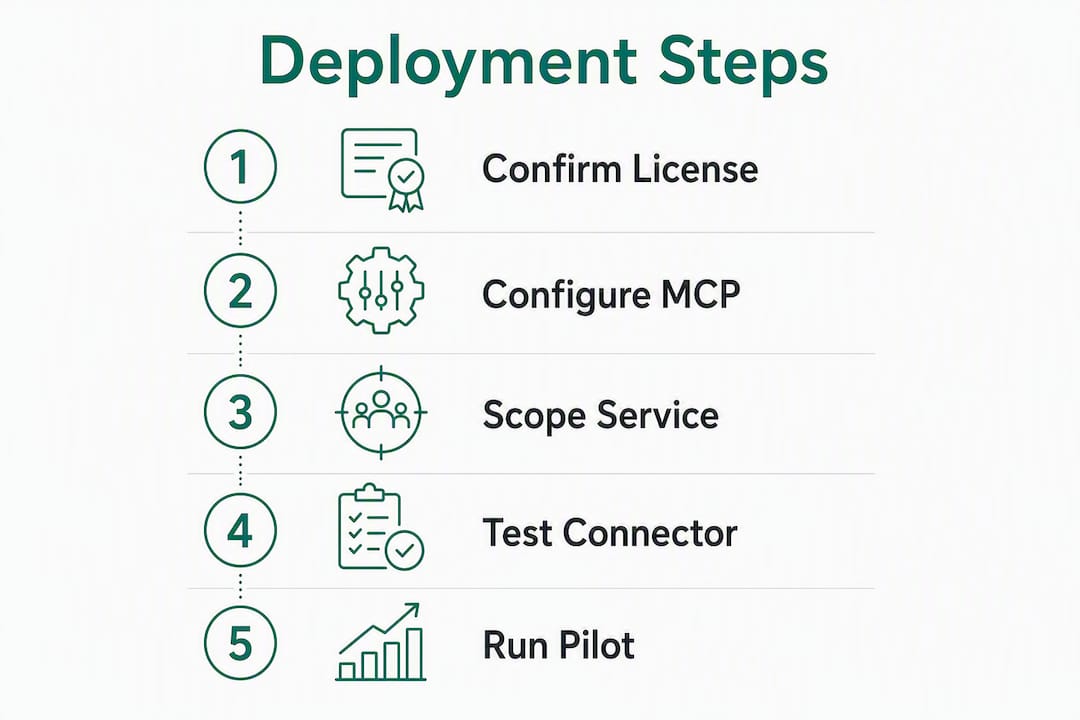
How do you deploy the connector, step by step?
Connector store path (faster, simpler)
Use this when your iManage instance runs on a standard subdomain and you want the fastest path to a working test query.
- Sign in to the Microsoft connector store or the Copilot Studio agent builder.
- Search for “iManage Work MCP” and select the prebuilt connector.
- Enter your exact iManage environment URL (e.g., https://yourfirm.cloudimanage.com/mcp/work).
- Authorize the OAuth2 connection using the service account credentials.
- Add the iManage tool to your Copilot agent.
- Run a test search query against a known matter to confirm the connection.
Custom MCP connector path (Copilot Studio)
Use this when you have a custom subdomain, need bespoke authentication flows, or are building a more advanced agent scenario.
- In Copilot Studio, navigate to Settings > AI capabilities > Model Context Protocol.
- Select Add MCP server and enter your precise subdomain URL: https://[yoursubdomain].cloudimanage.com/mcp/work.
- Configure OAuth2 with the service account. Do not use a personal user account here.
- Add the connector as a tool in your agent definition.
- Save and publish the agent to a test environment.
- Run the testing checklist below before promoting to production.
Testing checklist before go-live:
- Verify that search results respect permission scoping (a user should not see matters they are not assigned to).
- Run fetch and get_document_profile operations on at least three document types (Word, PDF, email).
- Test get_document_versions to confirm version history retrieval works.
- Test download_document and verify file integrity.
- Check connector invocation logs in Copilot Studio for errors or latency spikes.
- Confirm that the service account cannot write, delete, or modify any iManage content.
The connector store path is faster and requires less configuration. The custom MCP path gives you control over the exact URL, auth parameters, and agent behavior, which matters for firms with non-standard iManage environments or complex matter structures.
How does the integration preserve iManage security and governance?
The short answer: Copilot only returns what the signed-in user is already allowed to see. The iManage MCP connector defaults to read-only access, and the service account’s folder and matter permissions define the outer boundary of what Copilot can retrieve. If a user lacks access to a matter in iManage, Copilot will not surface documents from that matter, regardless of how the query is phrased.
iManage’s cloud-native Azure architecture supports co-authoring, journaling, and auditable workflows alongside Copilot. That means the integration does not create a shadow copy of your data or bypass your existing records management controls.
Key governance practices to implement before pilot start:
- Least-privilege service account: Scope the account to only the workspaces and matter types included in your pilot. Expand scope deliberately as the pilot proves out.
- Enable journaling and audit trails: iManage’s journaling feature logs document access events. Confirm it is active before Copilot queries begin so you have a complete audit record.
- Integrate connector logs with your SIEM: Export Copilot Studio connector invocation logs to your security information and event management platform for ongoing monitoring.
- No bulk replication: MCP provides federated real-time access, so documents remain inside iManage rather than being copied to an external index. This eliminates a significant class of data-leakage risk that older custom API integrations carried.
- Map responsibilities before day one: Assign explicit ownership of connector logs (IT), audit trail review (records management), and user access review (security) before the pilot starts.
Pro Tip: Run a permission-boundary test on day one of the pilot: log in as a user who is explicitly excluded from a specific matter and confirm that Copilot returns no results from that matter. Document the test result. Your compliance team will ask for it.
What are the known limits and how do you fix common errors?
Documented limitations
- Regional exclusions: The connector is not available in US Government GCC, GCC High, DoD, or China Cloud tenants. If your firm operates in one of these environments, the MCP connector is not currently an option.
- Read-only by default: Copilot cannot create, edit, or delete iManage content through this connector. That is by design, but it means any workflow requiring write-back to iManage needs a separate integration layer.
- Preview status: The iManage Work MCP connector is currently in preview, which means Microsoft may change supported operations or throttling limits before general availability.
Throttling and API limits
The connector documentation publishes throttling limits on API calls per connection. Large queries or bulk summarization tasks can hit these ceilings, especially during a pilot when multiple users run concurrent queries.
| Symptom | Likely Cause | Recommended Fix |
|---|---|---|
| Queries return partial results | Throttling ceiling reached | Batch queries; add pagination logic |
| Authentication failure at setup | Wrong subdomain in MCP URL | Use exact subdomain URL format |
| Connector returns no results | MCP server not enabled in iManage | Contact iManage admin to activate MCP |
| Service account access too broad | Over-permissioned service account | Rescope to pilot matters only |
| Connector invocation errors | Insufficient service account permissions | Review and adjust folder-level access |
Diagnostics checklist
- Check Copilot Studio connector invocation logs first. Most authentication and throttling errors appear here within seconds of a failed query.
- Cross-reference with iManage MCP server logs to confirm whether the request reached iManage at all.
- Verify the exact subdomain URL in your connector configuration. A single character error causes a silent authentication failure.
- Confirm the service account has not been locked or had its permissions changed since initial setup.
How do you run a pilot that proves ROI?
Pilot design
Pick 2–3 teams where document-heavy tasks consume measurable time. Litigation, tax, and advisory practices are strong candidates because their work product lives almost entirely in iManage and their time is directly billable.
Define the tasks you will test before the pilot starts:
- Document summarization (e.g., summarize a 40-page deposition transcript in under 60 seconds).
- Clause extraction (e.g., pull all indemnification clauses from a set of vendor agreements).
- Matter research (e.g., surface prior work product on a specific legal issue from the last three years).
Establish baseline metrics for each task: how long does it take today without Copilot? That number is your ROI denominator.
Suggested 6–8 week timeline
- Weeks 1–2: Planning and configuration. Validate prerequisites, enable MCP, create service account, configure connector, run internal test queries.
- Weeks 3–4: Controlled user testing. Onboard 5–10 pilot users per team, run scripted test queries, capture telemetry.
- Weeks 5–6: Early adoption and feedback. Expand to full pilot group, run weekly feedback sessions, log issues.
- Weeks 7–8: ROI measurement and reporting. Compare time-on-task metrics against baseline, calculate time-to-first-draft reduction, assess license utilization.
Metrics that matter
- Query volume: How many Copilot queries are being run against iManage content per user per week?
- Time-to-first-draft reduction: Minutes saved per document summarization or drafting task.
- License utilization: What percentage of licensed users are actively using the iManage connector?
- User satisfaction score: Simple 1–5 rating collected weekly during the pilot.
Pro Tip: Ask your iManage account team and Microsoft support contact for their SLA commitments on MCP connector uptime and their roadmap for moving the connector from preview to general availability. Both answers affect how you scope the pilot and what you promise to practice leaders.
For a broader view of Copilot workflows for professional services, including time-savings benchmarks and workflow rebuild patterns, Gozera’s 2026 guide covers the measurement methodology in detail.

Key Takeaways
Deploying Copilot with iManage delivers permission-aware, auditable generative answers grounded in your firm’s governed content, but only if the MCP server is enabled, the service account is correctly scoped, and the pilot is measured against a documented baseline.
| Point | Details |
|---|---|
| Validate MCP support first | Confirm iManage MCP is enabled and your exact subdomain URL before any connector configuration. |
| Least-privilege service account | Scope the service account to pilot matters only; over-permissioning exposes content Copilot should not surface. |
| Regional exclusions apply | US Gov GCC, GCC High, DoD, and China Cloud tenants cannot use this connector currently. |
| Measure against a baseline | Capture time-on-task before the pilot starts so ROI claims are defensible, not estimated. |
| Gozera accelerates deployment | Gozera’s pilot sprint covers MCP configuration, service account scoping, telemetry setup, and ROI reporting for mid-market firms. |
What the connector docs won’t tell you about adoption
The technical documentation for the iManage Work MCP connector is thorough on setup steps and sparse on what actually derails deployments. In practice, the failure mode is almost never the connector itself.
The most common problem is service account scope. Firms configure the account too broadly during setup because it is faster, then discover during the pilot that Copilot is surfacing content from matters the pilot users should not see. That is not a security breach, but it is a governance failure that stops a pilot cold while the security team investigates. Scope narrowly from day one and expand deliberately.
The second surprise is matter template mismatches. iManage workspaces are organized by matter templates, and if your pilot queries are written against a template structure that does not match how your firm actually organizes matters, you will get poor results that look like a Copilot failure but are actually a metadata problem. Spend thirty minutes with your iManage admin mapping the matter structure before you write a single test query.
Cross-team coordination is where most mid-market firms underinvest. IT configures the connector, but records management owns the audit trail, security owns the permission review, and practice leaders own the success criteria. When those conversations happen in sequence rather than in parallel, a six-week pilot becomes a twelve-week one. Pull all four roles into a single kickoff call and assign explicit ownership before anyone touches a configuration screen.
The firms that get the most out of this integration treat the pilot as a workflow redesign exercise, not a technology test. The question is not “does Copilot work with iManage?” It does. The question is “which tasks, in which practice groups, at what volume, justify the license cost?” That answer requires baseline data, a scoped pilot, and someone accountable for measuring the result.
How Gozera helps you deploy Copilot with iManage and measure the return
Most firms that license Microsoft 365 Copilot see adoption plateau within the first 90 days because no one owns the workflow integration work. Gozera’s fixed-price consulting engagements are built specifically for mid-market law, accounting, and consulting firms that need the integration done right the first time, with measurable outcomes attached.
A Gozera engagement covers the full deployment cycle: MCP configuration and service account scoping, connector testing against your actual matter structure, workflow automation for gaps that Copilot alone does not close (using Python and n8n where needed), license utilization telemetry, and an ROI reporting dashboard that shows recovered billable time in hours, not percentages. The Microsoft 365 Copilot implementation guide on Gozera’s site walks through the governance checklist that underpins every engagement.
For firms that have already licensed Copilot and are watching those licenses sit idle, the audit engagement identifies dormant seats, maps them to high-value workflows, and produces a prioritized integration roadmap within two weeks. No lengthy change management program, no open-ended retainer to start.
Book a Copilot adoption audit with Gozera to confirm your iManage MCP readiness and get a scoped pilot plan with defined ROI targets.
Useful sources for your deployment team
The documentation below covers the technical setup in detail. Read the MCP connector page first if you are using the connector store path; read the iManage Docs setup guide first if you are configuring a custom MCP server in Copilot Studio.
- iManage Work MCP (Preview) — Microsoft Learn: The primary reference for supported operations, throttling limits, prerequisites, and regional availability. Start here.
- Adding the iManage Work MCP connector for Microsoft Copilot Studio — iManage Docs: Step-by-step guide for the custom MCP server path, including the exact subdomain URL format. Read this before your first Copilot Studio configuration session.
- iManage AI Strategy Accelerates with Microsoft Copilot Integrations — iManage: The vendor announcement describing the integration’s cloud-native architecture, co-authoring support, and audit-aware design.
- Connectors gallery — Microsoft 365 Copilot connectors — Microsoft Learn: The full connector gallery where admins can find the iManage Work connector and compare federated vs. indexed connector models.
For firms also evaluating document management integrations beyond iManage, the Microsoft 365 Copilot alternatives guide on Gozera’s blog covers how comparable integrations, including those built for other DMS platforms, compare on governance and deployment complexity.