
Copilot audit events land in Microsoft Purview’s Unified Audit Log (UAL) by default, and prompt/response content becomes visible separately through Purview DSPM for AI once your team enables that capture layer. If you administer Microsoft 365 Copilot, GitHub Copilot, or Security Copilot at a law firm, accounting practice, or consulting shop, this is where your investigation starts, and where most gaps get discovered too late.
Before anything else, run two checks:
- Confirm Audit (Standard) is capturing Copilot activity in your tenant and hasn’t been quietly disabled.
- Verify you hold the Purview Audit or DSPM role needed to actually view
CopilotInteractionrecords, not just the license to run Copilot itself.
Retention on many Business plans defaults to 180 days, and non-Microsoft AI auditing runs on a pay-as-you-go billing model. For SIEM-bound teams, Microsoft Sentinel is the common downstream target once records are exportable.
Pro Tip: Generate one throwaway Copilot prompt right now, then search Purview for that user and the last hour. If AccessedResources, Messages, and AppHost all show up, your logging pipeline works. If any field is missing, you have a configuration problem, not a Copilot problem.
Key Takeaways
Copilot audit visibility depends on enabling the right Purview and DSPM configurations before an incident forces the question, not after.
| Point | Details |
|---|---|
| Check Purview access first | Confirm Audit Standard is capturing CopilotInteraction events and that your role can view them. |
Prioritize AccessedResources |
This field proves exactly what files or sites Copilot touched during an interaction. |
| Enable DSPM for prompt content | Standard audit rows don’t include prompt/response text without separate DSPM or eDiscovery setup. |
| Map fields into your SIEM | Route AppHost, ClientRegion, and AccessedResources into Sentinel for correlation and alerting. |
| Get a governance baseline from Gozera | An audit sprint pairs logging configuration with adoption telemetry to show real Copilot ROI. |
Table of Contents
- Where Copilot Audit Logs Live and How to Get In
- What the Copilot Audit Schema Actually Tells You
- Running Targeted Searches and Pulling Exports
- Retention Windows, Sensitivity Labels, and Privacy Boundaries
- Feeding Copilot Logs Into a SIEM
- What Copilot Audit Logs Won’t Show You
- A Short Playbook for a Suspected Data Exposure
- Turn Audit Visibility Into Measurable Copilot ROI
- Sources
Where Copilot Audit Logs Live and How to Get In
Four surfaces matter, and most admins only know about one of them.
- Microsoft Purview Audit (UAL) captures
CopilotInteractionevents for Microsoft 365 Copilot automatically once Audit Standard is on. - Purview DSPM for AI surfaces the actual prompt and response text, but only after you configure it separately. Purview UAL alone shows that a conversation happened, not what was said.
- Security Copilot requires an explicit opt-in in owner settings before Microsoft Purview even receives its audit data. Miss this toggle, and you have zero visibility, not partial visibility.
- Copilot Studio and GitHub Enterprise’s audit log run on their own tracks. Copilot Studio activity flows into Purview audit, while GitHub Copilot events live in the GitHub organization or enterprise audit log, searchable with
action:copilotfilters.
To read your first record: sign into the Purview audit search portal, open Audit, filter activities to “Interacted with Copilot,” set a date range, and run the search.
| Role | What it unlocks | Typically granted by |
|---|---|---|
| Compliance Administrator | Full Purview Audit search access | Global admin |
| View-Only Audit Logs | Read-only search results | Compliance admin |
| DSPM for AI Data Access | Prompt/response visibility | Purview admin |
| eDiscovery Manager | Legal hold and mailbox-backed content retrieval | Global admin |
Two things trip up mid-market IT teams every time: Security Copilot’s toggle sits buried in owner settings and is off by default, and non-Microsoft AI auditing (things like third-party AI plugins) bills on a pay-as-you-go basis with its own retention clock, separate from standard Copilot events.
What the Copilot Audit Schema Actually Tells You
A single CopilotInteraction record carries more forensic value than most admins realize, but only if you know which fields to read. The Copilot audit schema documents dozens of properties; a handful do the heavy lifting.
| Field | What it shows | Investigative value |
|---|---|---|
AccessedResources |
Files/sites Copilot pulled from, with SensitivityLabelId and action type |
Proves exactly what data was exposed or read |
Messages / MessageIds |
Prompt and response identifiers | Links a conversation thread to its content (via DSPM) |
AppHost |
Surface Copilot ran in (Word, Teams, admin console) | Flags unexpected usage contexts |
ThreadId |
Groups related interactions | Reconstructs a full conversation sequence |
ModelTransparencyDetails |
Which model/version handled the request | Useful for model-behavior audits |
ClientIP / ClientRegion |
Origin of the request | Detects anomalous geography or shared credentials |
A sanitized event looks something like this:
{
  "Operation": "CopilotInteraction",
  "AppHost": "Word",
  "ThreadId": "b3f1...",
  "AccessedResources": [
    {"Name": "Q4_Client_Contract.docx", "SensitivityLabelId": "highly-confidential", "Action": "Read"}
  ],
  "Messages": [{"MessageId": "msg-0091", "IsPrompt": true}]
}
You can also query this schema directly through the Office 365 Management API or Microsoft Graph, useful when you need programmatic pulls rather than one-off UI searches. The AccessedResources array is worth reading closely: it separates content Copilot used to “ground” its answer from content the user typed directly, a distinction that matters when you’re deciding whether a data leak originated from Copilot’s retrieval or from the person prompting it.
AccessedResourcesis the single highest-value field in the entire schema, because it names the exact file or site Copilot touched, alongside its sensitivity label. That’s the difference between suspecting a data exposure and proving one.
Watch for XPIADetected and PolicyDetails too. Both flag potential prompt injection or policy-blocked actions during triage, often before a human reviewer would catch the pattern manually.
Running Targeted Searches and Pulling Exports
Start in the Purview UI: Audit → Workload filter set to Copilot → narrow by user and date range → run search.
For repeatable or scripted work, use PowerShell against the Office 365 Management API or Graph endpoints, including the Copilot usage report APIs for adoption metrics alongside security queries.
- Search by user + Copilot workload for individual incident review.
- Filter by
SensitivityLabelIdinsideAccessedResourcesto surface high-risk file touches. - Export results to CSV directly from the Purview search results pane for evidence packages or audit committee reports.
- Route prompt/response retrieval through DSPM or eDiscovery when the standard audit row isn’t enough.
A community-documented smoke test that works well: pick one user, generate a single interaction, search a narrow window, and confirm AccessedResources, Messages, and AppHost all populate. If they don’t, fix the pipeline before you trust it for a real investigation.
Pro Tip: Run your smoke test against a test account, not a partner’s mailbox. Real client data has no business in a configuration check.
Roughly 180 days is the default retention window on many Business plans before records age out, which is exactly why export-and-archive habits matter more than most teams assume.
Retention Windows, Sensitivity Labels, and Privacy Boundaries
Audit Standard keeps Copilot and AI application events for a default 180 days on many Business plans, while E5 tenants often carry longer or configurable retention. Non-Microsoft AI auditing runs on separate pay-as-you-go billing, with its own retention behavior for AIAppInteraction and ConnectedAIAppInteraction events, distinct from standard CopilotInteraction records.
- Sensitivity labels travel with
AccessedResources, so a blocked or restricted access attempt shows up inPolicyDetailsandStatus. - Prompt and response content lives in a hidden folder inside the user’s Exchange Online mailbox, and retrieving it properly requires Purview eDiscovery permissions, not just DSPM viewing rights.
- Legal hold on a mailbox preserves that hidden content the same way it preserves email, which matters the moment litigation or a regulatory inquiry touches a client matter.
Pro Tip: If your firm handles privileged client communications, set legal hold policies before an incident, not during one. Retroactive holds can’t recover what already aged out.
Feeding Copilot Logs Into a SIEM
Once logging is confirmed, the real value comes from correlation, not isolated searches. Purview export flows, Office Management API pulls, or Graph reports can feed a blob store that Microsoft Sentinel or another SIEM ingests, a pattern Microsoft’s own guidance describes for Security Copilot specifically.
| SIEM field | Copilot schema source |
|---|---|
event.time |
CreationTime |
host.application |
AppHost |
asset.resource |
AccessedResources[].SiteUrl |
user.id |
UserId |
geo.region |
ClientRegion |
Alert rules worth building early:
- Copilot accessed a resource carrying a “highly confidential” sensitivity label.
AppHostshows Copilot running somewhere unexpected, like an admin console rather than Word or Teams.MessagesflagsXPIADetectedorJailbreakDetectedas true.- A single user’s
AccessedResourcescount spikes well past their normal baseline.
Tune thresholds against your firm’s actual usage pattern before going live. A litigation team pulling dozens of documents a day looks nothing like a bookkeeper doing the same, and treating both the same way just buries you in false positives.
What Copilot Audit Logs Won’t Show You
Standard audit rows don’t include prompt or response text. That lives behind DSPM or eDiscovery, not in the row you first pull. Third-party or unmanaged AI tools that resemble Copilot may also bill and log differently, and won’t necessarily surface in a default Copilot search.
GitHub Copilot’s local IDE plugin is the biggest blind spot. Prompts typed directly into VS Code often never reach the enterprise audit log without additional endpoint telemetry, meaning a developer could paste proprietary code into a local Copilot session and leave no organizational trace.
- Instrument endpoint telemetry where local Copilot usage is a realistic exposure path.
- Enable DSPM capture before you need it, not after an incident forces the question.
- Correlate
CopilotInteractionevents against DLP, proxy, and endpoint logs rather than treating any single log as complete on its own.
When AccessedResources points to an internal URL with no clear owner, or MessageIds exist but content is gated behind permissions you don’t hold, escalate rather than guess. Ambiguous entries are exactly where governance teams either catch something real or waste a week chasing a dead end.
A Short Playbook for a Suspected Data Exposure
Sample queries worth keeping on hand: search CopilotInteraction by user across a 24-hour window, filter by SensitivityLabelId set to your highest classification, and pull all events where AppHost doesn’t match expected applications.
- Triage. Validate the event and pull the full
AccessedResourceslist. - Contain. Revoke access where warranted and snapshot the evidence before anything changes.
- Investigate. Cross-reference with DLP and endpoint logs to build the full picture.
- Remediate. Correct permissions and notify affected clients or partners if required.
- Review. Document what happened and adjust policy so it doesn’t repeat.
| Escalation trigger | Threshold |
|---|---|
| Sensitivity label | Highest classification touched |
| Resource count | Unusually high AccessedResources volume for that user |
| Security flag | JailbreakDetected or XPIADetected = true |
When to Bring In a Specialist
Most firms can run the smoke test and basic searches internally. Bring in outside help when you’re facing multi-user exposure of sensitive data, a regulatory inquiry, or an inability to retrieve prompt/response content that a court or client demands.
A focused engagement typically delivers: a full audit of your current Purview logging configuration, a SIEM connector with field mapping already built, an incident playbook tailored to your firm’s data types, DSPM policy configuration, and a documented evidence-export procedure for legal requests.
- Audit sprint: 1 to 2 weeks to assess current state.
- Integration sprint: 2 to 6 weeks for SIEM and DSPM buildout.
- Optional monthly retainer for ongoing monitoring and adoption metrics.
Gozera works specifically with mid-market law, accounting, and consulting firms on exactly this kind of engagement, pairing governance configuration with the adoption telemetry that shows whether Copilot licenses are actually earning their cost.
Why this matters more at professional-services firms
Client confidentiality isn’t abstract in a law or accounting firm. Every AccessedResources entry pointing at a client matter file is also a billable-hour and malpractice exposure question. Run the smoke test today. Export a CSV of AccessedResources for one high-sensitivity user and confirm the coverage is real before you assume it is.
Turn Audit Visibility Into Measurable Copilot ROI
Knowing where your Copilot audit logs live solves a compliance problem. It doesn’t solve the bigger one most mid-market firms actually have: licenses sitting idle while partners assume adoption is happening. Gozera builds on the same telemetry this article walks through to show exactly which Copilot licenses are earning their cost and which ones aren’t.
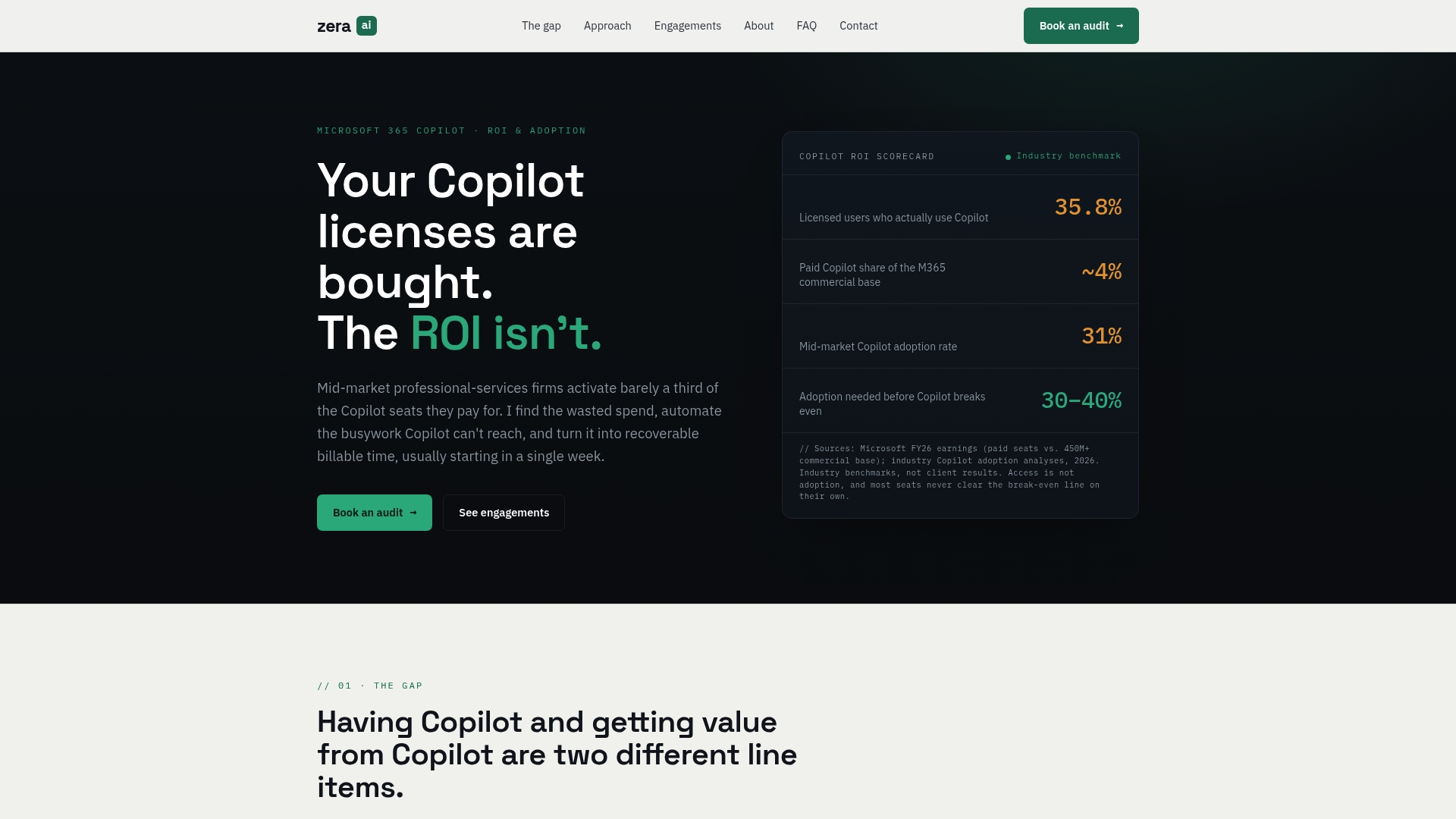
A typical audit sprint delivers:
- A usage and audit-log baseline showing real Copilot activity by user and practice group.
- Identification of dormant licenses draining budget with zero adoption.
- SIEM and DSPM policy configuration mapped to your existing security stack.
- A workflow rebuild plan targeting the highest-value use cases in your firm, not generic AI use cases.
If your firm has 50 to 500 employees and Copilot licenses that may or may not be paying for themselves, start with a Copilot audit and adoption consulting engagement built around exactly the logging and governance groundwork covered here.