
Yes, you can integrate Microsoft Copilot with CRM systems. Copilot works natively inside Dynamics 365 (backed by Dataverse) and extends to external CRMs like Salesforce, ServiceNow, and Zendesk through Microsoft 365 Copilot connectors, embedded Service widgets, or custom connectors built in Copilot Studio.
Your immediate next steps:
- Check licensing and region availability in the Power Platform admin center before touching any connector settings. Missing a license SKU or being outside a supported region is the most common reason pilots stall on day one.
- Choose your integration path: native Copilot in Dynamics 365 if you’re already on that platform, or the connector/embedded-agent route for Salesforce and other external CRMs.
- Stand up a limited pilot group of 10–20 users before any org-wide rollout. Validate identity mapping through Microsoft Entra ID, confirm field-level security (FLS) settings, and capture baseline telemetry before you expand.
Three entities you need to know from the start: Copilot in Dynamics 365 (the native experience), the Salesforce CRM connector (the fastest path to indexing Salesforce records into Microsoft 365), and Microsoft Entra ID (the identity layer that controls what each user can see across CRM boundaries).
Pro Tip: Don’t try to enable every Copilot feature at once. Pick one high-value use case — record summarization or meeting prep — and prove ROI on that before expanding scope.
Key Takeaways
Copilot integrates natively with Dynamics 365 and extends to Salesforce, ServiceNow, and Zendesk via connectors, embedded widgets, or custom agents — but ROI depends on choosing the right path, validating governance before launch, and measuring adoption with real telemetry.
| Point | Details |
|---|---|
| Choose the right integration path | Native Dynamics 365 for fastest deployment; Salesforce connector for read-only indexing; embedded widget or custom connector for write-back. |
| Validate licensing and region first | Missing license SKUs or unsupported Azure OpenAI regions are the top pilot blockers; check the Power Platform admin center before any configuration. |
| Identity mapping is non-negotiable | Configure Microsoft Entra ID identity mapping before enabling any connector; skipping it causes empty results or cross-user data exposure. |
| Instrument telemetry from day one | Capture active users, queries per user, and time-to-first-answer during the pilot to build a defensible ROI calculation for stakeholders. |
| Gozera accelerates time-to-ROI | Gozera’s fixed-price audits and workflow integration engagements deliver baseline-to-post-pilot ROI reporting for mid-market professional services firms. |
Table of Contents
- Which integration path fits your CRM environment?
- What Copilot actually does inside a CRM
- Prerequisites and licensing before you start
- How Salesforce, ServiceNow, and Zendesk connect to Copilot
- Admin setup: the step-by-step configuration sequence
- Data residency, privacy, and governance controls
- Pilot planning and a realistic rollout timeline
- Troubleshooting common integration problems
- How to measure Copilot adoption and prove ROI
- What most implementations get wrong
- Gozera turns Copilot licenses into measurable billable time
- Sources
Which integration path fits your CRM environment?
There are four distinct technical approaches to Copilot integration with CRM, and picking the wrong one costs weeks of rework.
Path A: Native Copilot in Dynamics 365. If your CRM is Dynamics 365, this is the default choice. Copilot runs directly on Dataverse, which means no connector configuration, no identity mapping complexity, and full read/write capability from day one. Features like record summarization, email assist, and meeting prep are available out of the box.
Path B: Microsoft 365 Copilot connectors (index-and-search). The Salesforce CRM connector indexes core Salesforce objects — Account, Contact, Opportunity, Lead, Case — so users can discover CRM content inside Outlook, Teams, and SharePoint without leaving Microsoft 365. This is a read-only path. It’s fast to deploy and low-risk, but it does not write back to Salesforce.
Path C: Embedded Copilot Service widget / Direct Line. Microsoft Copilot for Service can be embedded directly into a third-party CRM desktop console using a preconfigured widget and CTI adapter. Agents get AI assistance inside their existing CRM interface. This path requires more configuration (named credentials, CTI adapter URL, Apex classes for Salesforce), but it delivers the richest in-app experience.
Path D: Custom connector or agent via Copilot Studio. For write-back, agentic actions, or CRMs not covered by a prebuilt connector, you build a custom connector using the Copilot connectors API or Graph connectors, often with Azure middleware for secure write operations. This is the highest-effort path and the one that delivers the most operational value once it’s running.
| Dimension | Path A: Native Dynamics 365 | Path B: Connector (index) | Path C: Embedded widget | Path D: Custom connector |
|---|---|---|---|---|
| Implementation speed | Fast | Medium duration | Medium-high duration | Slow, several weeks |
| Read capability | Full | Full (indexed objects) | Full (via CRM API) | Configurable |
| Write capability | Full | None | Limited | Full (with middleware) |
| Security surface | Low (Dataverse native) | Medium (FLS risk) | Medium (named credentials) | High (custom auth) |
| Admin skill required | Power Platform admin | M365 admin + connector config | CRM admin + CTI config | Developer + architect |
| ROI timing | Immediate | Few weeks post-index | Several weeks | A few months |
Pro Tip: Start with Path B (read-only connectors) for a fast win. Reserve write-back and agentic actions for a second phase after you’ve completed a thorough security review of your permission model.
What Copilot actually does inside a CRM
The feature set matters because it determines which user roles benefit most and which workflows to redesign first.
Copilot in Dynamics 365 Sales delivers these core capabilities natively:
- Record summarization: a plain-language summary of an account, opportunity, or case without opening every related record
- Recent changes / catch-up: surfaces what changed on a record since you last viewed it
- Meeting preparation: pulls relevant account data, open opportunities, and recent interactions before a call
- Email assist: drafts context-aware emails using CRM record data
- Case summaries and resolution notes: auto-generates a summary of a support case and a draft resolution note
- Knowledge retrieval: queries SharePoint and internal knowledge bases to surface relevant articles during a case
- Cross-app news enrichment: pulls external news about an account into the record view
For sellers, meeting prep is the highest-ROI feature. Instead of spending significant time pulling together account history before a call, a seller gets a structured brief in seconds. For service agents, auto-generated case resolution notes cut the time spent on after-call work. For managers, pipeline summaries give a snapshot of deal health across the team without running manual reports.
The real business case for mid-market professional services firms isn’t any single feature. It’s the reduction in context switching — the constant movement between CRM, Outlook, Teams, and SharePoint that fragments attention and erodes billable time. When Copilot surfaces CRM data inside the tools people already use, that switching drops and recoverable time goes up.
Prerequisites and licensing before you start
Run this checklist before touching any admin settings. Skipping it is the single most reliable way to delay your pilot by two weeks.
License requirements:
- Copilot in Dynamics 365 Sales requires a Dynamics 365 Sales Enterprise or Premium license plus a Microsoft 365 Copilot add-on (check the current Dynamics 365 licensing guide for exact SKU combinations, as these change with each wave release).
- Microsoft Copilot for Service requires its own license and a base Microsoft 365 license.
- The Salesforce CRM connector requires Microsoft 365 Copilot licenses for the users who will query indexed content.
- Admin roles needed: Power Platform admin, Dynamics 365 System Administrator, and Microsoft 365 global admin (or delegated admin with connector permissions).
Platform prerequisites:
- Dataverse is required for all native Dynamics 365 Copilot features. If your Dynamics environment isn’t backed by Dataverse, that’s a migration task before anything else.
- Azure OpenAI availability: some Copilot features depend on Azure OpenAI services, which are not available in every region. Check the Power Platform admin center for your environment’s region status and whether cross-region data movement must be enabled.
- Microsoft Entra ID must be configured for identity mapping if you’re connecting an external CRM. Users’ Microsoft 365 identities need to map to their CRM identities for Copilot to return only the records they’re authorized to see.
Rollout-readiness checklist:
- Confirm all target users have the correct license SKUs assigned in the Microsoft 365 admin center.
- Verify your Dynamics 365 environment is Dataverse-backed (Settings > Advanced Settings > System).
- Check region availability and Azure OpenAI service status in the Power Platform admin center.
- Confirm Microsoft Entra ID is configured and user identity mapping is complete.
- Create a dedicated pilot security group (10–20 users) for staged rollout.
- Document your current FLS settings in Salesforce before enabling any connector.
- Set up a test tenant or sandbox environment to validate connector behavior before production.
- Define your opt-in/opt-out governance policy for Copilot data movement.
How Salesforce, ServiceNow, and Zendesk connect to Copilot
Each external CRM has a slightly different integration story, and the technical constraints vary enough that it’s worth understanding them before you commit to an approach.
Salesforce has the most mature integration path. You have two options: the Salesforce CRM connector (index-and-search, read-only) or the embedded Copilot Service widget using Direct Line and CTI integration. The connector indexes Account, Contact, Opportunity, Lead, and Case objects. The embedded widget, documented step-by-step in Microsoft’s Salesforce embedding guide, puts a Copilot panel directly inside the Salesforce console using a CTI adapter URL, named credentials, and Apex classes for Direct Line connectivity.
Key constraints for Salesforce:
- FLS-restricted fields are not indexed by default. You can opt in to index them, but doing so exposes those fields to all Microsoft 365 users unless you’ve carefully reviewed access controls first.
- Custom fields require explicit mapping. They don’t appear automatically.
- API quotas matter during initial crawls. A full index of a large Salesforce org can consume a significant portion of your daily API limit.
- Identity mapping must be configured so each Microsoft 365 user maps to their Salesforce counterpart. Without this, Copilot either returns no results or returns results the user shouldn’t see.
ServiceNow and Zendesk follow a similar pattern. Microsoft Copilot for Service supports both platforms through connectors or the embedded Copilot Service experience, letting agents access case summaries, draft responses, and resolution notes without migrating to Dynamics 365. Feature availability may vary by region, and some capabilities remain in preview outside North America per Microsoft’s documentation.
Custom connectors via Copilot Studio handle CRMs not covered by prebuilt connectors. You build the connector using the Copilot connectors API or Graph connectors, then add Azure middleware if write-back is required. This path also supports plugin-based embedding for organizations that want Copilot inside a CRM desktop console without a full CTI setup.
Pro Tip: For Salesforce specifically, run a Salesforce API usage report before you start the connector crawl. If you’re already near your daily API limit, schedule the initial full crawl for off-peak hours and set incremental crawl frequency to match your actual data-change rate.
Admin setup: the step-by-step configuration sequence
This is the sequence that works. Deviating from the order — particularly enabling features before confirming identity mapping — is the most common source of “access denied” errors in production.
Step-by-step admin sequence:
- Confirm licensing and region availability. In the Microsoft 365 admin center, verify all pilot users have the correct Copilot license assigned. In the Power Platform admin center, confirm your environment’s region and whether cross-region data movement needs to be enabled for Azure OpenAI.
- Enable Copilot features in the Power Platform admin center. Navigate to Environments > [your environment] > Settings > Features. Toggle on the Copilot features relevant to your deployment. For Customer Service, use the Copilot Service admin center to enable specific capabilities and configure experience profiles.
- Create the connector or embedded instance. For the Salesforce connector, go to the Microsoft 365 admin center > Settings > Search & Intelligence > Data sources > Add a connector. Select Salesforce CRM, enter your Salesforce instance URL, configure OAuth 2.0 authentication, and set the connector display name (this is what users see in search results — make it recognizable).
- Map identities and permissions. Configure identity mapping so Microsoft Entra ID user accounts map to their Salesforce (or other CRM) counterparts. Use the minimum-privilege principle: the integration service account should have read access to only the objects you intend to index.
- Configure experience profiles and rollout scope. In the Copilot Service admin center, assign experience profiles to your pilot security group. This limits Copilot exposure to your test cohort before org-wide rollout.
- Validate in the pilot environment. Run test queries against indexed records. Verify that a user with restricted CRM permissions cannot retrieve records they shouldn’t see. Check that custom fields you mapped appear correctly.
- Staged expansion. After pilot validation, expand the security group in phases — department by department — rather than all at once.
Common rework triggers:
- Permission mapping errors (the integration account has too many or too few permissions)
- Custom fields not appearing because they weren’t explicitly included in the connector configuration
- Identity mapping mismatches causing empty results or cross-user data leakage
Pro Tip: Set the connector display name to something your users will recognize — “Salesforce Accounts” rather than “CRM Connector 1.” Discoverability in Microsoft 365 search depends on users knowing what to look for.
Data residency, privacy, and governance controls
Governance is where most mid-market firms underinvest, and it’s where the most serious compliance risks live.
Region availability and data movement. Azure OpenAI, which powers several Copilot features, is not available in every Azure region. If your Power Platform environment is in a region without Azure OpenAI coverage, you must explicitly opt in to cross-region data movement in the Power Platform admin center. That opt-in means your prompts and CRM data may be processed in a different Azure region. For law firms and accounting practices handling client confidential data, this requires a deliberate review against your data residency commitments before you enable it.
Field-level security and indexing risk. The Salesforce CRM connector deployment guide is explicit: opting in to index FLS-restricted fields can expose that data to all Microsoft 365 users unless access controls are carefully reviewed first. The default behavior excludes FLS fields from indexing. Leave that default in place until you’ve audited exactly which fields are FLS-restricted and confirmed that indexing them won’t violate your internal access policies.
Governance checklist:
- Apply the minimum-privilege principle to all integration service accounts. The account used to crawl Salesforce should have read access to indexed objects only, with no write permissions.
- Enable audit logging in both the Power Platform admin center and Salesforce before the pilot starts. You need a record of what Copilot queried and when.
- Document your opt-in decisions for cross-region data movement and FLS indexing. These decisions should be reviewed by your security and compliance team, not made unilaterally by the CRM admin.
- Configure staged opt-ins: enable features for the pilot group first, review audit logs after two weeks, then expand.
- Train pilot users on what Copilot can and cannot access, and establish a process for reporting unexpected data exposure.
- For professional services firms, add a specific check: confirm that client matter data stored in CRM fields is not being indexed and surfaced to users who don’t have matter-level access.
Pilot planning and a realistic rollout timeline
Budget this correctly and you avoid the most common failure mode: a pilot that runs indefinitely because no one defined what “done” looks like.
Suggested milestones and effort:
- Environment prep (Week 1–2): IT + Power Platform admin. Confirm licensing, region, Dataverse status, and Entra ID configuration. Estimated effort: 8–16 hours.
- Connector setup and identity mapping (Week 2–3): CRM admin + security team. Configure OAuth 2.0, run initial crawl, validate identity mapping. Estimated effort: 16–24 hours.
- Pilot training and enablement (Week 3–4): IT + trainers. Onboard 10–20 pilot users, run a 60-minute enablement session, distribute a one-page quick-reference guide. Estimated effort: 8–12 hours.
- Feedback loop and telemetry review (Week 4–6): IT + business owner. Collect qualitative feedback surveys, review Copilot admin logs and Microsoft 365 telemetry, identify adoption blockers. Estimated effort: 4–8 hours per week.
- Phased expansion (Week 6–12): IT + department leads. Expand by department, address permission issues, add additional objects or fields as validated. Estimated effort: 4–8 hours per expansion wave.
| Milestone | Owner | Duration | Effort |
|---|---|---|---|
| Environment prep | IT / Power Platform admin | 1–2 weeks | 8–16 hours |
| Connector setup + identity mapping | CRM admin + security | 1–2 weeks | 16–24 hours |
| Pilot training | IT + trainers | 1 week | 8–12 hours |
| Feedback + telemetry review | IT + business owner | 2 weeks | 4–8 hrs/week |
| Phased expansion | IT + department leads | 4–6 weeks | 4–8 hrs/wave |
Minimum telemetry to capture during the pilot: active user count per week, queries per user, time-to-first-answer on record summarization, draft email usage count, case summarization counts, and any write-back events if you’ve enabled agentic actions. Without this baseline, you can’t make a credible ROI case to stakeholders.
Troubleshooting common integration problems
Most integration failures fall into five categories. Here’s what causes them and how to fix them quickly.
- Authentication failures (OAuth 2.0 errors). Usually caused by an expired OAuth token or a misconfigured callback URL. Verify the Salesforce Connected App settings match the redirect URI in your Microsoft 365 connector configuration exactly. Regenerate the OAuth token if it’s expired and re-authenticate the connector.
- Missing records in Copilot responses. Almost always an identity mapping problem. The Microsoft 365 user’s Entra ID account isn’t mapped to their Salesforce identity, so the connector returns zero results. Check the identity mapping configuration in the connector settings and confirm the email addresses match on both sides.
- “Access denied” responses. The integration service account lacks permission to the object or field being queried. Review the Salesforce permission set assigned to the integration user and add read access to the specific objects. Per Microsoft’s admin guidance, misconfigured permissions and changing custom fields are the most frequent causes of this error.
- API quota exhaustion during full crawls. A large Salesforce org can hit daily API limits during the initial index. Schedule full crawls during off-peak hours, reduce crawl scope to high-priority objects first, and monitor Salesforce API usage in Setup > System Overview.
- Mixed-language or garbled output. Typically caused by CRM records containing data in multiple languages. Copilot generates output in the language of the prompt, but source data in a different language can produce inconsistent summaries. Set a consistent language expectation in your pilot training.
For embedded widget issues specifically:
- Verify the CTI adapter URL is saved correctly in the Salesforce Softphone Layout settings.
- Confirm named credentials are configured in Salesforce Setup and match the Direct Line endpoint.
- Check that pop-up blockers aren’t suppressing the Copilot widget panel in the Salesforce console.
- If the widget loads but shows no data, recheck the Apex class configuration for Direct Line connectivity per the Microsoft Salesforce embedding guide.
To validate connector health, go to the Microsoft 365 admin center > Search & Intelligence > Data sources and check the connector status. A “Partial success” status usually means some objects failed to index — drill into the error log to identify which objects and why. Recreate the connection only if the error log shows persistent authentication failures that token refresh doesn’t resolve; for most other issues, updating the connector settings is faster.
How to measure Copilot adoption and prove ROI
Adoption without measurement is just spend. Here’s the telemetry architecture and the ROI calculation framework that gives you something to show stakeholders.
Key telemetry to capture:
- Active users per week (from Copilot admin logs in the Microsoft 365 admin center)
- Queries per active user per week
- Time-to-first-answer on record summarization (baseline vs. post-deployment)
- Draft email usage count (emails drafted with Copilot assist vs. manually written)
- Case summarization counts per agent per day
- Write-back events (if agentic actions are enabled)
- Qualitative satisfaction scores from bi-weekly pulse surveys
Sources: Copilot admin logs, Microsoft 365 usage analytics, Dataverse usage reports, and Salesforce API usage logs for connector activity.
ROI calculation framework:
- Establish a baseline: how many minutes per day does a seller or service agent spend on context switching (moving between CRM, Outlook, Teams, and SharePoint to assemble information before a call or case)?
- Set a target reduction: a realistic target for mid-market professional services is a meaningful reduction in that context-switching time during the pilot phase.
- Calculate recovered time: multiply the daily time reduction by the number of active users and the number of working days in the measurement period.
- Assign a value: for a billable professional, recovered time has a direct dollar value. For a non-billable role, use a loaded hourly rate.
- Compare against license cost: divide the recovered-time value by the monthly Copilot license cost per user to get a payback ratio.
For Copilot workflows in professional services, the most defensible ROI metric is billable time recovered per licensed user per month. It’s concrete, auditable, and directly tied to revenue.
Microsoft frames Copilot adoption in sales as primarily driven by the ability to query CRM data in natural language, which reduces manual query time and speeds seller workflows. The productivity case is strongest when you can show that reduction in a specific workflow, not as an aggregate estimate.
Pro Tip: Run a two-week pre-pilot time-tracking exercise with your pilot cohort. Ask them to log time spent on CRM-related context switching. That baseline is the denominator in your ROI calculation and the most persuasive number you’ll have when presenting results to leadership.
What most implementations get wrong
The three mistakes I see most often in Copilot CRM deployments aren’t technical. They’re sequencing errors.
The first is skipping identity mapping until something breaks. Teams get excited about the connector features, rush through the OAuth setup, and defer identity mapping because it feels like a detail. It isn’t. When a user queries Copilot and gets back records belonging to a colleague — or gets nothing at all — the pilot loses credibility fast. Identity mapping through Microsoft Entra ID is a prerequisite, not an afterthought.
The second is underestimating FLS impact. In Salesforce environments with mature security models, a significant portion of fields are FLS-restricted. Admins sometimes opt in to index those fields without a full audit, assuming the connector will respect existing Salesforce permissions. It does not work that way. Once a field is indexed into Microsoft 365, its visibility is governed by Microsoft 365 permissions, not Salesforce FLS. For law firms and accounting practices, that’s a client confidentiality risk.
The third is enabling write-back too soon. Agentic write-back — logging meeting outcomes, creating follow-up tasks, updating opportunity stages — is where the real operational value lives for mid-market professional services ROI. But it requires custom Azure middleware, a thorough security review, and a tested rollback plan. Teams that enable it in week two of a pilot almost always hit permission errors or unintended data changes that set the whole program back.
The right sequence is: read-only connector first, prove adoption and ROI on that, then add write-back in a second phase with proper governance. Treating Copilot for Service as an extension on top of your existing CRM — not a replacement — is the framing that keeps expectations realistic and pilots on track.
Gozera turns Copilot licenses into measurable billable time
Most mid-market firms that come to Gozera have the same problem: Copilot licenses assigned, adoption flat, and no clear picture of what’s actually being used. The gap isn’t the technology. It’s the absence of a structured implementation and measurement process.
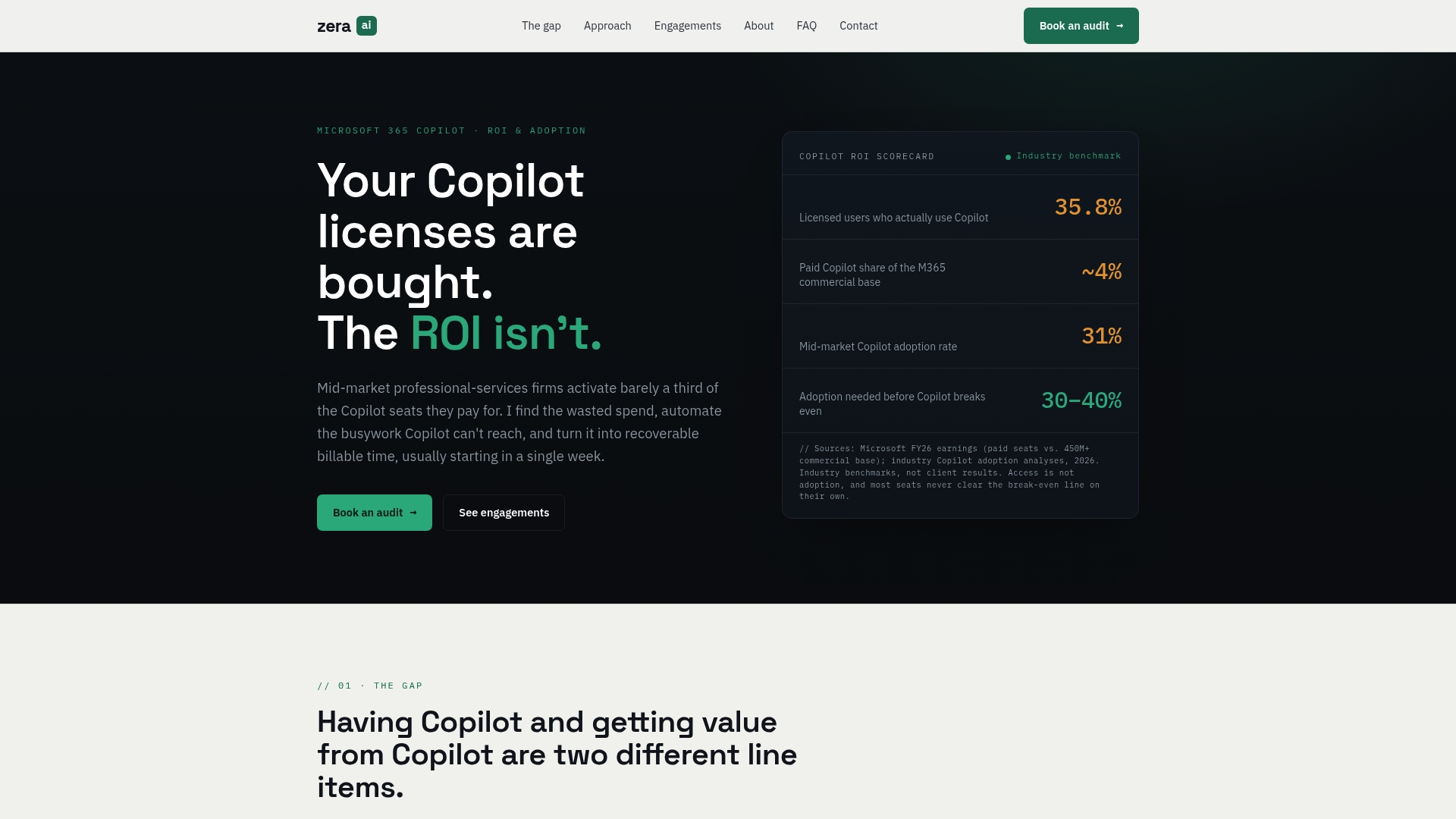
Gozera’s consulting engagements are fixed-price and built around your specific CRM environment. The work includes a Copilot readiness audit (licensing, region, Dataverse, identity mapping), connector and identity-mapping setup, pilot design with telemetry instrumentation, workflow rebuilds using Python and n8n where Copilot has gaps, and ongoing optimization retainers. Every engagement ends with a baseline-to-post-pilot ROI report that shows exactly how much billable time was recovered per licensed user.
For IT directors and managing partners at law, accounting, and consulting firms, that report is what secures budget for the next phase. If you’re ready to stop guessing at adoption numbers and start measuring them, book a Copilot readiness audit with Gozera to get a clear picture of where your licenses stand today.
Sources
These are the canonical Microsoft admin docs to follow step-by-step during deployment:
- Use Microsoft Copilot for Service with your external CRM – Microsoft Dynamics 365 blog
- Copilot in Dynamics 365 Sales overview – Microsoft Learn
- Set up the embedded experience in Salesforce – Copilot for Service | Microsoft Learn