
Copilot for Power BI lets analysts and report authors use natural language to generate insights, draft visuals and DAX measures, and accelerate report builds — but it only delivers reliable results when your tenant is properly enabled and your semantic models are clean. Before your team touches the Copilot pane, three things need to happen: your Fabric admin must turn on Copilot in the Fabric admin portal, your workspace must be assigned to a supported Fabric capacity, and someone needs to run a data-readiness audit on the models Copilot will query.
- Check tenant settings in the Fabric admin portal (Copilot toggle, cross-geo sharing, standalone experience).
- Confirm capacity — your workspace needs F2 or higher Fabric capacity, or a supported P SKU; Premium Per User (PPU) does not qualify.
- Run a data-readiness audit before broad rollout — poor model quality is the single biggest cause of unreliable Copilot output.
Copilot in Power BI augments BI professionals; it does not replace them. Every AI-generated DAX measure, report page, or summary needs a human review pass before it goes anywhere near a client deliverable.
Key Takeaways
Copilot for Power BI delivers reliable results only when tenant settings, Fabric capacity, and semantic model quality are all in place before broad rollout.
| Point | Details |
|---|---|
| Tenant and capacity first | Enable Copilot in the Fabric admin portal and assign workspaces to F2+ capacity before any user testing. |
| Model readiness drives output quality | Clean field names, measure descriptions, and certified models are what separate useful Copilot responses from hallucinations. |
| Phased rollout with governance gates | Pilot on 3–5 certified models, measure telemetry, then scale — never enable tenant-wide before the pilot passes peer-review benchmarks. |
| Agentic tools for scale | Use the powerbi-authoring plugin and MCP servers when you need reproducible, CI/CD-driven report deployments across many reports. |
| Gozera accelerates the path to ROI | A structured readiness audit and telemetry setup from Gozera identifies and fixes the gaps that keep Copilot licenses idle. |
Table of Contents
- What does Copilot in Power BI require to run?
- What can Copilot actually do in Power BI?
- How do you enable Copilot in Power BI step by step?
- How do you prepare your data so Copilot produces reliable outputs?
- What prompting patterns actually work for report authors?
- What are the limits and governance risks you need to manage?
- When should you use agentic authoring tools instead of the Copilot pane?
- How do you measure Copilot ROI and operationalize adoption?
- The model-first lesson most teams learn too late
- Gozera helps you get measurable value from Copilot in Power BI
- Sources
What does Copilot in Power BI require to run?
Getting Copilot active is a layered checklist. Miss one layer and users see nothing, or worse, they see a Copilot icon that silently fails.
Tenant and admin settings
The Fabric admin portal controls four tenant-level switches you must verify before anything else:
- Copilot and Azure OpenAI Service — the master toggle; must be ON.
- Cross-geo data sharing — required if your tenant’s home region lacks Azure OpenAI capacity; understand the data-movement implications before enabling.
- Standalone Power BI Copilot experience — a separate toggle for the full-screen, tenant-wide Copilot chat (currently in preview).
- Capacity-level Copilot enablement — even with the tenant toggle on, each Fabric capacity must be individually enabled.
Capacity and licensing
- Supported capacities: F2 or higher Fabric SKUs, or P1 and above Power BI Premium SKUs.
- PPU (Premium Per User) is a common trap. PPU workspaces do not support Copilot consumption the same way Fabric capacities do — teams that assume PPU qualifies often spend weeks troubleshooting a non-issue.
- A Fabric Copilot Capacity (FCC) can be delegated specifically for Copilot workloads, keeping AI burst usage from competing with your primary ETL and refresh jobs.
Workspace roles and client prerequisites
- Users need Admin, Member, or Contributor workspace roles to interact with Copilot features in a report.
- Power BI Desktop must be on a recent monthly release and connected to a workspace assigned to a supported Fabric capacity — local-mode datasets do not activate Copilot.
- Copilot is available in Power BI Desktop, the Power BI service (web), and mobile; sovereign cloud tenants (GCC High, DoD) are not supported due to GPU availability constraints.
Pro Tip: Before your pilot launch, open the Fabric admin portal and screenshot each of the four tenant toggles. Share that screenshot with your IT lead so there’s a documented baseline — it takes 30 seconds and prevents a week of “why isn’t it working” tickets.
What can Copilot actually do in Power BI?
The short answer: more than most teams use, less than the marketing implies. Copilot in Power BI covers two distinct modes — consumption and authoring — and the experience you get depends on which surface you’re working in.
Consumption features (in-report Copilot pane)
The Copilot pane lives inside an open report and is scoped to that report’s data. It handles:
- Natural-language Q&A against the report’s semantic model (“Show me revenue by region for Q1”).
- Report summaries — a one-paragraph plain-English summary of what the current page shows.
- Linked visuals — Copilot can generate a new visual and insert it into the report canvas based on your prompt.
The West region declined slightly, with the largest drop in the SMB tier."* That’s useful context for a client briefing. However, a human still needs to verify the underlying numbers.
Authoring features
On the authoring side, Copilot can:
- Generate DAX measures from a plain-English description (“Create a measure for rolling 12-month revenue”).
- Draft report pages — suggest a layout with relevant visuals based on your model’s fields.
- Suggest measure descriptions for documentation inside the semantic model.
- Support web modeling edits — limited model changes via the Power BI service.
Copilot pane vs. standalone Copilot experience
| Feature | Copilot pane (in-report) | Standalone Copilot (preview) |
|---|---|---|
| Scope | Single open report | Entire tenant |
| Find reports/models | No | Yes |
| Generate summaries | Yes | Yes |
| Create new visuals | Yes | Yes |
| Link back to source report | No | Yes |
| GA status | Generally available | Preview |
The standalone Copilot experience is the full-screen version — it searches across reports, semantic models, and apps in your tenant, then generates summaries and visuals that link back to the source content. Think of it as a tenant-wide Power BI assistant rather than a per-report tool.
Biggest misconception teams bring into pilots: Copilot is not an automated BI developer. It accelerates repetitive tasks — drafting a DAX skeleton, summarizing a page, suggesting a visual type. High-value modeling, business-logic validation, and relationship design stay with your analysts.
How do you enable Copilot in Power BI step by step?
Admin-side enablement
- Sign in to App as a Fabric administrator.
- Open Admin portal > Tenant settings > Copilot and Azure OpenAI Service — set to Enabled.
- Enable Cross-geo data sharing if your region requires it (read the data-residency note first).
- Enable the Standalone Power BI Copilot experience toggle (preview — confirm your org’s preview policy before enabling).
- Navigate to Capacity settings, select your Fabric capacity, and enable Copilot at the capacity level.
- Optionally, create a Fabric Copilot Capacity and delegate it to Copilot workloads to isolate billing and prevent resource contention.
Delegating to a Fabric Copilot Capacity
Assigning a dedicated FCC is worth the setup time for any team running more than a handful of active Copilot users. It gives you a clean billing surface for Copilot consumption, protects your primary data pipelines from AI burst traffic, and makes telemetry much easier to read.
User-side entry points
- Power BI service: Open a report, click the Copilot icon in the ribbon to open the Copilot pane.
- Standalone experience: Navigate to the Copilot hub from the left nav in the Power BI service (when the tenant toggle is on).
- Power BI Desktop: Connect your Desktop file to a Fabric-capacity workspace, then look for the Copilot pane in the ribbon.
- Mobile: Available in the Power BI mobile app on supported capacity workspaces.
Validation steps
- Open a certified report in a Fabric-capacity workspace and confirm the Copilot icon appears in the ribbon.
- Type a simple prompt (“Summarize this page”) and verify a response loads without an error.
- Check the Fabric admin portal’s Usage metrics to confirm Copilot capacity units are being consumed — zero consumption after a test prompt usually means a capacity toggle was missed.
Pro Tip: Run your first validation test on a report backed by a certified, well-documented semantic model. A clean model gives Copilot the best chance of producing a coherent first response, which builds stakeholder confidence early.
How do you prepare your data so Copilot produces reliable outputs?
Model readiness is where most Copilot rollouts succeed or fail. Semantic model optimization directly determines whether Copilot returns useful answers or confident-sounding nonsense.
Why this matters more than the license
Copilot reads your model’s field names, measure names, descriptions, and relationships to understand what questions it can answer. A model with columns named col_1, tbl_rev_adj_2, and no descriptions gives Copilot almost nothing to work with. The output will be vague, wrong, or both.
Data-readiness checklist
- Field naming: Use plain-English column and measure names (
Monthly Revenue, notmth_rev_adj). - Measure descriptions: Add a description to every published measure — Copilot uses these to understand intent.
- Linguistic modeling: Define synonyms for key terms so natural-language queries resolve correctly.
- Remove dormant sources: Unused tables and disconnected queries confuse Copilot’s context window.
- Verify relationships: Broken or ambiguous relationships produce wrong aggregations.
- Certify and endorse models: Use Power BI’s endorsement feature to mark Copilot-ready models as Promoted or Certified.
Tagging models as Copilot-ready
In the Power BI service, go to a dataset’s settings and set its endorsement to Certified. Pair that with a description that explains the model’s business domain and key measures. This signals to both Copilot and your users that the model is trustworthy.
Sample readiness prompts
Use these in the Copilot pane to test a model before broad rollout:
- “What measures are available in this model?”
- “Summarize the data on this page.”
- “Show me the top 5 clients by revenue this quarter.”
If Copilot returns blank visuals, misidentified fields, or generic errors on these basic prompts, the model needs more work before you expand access.
Pro Tip: Treat the readiness audit as a one-time investment that pays dividends across every Copilot interaction. A half-day spent cleaning field names and adding measure descriptions typically cuts Copilot error rates dramatically in early pilots.
What prompting patterns actually work for report authors?
Copilot responds to specificity. Vague prompts produce vague outputs; prompts that name columns, filters, and desired visual types produce usable first drafts.
Prompt templates by use case
- Exploration: “Show me [Measure] by [Dimension] for [Time Period] as a bar chart.”
- Summarize: “Summarize the key trends on this page in two sentences.”
- Visualize: “Create a line chart showing [Measure] over the last 12 months, filtered to [Segment].”
- DAX generation: “Write a DAX measure for [Measure Name] that calculates [business logic description] using [Table].[Column].”
- Layout/filter changes: “Add a slicer for [Field] to this page and move the revenue chart to the top left.”
Structuring prompts to reduce hallucination
Name the column or measure explicitly. Instead of “show me revenue trends,” write “show me Monthly Revenue by Order Date for the last 6 months as a line chart.” The more context you give, the less Copilot has to infer — and inference is where errors creep in.
Author workflow: generate to publish
- Generate — submit your prompt and review the initial output.
- Review DAX — open any generated measure in DAX editor and verify the logic against a known value.
- Test visuals — cross-check the visual’s totals against a trusted source (an existing report or a direct query).
- Peer review — have a second analyst confirm the output before it enters a client-facing report.
- Publish — move the validated content to the production workspace.
Pro Tip: Keep a shared prompt library in a Teams channel or OneNote. When a prompt produces a reliable output, document it with the model name and context. Within a month, your team will have a reusable catalog that cuts authoring time on repeat report types.
Validation checklist before accepting AI-generated content
- Does the DAX measure produce the expected result on a known test date?
- Does the visual’s total match the source table’s aggregate?
- Are all filters applied correctly (date range, segment, geography)?
- Has a second person reviewed the output?
What are the limits and governance risks you need to manage?
Known limitations
Copilot in Power BI can hallucinate — it can generate a DAX measure that looks syntactically correct but calculates the wrong thing. It can misinterpret an ambiguous field name and return a plausible but wrong visual. These aren’t edge cases; they’re predictable failure modes that governance controls can contain.
Other limitations to plan around:
- Copilot’s context window is bounded — very large models with hundreds of tables may produce less accurate results than focused, well-scoped models.
- Some experiences remain in preview (standalone Copilot, certain authoring features) — preview features can change or be removed; don’t build production workflows on them without a fallback.
- Sovereign clouds are not supported. US government tenants on GCC High or DoD cannot use Copilot in Power BI due to GPU availability constraints.
Governance checklist
- Restrict initial rollout to a pilot group with trained users and certified models only.
- Role-based access — use workspace roles to limit who can use Copilot authoring features vs. consumption features.
- Mandatory training — require Copilot users to complete Microsoft’s Copilot for Power BI learning path before accessing production workspaces.
- Output review gate — no AI-generated content enters a client-facing report without a named human reviewer.
- Capacity delegation — use a Fabric Copilot Capacity to create a measurable billing surface and prevent Copilot burst usage from affecting primary workloads.
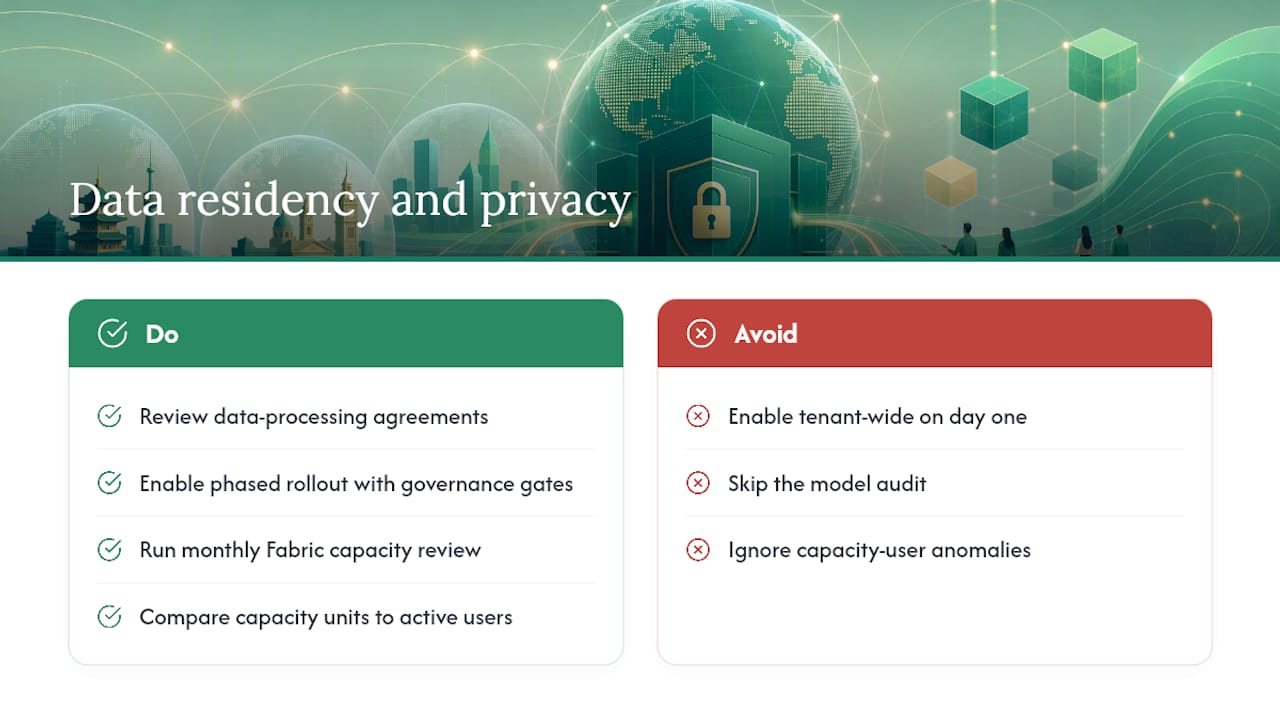
Data residency and privacy
Cross-geo data sharing means your prompts and model data may be processed in an Azure OpenAI region outside your tenant’s home geography. For US-based professional-services firms handling client data, review your data-processing agreements before enabling this toggle. Microsoft’s trust documentation covers what data leaves the tenant and under what conditions.
Governance reality check: The firms that get burned by Copilot aren’t the ones that move slowly — they’re the ones that enable it tenant-wide on day one, skip the model audit, and then spend three months explaining to clients why a dashboard showed the wrong numbers. A phased rollout with a governance gate at each stage isn’t bureaucracy; it’s the difference between a successful pilot and a credibility problem.
Pro Tip: Set a monthly Fabric capacity review. Pull the Copilot usage metrics from the admin portal and compare capacity units consumed against the number of active Copilot users. If consumption is high but active users are low, someone is running expensive queries on poorly-scoped models.
When should you use agentic authoring tools instead of the Copilot pane?
For most report authors, the interactive Copilot pane is the right tool. But when you need to produce or modify dozens of reports programmatically, or when you want Copilot-driven changes to flow through a CI/CD pipeline, Power BI Agentic is the answer.
What Power BI Agentic provides
Power BI Agentic bundles agent skills and tools that let AI agents author and validate semantic models and reports at scale. The two core components:
- powerbi-authoring plugin — distributed through the Skills for Fabric marketplace; includes the
powerbi-report-authoringskill, which enables natural-language creation, editing, and validation of PBIR/PBIP report definitions. - MCP servers — let agents inspect model schemas, run DAX queries, and drive Power BI Desktop for verification steps, all programmatically.
Supported agent entry points
| Entry point | Use case | Prerequisites |
|---|---|---|
| GitHub Copilot CLI | Scripted report authoring, CI/CD pipelines | GitHub Copilot license, powerbi-authoring plugin installed |
| VS Code Copilot | Interactive agent-driven edits in development | VS Code with Copilot extension, MCP server configured |
| Other agent runtimes | Custom automation workflows | MCP server, compatible runtime |
When to use agentic tooling vs. interactive Copilot
Use the interactive Copilot pane when an analyst is building or exploring a single report. Switch to agentic tooling when:
- You need to apply the same structural change to 20 reports simultaneously.
- Report definitions need to be version-controlled and deployed through a CI/CD pipeline.
- Your team wants reproducible, auditable report-generation workflows rather than ad-hoc prompting.
Agentic workflows require more setup and technical depth, but they pay off at scale. A law firm rolling out standardized matter-status dashboards across 15 practice groups, for example, benefits far more from a scripted agentic workflow than from having 15 analysts prompt Copilot individually.
How do you measure Copilot ROI and operationalize adoption?
Licenses that sit idle are the most common Copilot failure mode in mid-market firms. The fix isn’t more training emails — it’s a structured adoption playbook with telemetry from day one.
Adoption playbook: pilot, measure, iterate
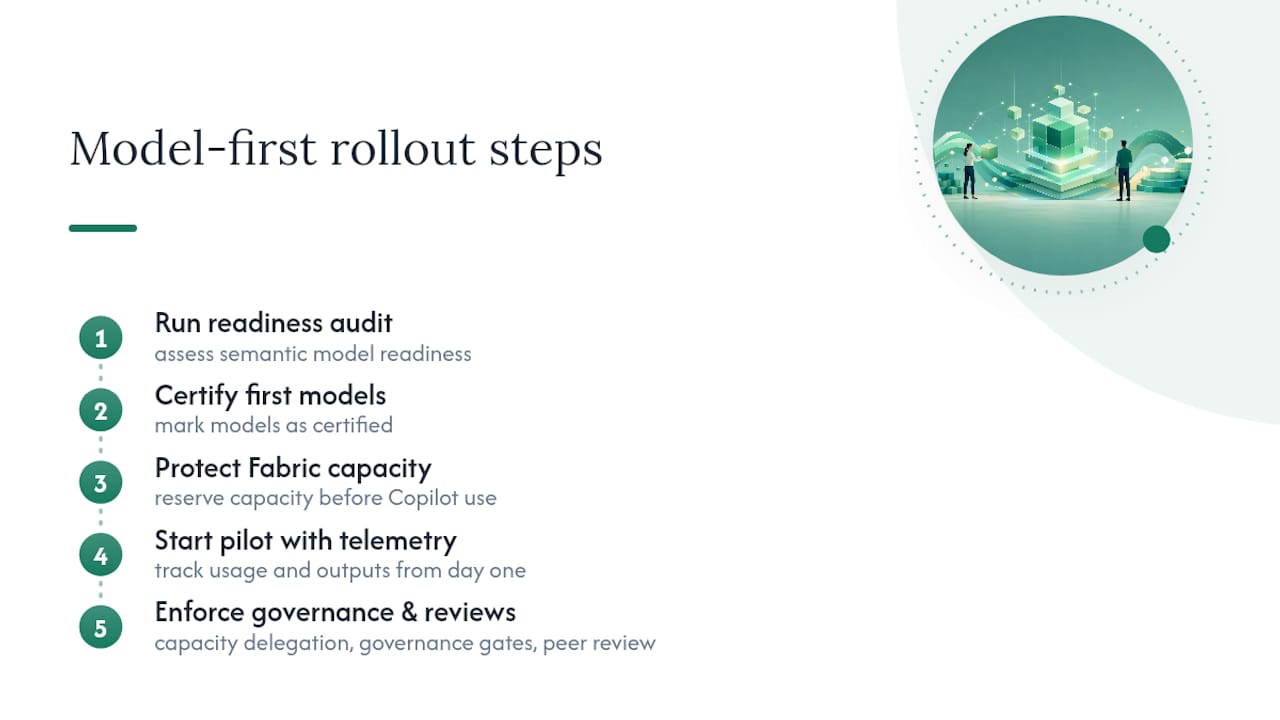
- Scope the pilot — select 3–5 certified semantic models and 5–10 power users across one practice group.
- Establish stakeholders — assign a BI lead, an IT admin, and a practice operations contact to the pilot.
- Set governance gates — define what “ready to scale” looks like before the pilot starts (e.g., 80% of Copilot outputs pass peer review, capacity utilization stays under a defined threshold).
- Run telemetry from day one — don’t wait until the pilot ends to start measuring.
- Iterate on model quality — use pilot feedback to improve field names, descriptions, and relationships before scaling.
This sequence mirrors the practical rollout approach used by practitioners: capacity and admin enablement first, then a pilot on certified models, then telemetry baseline, then workflow rebuilds, then scale.
Telemetry metrics to track
- Active prompts per user per week — baseline for engagement.
- Author edits accepted — what percentage of Copilot-generated content survives peer review.
- DAX suggestions validated — how often generated DAX passes the test-against-known-values check.
- Capacity units consumed — from the Fabric admin portal; track against active user count.
- License utilization rate — active Copilot users divided by total licensed seats.
For a deeper look at setting up Copilot telemetry in a mid-market environment, the metrics above are the starting point, not the ceiling.
Sample KPIs tied to ROI
- Time saved per report — compare pre-Copilot authoring time against post-Copilot authoring time for the same report type.
- Billable hours recovered — for law and accounting firms, track whether analyst time freed by Copilot flows back into billable work.
- License cost per active user — total Copilot license spend divided by users who logged at least one active prompt in the period.
Pro Tip: Set a 90-day review gate. The most common causes are model quality issues, missing training, or a mismatch between the pilot use case and actual analyst workflows. Fix those before expanding seats.
For professional-services teams building Copilot workflows across practice groups, the adoption playbook above applies directly — the difference is that billable-hour recovery becomes the primary ROI metric rather than general productivity.
The model-first lesson most teams learn too late
The instinct in most firms is to enable Copilot broadly and let adoption happen organically. That approach almost always produces the same result: a handful of enthusiastic early adopters, a wave of frustrated users who got bad outputs from poorly-documented models, and a leadership team that concludes “Copilot doesn’t work for us.”
The firms that get real value from Copilot in Power BI share one habit: they fix the semantic models before they touch the tenant settings. Not after. Not in parallel. Before.
That means running a readiness audit, certifying a first set of models, and protecting your Fabric capacity before a single user opens the Copilot pane. It also means tracking telemetry from the first day of the pilot, not as an afterthought. Capacity delegation, governance gates, and a peer-review workflow aren’t overhead — they’re what separates a successful rollout from an expensive experiment.
The biggest risk isn’t moving too slowly. It’s enabling Copilot enterprise-wide on models that aren’t ready, then spending months rebuilding trust with users who saw it fail.
Gozera helps you get measurable value from Copilot in Power BI
Most mid-market firms have the licenses. What they’re missing is the model readiness, the telemetry, and the workflow design that turns Copilot from a feature into a productivity gain their leadership can actually see.
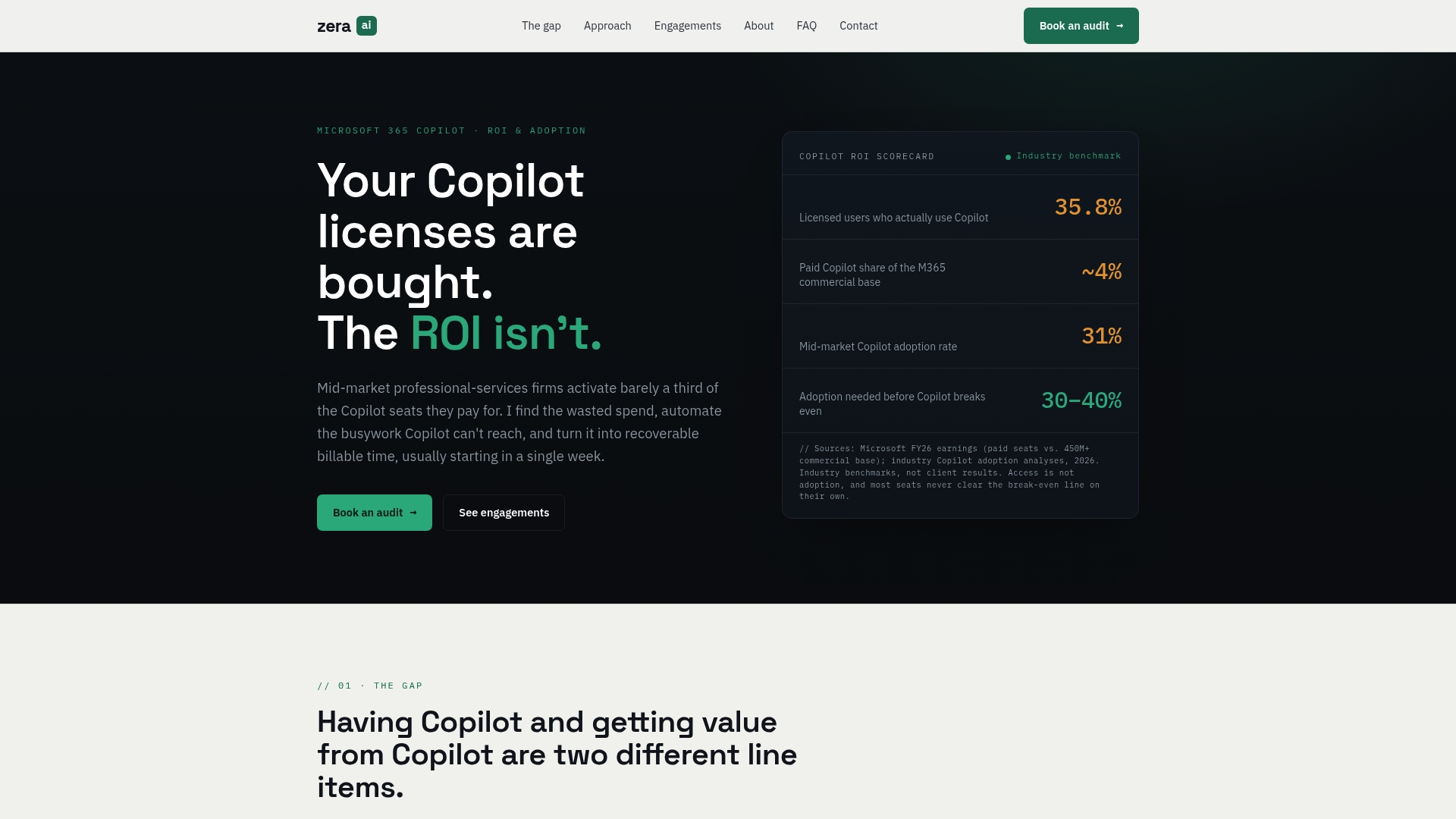
Gozera’s engagements start with a Copilot readiness audit — a structured review of your semantic models, capacity configuration, and tenant settings that identifies exactly what’s blocking reliable Copilot output. From there, a typical 90-day engagement delivers telemetry setup, workflow rebuilds for your highest-value report types, and a governance framework your IT team can own long-term. No open-ended retainers, no change-management theater. Fixed-price sprints with defined deliverables at each stage.
If your firm has Copilot licenses that aren’t producing measurable returns, book a readiness audit with Gozera to find out what’s in the way and what it takes to fix it.
Sources
- Enable Fabric Copilot for Power BI – Power BI | Microsoft Learn