
For mid-market professional services firms, the best approach to email to tasks automation right now is selective inbox rules combined with an integration platform that uses AI parsing to extract metadata and write structured tasks directly into your project management system. That combination captures due dates, assignees, and project context without manual re-entry, and it scales from a single power user to a tenant-wide deployment.
Three paths exist, and the right one depends on your constraints:
| Method | Best fit | Governance |
|---|---|---|
| Forward to task address | Solo users, quick pilots | Low |
| Built-in rules / Quick Steps | Outlook/Gmail power users, no IT budget | Medium |
| Integration platform (Zapier, Make, Power Automate, n8n, Relay) | IT-led rollouts, multi-system, compliance-sensitive | High |
IT leaders should start with a Power Automate or n8n pilot scoped to one practice group within 72 hours. Operations directors can deploy Outlook Quick Steps across a team in under a day with no external connectors. Managing partners who want immediate triage should forward high-priority client emails to Todoist using subject-line tokens while the IT-led flow is built in parallel.
Table of Contents
- What are the three methods for email to tasks automation?
- How do you set up Gmail, Outlook, and Todoist in under 30 minutes?
- Which automation platforms give you the most reliable flows?
- How do you automate without creating inbox noise?
- What security and governance checks must IT complete before going live?
- When does it make sense to bring in a consultant?
- Key Takeaways
- The real problem is not the tool, it is the trigger
- Gozera helps professional services firms turn email triage into measurable ROI
- Vendor docs and templates to use next
What are the three methods for email to tasks automation?
Task automation replaces repetitive manual steps and delivers the most value where it reduces administrative burden on billable staff. Each of the three core methods sits at a different point on the effort-versus-capability curve.
Method 1: Forward to task address
You forward an email to a unique project inbox address, and the task app creates a task from the subject line and body. Todoist’s forwarding feature is the clearest example: each project has its own address, and Email Assist can extract dates and rewrite task names from the email content. Specialist services like Casso extend this pattern to Jira, ClickUp, Asana, and Monday.com, adding AI-generated summaries, priority extraction, and due date parsing.
Pros: Zero IT involvement, works from any email client, live in minutes.
Cons: No conditional logic, every forwarded email becomes a task, attachment handling varies, and audit trails are thin.
Method 2: Built-in rules and Quick Steps
Outlook Quick Steps apply multiple actions to a message in one click and can be assigned keyboard shortcuts from the Home tab. A Quick Step can flag, move, categorize, and forward an email simultaneously, making it a practical first layer before a full automation platform. Gmail rules work similarly: a filter on sender domain or subject keyword applies a label, which then triggers a downstream flow.
Pros: No external connectors, user-level control, fast to configure.
Cons: Limited parsing, no AI extraction, maintenance falls on individual users.
Method 3: Integration platforms
Zapier, Make, Power Automate, n8n, and Relay sit between your inbox and your task system and do the heavy lifting: conditional logic, AI summarization, field mapping, and audit logging. Make’s visual scenario builder lets you chain modules to transform email content into structured tasks with mapped fields. Todoist’s plain-English automations offer a low-code middle ground: rules like “when I star a Gmail message, add it to Todoist for tomorrow” require no developer.
| Dimension | Forward to address | Built-in rules | Integration platform |
|---|---|---|---|
| Supported inboxes | Any | Gmail, Outlook | Gmail, Outlook, Exchange |
| Parsing & AI | Basic (Email Assist) | None | Full AI + regex |
| Setup complexity | Low | Low–Medium | Medium–High |
| Cost | Free–$10/mo | Free | Free tier to $50+/mo |
| Enterprise governance | Low | Medium | High |
How do you set up Gmail, Outlook, and Todoist in under 30 minutes?
Gmail to Google Tasks via Relay
Relay’s label-trigger approach is the fastest Gmail start: apply a label to an email and a task appears in Google Tasks automatically.
- In Gmail Settings, create a filter for your target criteria (e.g., sender domain
@clientname.comor subject contains[ACTION]). - Set the filter action to apply the label
To-Do/Client. - In Relay, create a new workflow with trigger: “New labeled email in Gmail” and select
To-Do/Client. - Add the action “Create task in Google Tasks,” mapping subject to task title and body snippet to notes.
- Add a due-date field: parse the email body for patterns like “by Friday” using Relay’s date extraction step.
- Test with a real email before enabling for the full label.
Pro Tip: Add a second filter condition requiring the email to be unread and not from a mailing list (filter out list-unsubscribe headers). This alone eliminates roughly 80% of false-positive task creation.
Outlook to Microsoft To Do or Planner
- In Outlook, open the Home tab and select “New Quick Step.”
- Name it
Client Actionand add actions: Flag message, Move to folder_Tasks/Client, and Forward to your Microsoft To Do task-capture address. - Assign the keyboard shortcut
Ctrl+Shift+1. - In Microsoft To Do, connect your flagged-email list so flagged Outlook messages appear automatically as tasks.
- For Planner, use Power Automate: trigger on “When a new email arrives” with a subject filter, then “Create a task” in Planner with title from subject and due date parsed from body.
- Add a “Post a message in Teams” step to notify the assignee.
Pro Tip: The Quick Step handles immediate triage; Power Automate handles the structured task record. Run both in parallel during a 30-day pilot so you can compare which tasks each method captures and which it misses.
Forward to Todoist
Each Todoist project has a unique email address under Settings > Integrations > Email. Forward or BCC client emails to that address. Use subject-line tokens to set metadata:
!todayor!tomorrowsets the due date.#ProjectNameassigns the project.@PersonNameassigns to a team member.p1throughp4sets priority.
Example subject: Review contract draft !tomorrow #LegalMatters @Sarah p1
Email Assist reads the body and can rewrite the task name into plain language. Toggle it on under project settings.
Pro Tip: Subject tokens override Email Assist parsing. If your team sends emails with inconsistent subject lines, write a Gmail or Outlook rule that prepends a token before forwarding, so the metadata is always present regardless of how the original email was written.
Which automation platforms give you the most reliable flows?
The canonical flow for any platform follows the same spine: trigger (flagged or labeled email) → parse (AI or regex extraction) → validate (filter rules) → create/update task → log audit entry. Where platforms differ is in how much of that spine they handle natively.
Platform-by-platform breakdown
Zapier is the fastest to configure for Gmail and Outlook triggers. Use the “New labeled email in Gmail” or “New email matching search” trigger, add an OpenAI or Formatter step to extract due date and summary, then create a task in Todoist, Asana, or Planner. Zapier’s own guidance warns explicitly against converting every email to a task: AI summarization and selective filters are what keep the task system usable.
Make handles multi-step enterprise flows better than Zapier at comparable price points. Build a scenario with the Gmail or Microsoft 365 module as the trigger, a Text Parser or AI module for extraction, a Router to branch by email type (client vs. internal), and separate task-creation modules for each branch. Make’s visual canvas makes it easier to audit the logic later.
Power Automate is the natural choice for Microsoft 365 tenants. Use the “When a new email arrives (V3)” trigger with subject and sender filters, then “Create a task” in Planner or To Do. Add a “Create item” step in SharePoint to log the automation event for audit purposes. Power Automate runs inside your Microsoft 365 tenant boundary, which matters for data residency.
n8n is the right pick when you need self-hosted control or want to integrate with systems that lack prebuilt connectors. An n8n workflow for professional services automation typically chains an IMAP or Gmail node, a Code node for regex parsing, an HTTP Request node to call an AI API for summarization, and a task-platform node. Setup takes longer but the result is fully auditable and runs on your own infrastructure.
Relay sits between Zapier and Make in complexity and is particularly clean for Gmail-to-Google Tasks flows, as shown in its label-trigger documentation.
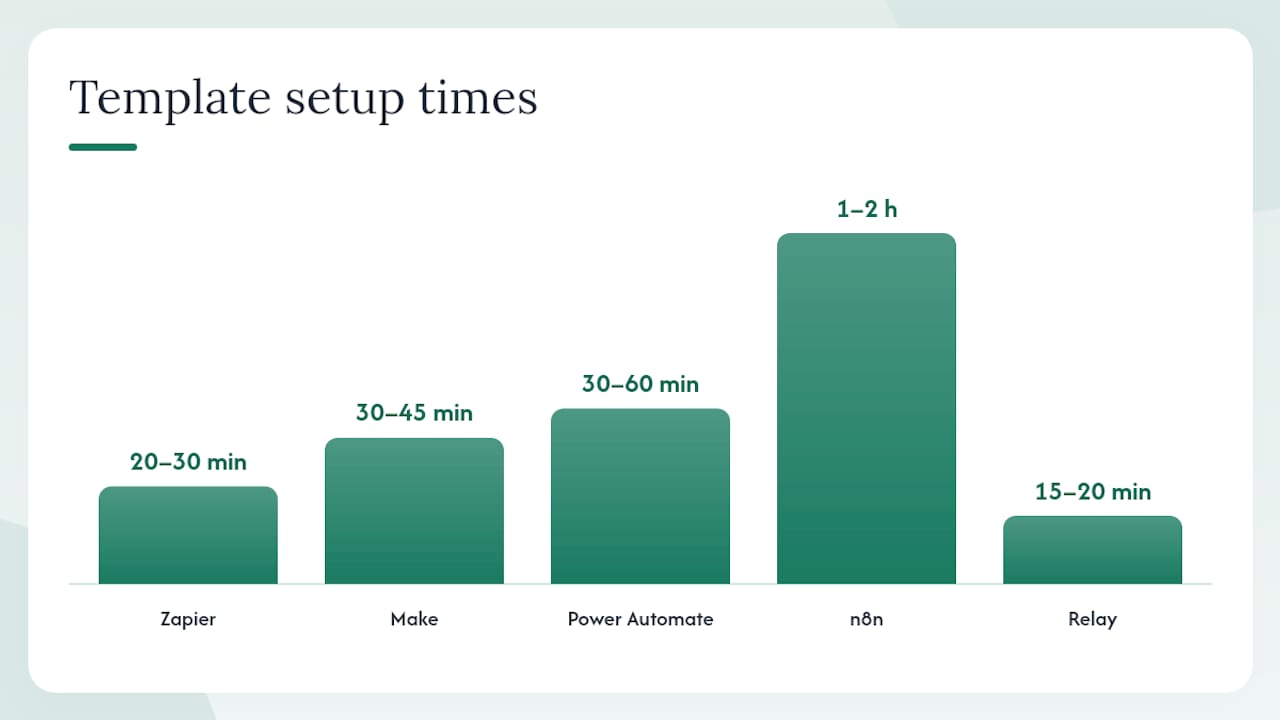
| Platform | Supported inboxes | AI parsing | Setup time (template) | Setup time (enterprise) |
|---|---|---|---|---|
| Zapier | Gmail, Outlook | Via OpenAI step | 20–30 min | 2–4 hours |
| Make | Gmail, Outlook, Exchange | Built-in AI module | 30–45 min | 4–8 hours |
| Power Automate | Outlook, Exchange | Copilot/AI Builder | 30–60 min | 4–12 hours |
| n8n | IMAP, Gmail, Outlook | Via API call | 1–2 hours | 1–3 days |
| Relay | Gmail | Basic extraction | 15–20 min | 1–2 hours |
Pro Tip: Build a dead-letter mailbox: any email that fails parsing or hits an error condition gets forwarded there instead of silently dropped. Review it weekly for the first 30 days. Most parsing failures cluster around a handful of sender formats you can fix with one additional filter rule.
How do you automate without creating inbox noise?
The most common failure mode in email workflow automation is trigger overload: the task system fills with newsletters, internal status updates, and automated notifications until no one trusts it. Zapier’s task management guidance makes this point directly: selective rules and AI summarization are what separate a useful system from a noisy one.
Exclusion filters to apply first:
- Sender matches known newsletter domains or contains
unsubscribein headers. - Subject contains
[FYI],[No Action],RE:, orFW:without a client name prefix. - Sender is an internal address and the email is a CC (not a direct TO).
- Message is from an automated system (Jira notifications, Salesforce alerts, calendar invites).
Positive criteria for task creation:
- Email is from a client domain and addressed directly to a fee earner.
- Subject contains
[ACTION],[APPROVAL], or[DELIVERABLE]. - Email contains a deadline phrase (“by end of week,” “due date,” “please confirm by”).
- Email is a reply to a sent proposal or engagement letter.
Metadata conventions to adopt firm-wide:
- Task title format:
[ClientCode] [Action] [Deliverable](e.g.,ACME Review NDA v3). - Due date token: always in ISO format (
2026-07-15) when injected programmatically. - Assignee: use the firm’s Active Directory display name, not email alias, so tasks route correctly in Planner and To Do.
- Project tag: match the billing code or matter number from your practice management system.
Operational governance:
- Only IT or designated operations leads may create or modify automation credentials.
- Version automation templates in a shared SharePoint library with change-log comments.
- Run a 30-day review: pull the dead-letter mailbox report and the task-creation log, identify false positives, and tighten filters before expanding scope.
Pro Tip: For the first 30 days, route all auto-created tasks into a quarantine project called _Inbox Review rather than live client matters. Have one person spend 10 minutes each morning approving or rejecting tasks. After 30 days, you will have enough data to set filters that need almost no manual review.
What security and governance checks must IT complete before going live?
Automation that touches client email in a law firm, accounting practice, or consulting firm carries real compliance exposure. The checklist below covers the minimum before any production deployment.
OAuth and connector scopes:
- Request only the minimum Gmail or Outlook scopes needed: read-only access to labeled/flagged messages, not full mailbox read.
- For Microsoft 365, configure tenant-level app consent policies in Azure AD so users cannot self-authorize third-party connectors without IT approval.
- Review and restrict which connectors are available in Power Automate via the Data Loss Prevention (DLP) policy in the Power Platform admin center.
Service accounts and credential rotation:
- Provision a dedicated service account for each automation (not a named user’s credentials).
- Set a 90-day credential rotation schedule and store secrets in Azure Key Vault or an equivalent secrets manager.
- Enable audit logging on the service account so every task-creation event is traceable.
Data residency and PII handling:
- Power Automate and Microsoft 365 connectors process data within your tenant’s geographic boundary by default. Zapier and Make route data through their own cloud infrastructure: verify their data processing agreements match your firm’s requirements before connecting client email.
- Never pass email attachments into a low-governance task app. Strip attachments at the automation layer and store them in SharePoint or your DMS with the task carrying only a link.
- Apply a PII filter step: if the email body contains Social Security numbers, account numbers, or health identifiers (detectable via regex or an AI classifier), route to the dead-letter mailbox for manual handling instead of auto-creating a task.
Audit and monitoring:
- Log every task-creation event: timestamp, source email ID, trigger rule, destination task ID, and assigned user.
- Store logs in SharePoint or a SIEM for at least 12 months to satisfy most professional services retention requirements.
- Set an alert for automation failure rates above a small single-digit percentage in any 24-hour window.
Firms that skip these controls often discover the gap during a client audit or a security review, not before. Bitrix24’s RPA-style task automation illustrates how enterprise task platforms build approval chains and audit trails natively; if your chosen task app lacks those features, the integration layer must supply them.
When does it make sense to bring in a consultant?
Self-service automation covers a lot of ground. But several scenarios consistently justify specialist help, particularly for firms where billable time is the revenue engine and compliance exposure is real.
Scenarios that warrant a consultant:
- You have more than three source systems (email, CRM, DMS, billing platform) that need to share task context.
- Your firm handles regulated data (attorney-client privilege, PCAOB-governed workpapers, HIPAA-adjacent records) and needs a defensible audit trail.
- Copilot licenses are deployed but adoption is low: staff are not using the AI features that would make email triage faster.
- You need telemetry to prove ROI to a managing partner or board, not just anecdotal time savings.
What specialist engagement delivers:
- Telemetry baseline: measure actual Copilot usage before and after workflow changes so ROI is quantified, not estimated.
- Workflow rebuild: map the full email-to-task-to-billing chain and eliminate manual re-entry at each handoff.
- Python and n8n automation for gaps that prebuilt connectors cannot fill, such as extracting matter numbers from PDF attachments or syncing tasks back to a legacy practice management system.
- Governance documentation: data flow diagrams, DLP policy configurations, and credential rotation schedules that satisfy a client security questionnaire.
Gozera specializes in exactly this work for mid-market professional services firms. The firm’s approach starts with a telemetry audit to identify which Copilot licenses are dormant and which workflows are generating the most manual overhead, then rebuilds those workflows with measurable outcomes. Firms that have gone through this process typically recover billable time that was previously lost to inbox triage and manual task entry. For context on workflow automation ROI in professional services, the productivity case is well-documented across law, accounting, and consulting.
A typical engagement runs several weeks from audit to optimized production flow, with an optional monthly retainer for ongoing optimization as the firm’s toolset evolves.
Key Takeaways
Selective inbox rules combined with an integration platform that parses metadata is the most reliable path to email to tasks automation for professional services firms.
| Point | Details |
|---|---|
| Start with a 72-hour pilot | Scope one practice group, use Power Automate or Outlook Quick Steps, and route tasks to a quarantine project first. |
| Lock metadata conventions early | Agree on task title format, due date tokens, and assignee syntax before scaling to avoid a disorganized task backlog. |
| Apply exclusion filters before inclusion | Block newsletters, internal CCs, and automated notifications first; then define positive criteria for client-actionable emails. |
| Governance is non-negotiable | Minimum-scope OAuth, service accounts, DLP policies, and a 12-month audit log are required before connecting client email in any regulated firm. |
| Gozera for complex rollouts | Gozera’s telemetry-led audit identifies dormant Copilot licenses and rebuilds email-to-task workflows with measurable ROI for mid-market professional services firms. |
The real problem is not the tool, it is the trigger
Most firms that struggle with email task integration are not using the wrong platform. They set up Zapier or Power Automate, connect their inbox, and within two weeks the task system is full of forwarded newsletters, internal FYIs, and automated Jira notifications. The tool worked exactly as configured. The configuration was wrong.
The instinct to automate everything is understandable: if a little automation saves time, more should save more. It does not work that way. A task system that professionals do not trust is worse than no task system at all, because it adds a review burden on top of the original inbox problem.
The single action I would take first in any mid-market firm is to define the positive criteria for task creation before touching any automation tool. Write down, in plain language, what makes an email worth a task: it is from a client, it is addressed directly to a fee earner, and it contains a request or a deadline. Everything else is noise until proven otherwise. That definition, turned into two or three filter conditions, is worth more than any AI parsing feature.
The quarantine queue approach described in this article is not a workaround. It is the correct way to calibrate a new automation: let it run, review what it catches, and tighten the rules before the output touches live client matters. Thirty days of that discipline produces a system people actually use.
Gozera helps professional services firms turn email triage into measurable ROI
Firms that have already deployed Microsoft 365 Copilot but are not seeing adoption gains often find the gap is not the AI itself. It is the absence of structured workflows that connect inbox activity to billable tasks. Gozera’s engagement model addresses that directly: a telemetry audit identifies which licenses are idle and which email-to-task handoffs are generating manual overhead, followed by a workflow rebuild sprint and a 90-day optimization cycle with documented ROI.
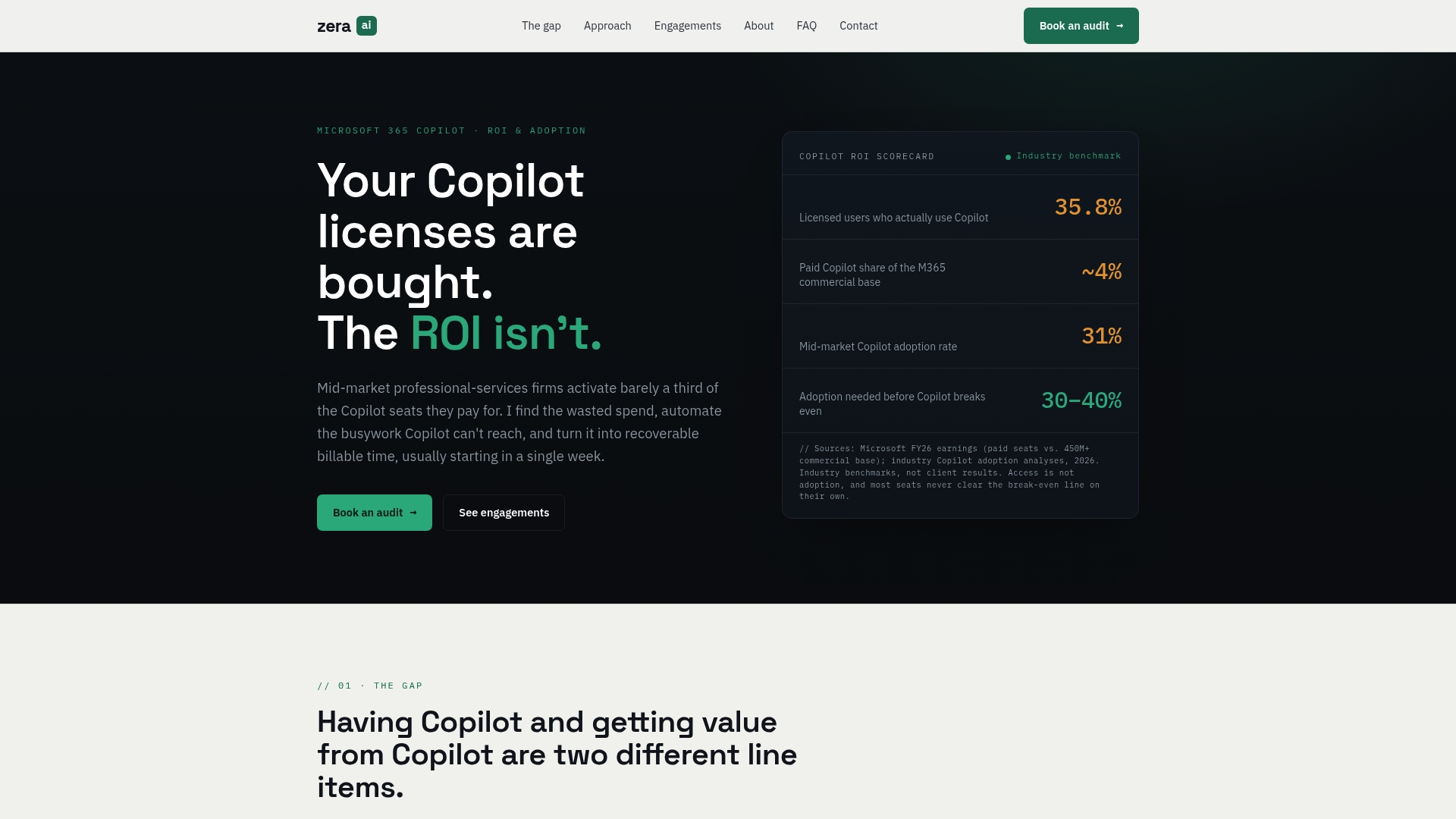
The result is a task management automation system that captures client approvals, deliverable requests, and deadline-driven emails as structured tasks in your existing Microsoft 365 environment, with audit trails that satisfy client security reviews. No lengthy change management, no ripping out existing tools. If your firm has Copilot licenses that are not earning their keep, schedule a discovery call with Gozera to see what a focused workflow audit typically uncovers.
Vendor docs and templates to use next
The sources below are the official starting points for each method. Consult the one that matches your chosen approach before building in production, and always test in a sandbox tenant or a quarantine project first.
| Resource | Best for | Start here if… |
|---|---|---|
| Microsoft Quick Steps docs | Outlook built-in rules | You want zero external connectors |
| Todoist email forwarding guide | Forward-to-task setup | You need a working pilot in under 30 minutes |
| Todoist automations | Low-code Gmail rules | You want plain-English trigger rules without a developer |
| Relay Gmail-to-Tasks how-to | Gmail label triggers | You use Google Workspace and want a fast label-based flow |
| Zapier task management templates | Zapier flows with AI | You want prebuilt templates and selective automation guidance |
| Make task management scenarios | Multi-step enterprise flows | You need visual scenario building with branching logic |
| Casso forward-to-task service | Jira, Asana, Monday.com | You need AI parsing without building a custom flow |
| Bitrix24 task automation | Native platform RPA | Your task platform needs built-in approval chains |
For Microsoft 365 tenants, start with the Quick Steps documentation and the Power Automate connector for Outlook before evaluating third-party platforms. For Google Workspace, the Relay how-to and Todoist forwarding guide cover the two most common setups. Teams choosing n8n for self-hosted control should review n8n automation patterns for professional services before configuring IMAP nodes in a production environment.