
A Copilot prompt library is a saved collection of reusable prompts and templates, primarily Microsoft’s own Prompt Gallery and Copilot Studio template set, built to speed up repeatable work in Word, Excel, Outlook, and Teams. The immediate value is standardization: instead of every partner or associate typing a different version of the same request, your firm saves, shares, and refines role-specific prompts once. Start in the Prompt Gallery inside Copilot Chat, then extend into Copilot Studio for anything workflow-heavy.
TL;DR:
- Most firms overlook the importance of measuring prompt reuse and productivity gains rather than just building a large library of prompts.
- Proper governance requires clear permission tiers, regular audits, and sensitivity labeling to prevent data leaks and outdated prompts from remaining active.
- Customizing prompts with firm-specific terminology, formatting instructions, and task-focused variables significantly improves output quality for professional services.
- Community prompt repositories like GitHub can serve as valuable sources but require thorough testing, security review, and adaptation before deployment.
- Adopting prompts as part of a broader workflow infrastructure with ongoing telemetry tracking offers better ROI than simply browsing or sharing templates.
Table of Contents
- What the Copilot Prompt Library Actually Is
- How To Find The Prompt Library In Copilot And Copilot Studio
- Using, Saving, And Sharing Prompts Across Your Team
- Copilot Studio Templates: From Prompt To Agent
- Community Prompt Libraries Worth Borrowing From
- Building A Living Prompt Library That Actually Pays Off
- Keeping Your Prompt Library Current Instead Of Stale
- Who Should Be Allowed To Touch The Library
- Customizing Prompts For Your Firm’s Actual Work
- The Gap Between Gallery Browsing And Real Adoption
- Sources
What the Copilot Prompt Library Actually Is
Microsoft runs two distinct systems under this umbrella, and mixing them up wastes time. The Prompt Gallery is what most Microsoft 365 users see inside Copilot and Copilot Chat: a mix of Microsoft-authored suggested prompts and prompts your organization or teammates have saved. The Copilot Studio prompt library is a separate, more technical set of templates meant for building agents and integrating with Power Apps or Power Automate.
Both matter for firms, but they solve different problems. The Prompt Gallery handles daily individual and team work. Copilot Studio handles process automation.
Where prompts live matters more than most IT leaders realize. Prompt Gallery entries, including anything your team saves or shares, stay within the tenant boundary in the Microsoft 365 Substrate data store. That’s not marketing language. It’s the technical reason a law firm’s internal deposition-summary prompt doesn’t leak into a public model’s training data.
When evaluating a prompt, whether it’s Microsoft’s or a colleague’s, check three things:
- Source: is it Microsoft-authored, org-published, or a personal save from a teammate?
- Recommended apps: does it specify Word, Excel, or Teams, or is it app-agnostic?
- Edit history: has anyone refined it since it was first saved, or is it the untouched default?
How To Find The Prompt Library In Copilot And Copilot Studio
Microsoft splits access between public reference pages and the authenticated experience inside your Microsoft 365 apps. You don’t need a license to browse the general how-to documentation, but you do need to be signed in to actually save, edit, or share a prompt.
- Open Copilot Chat and look at the compose box. Type your request directly, or type “/” to reference specific files, people, or meetings so Copilot grounds its answer in your actual business data instead of generic web knowledge.
- Click the Prompt Gallery icon inside Copilot Chat. This surfaces Microsoft’s suggested prompts alongside anything saved by you or your team.
- Check Teams and Outlook for the same gallery. Microsoft rolled prompt discovery into Teams and Outlook directly, so a prompt saved in one app often surfaces in another.
- Go to Copilot Studio for template-based building. This is a separate portal from everyday Copilot Chat and is where you’ll build agents, not just run one-off prompts.
If your firm hasn’t rolled out licenses evenly, this is also where dormant seats become visible. Someone with a Copilot license who has never opened the Prompt Gallery is a signal worth tracking, not ignoring.
Using, Saving, And Sharing Prompts Across Your Team
The workflow that actually sticks looks like this: try a prompt, tweak it for your firm’s language, save it, then share it so nobody else has to reinvent it.
Start by running a suggested prompt as-is, then explore how tools like Minuted — meeting notes that write themselves up can automate note-taking from client-facing meetings. Then customize it, swap “summarize this contract” for “summarize this contract and flag any indemnification clauses,” and save the result to Your prompts for personal reuse or to a Teams collection so your practice group inherits it. Microsoft’s gallery update added sharing via copy link, a Teams tab, or email, plus a “like” mechanism and leaderboards that surface which prompts a team actually uses.
Governance shouldn’t be an afterthought here. Decide early who can publish an org-level prompt versus a personal one, and set a quarterly review so stale prompts (ones referencing a retired template or an old client naming convention) get retired.
A few starter templates worth adapting:
- Word: “Draft a client engagement letter for [matter type], using our standard indemnification language and a 30-day payment term.”
- Excel: “Summarize this billing spreadsheet by partner and flag any invoice over 90 days outstanding.”
- PowerPoint: “Turn these five bullet points into a three-slide client update deck in our firm’s tone: direct, no jargon.”
- Outlook: “Draft a follow-up email to [client] summarizing today’s call and listing next steps with owners and dates.”
Pro Tip: Save the prompt, not just the output. A well-worded prompt saved to your team’s collection compounds in value every time someone reuses it, while a one-off Copilot answer disappears the moment the chat closes.
For firms managing broader workflow rollouts, Gozera’s guide on Microsoft 365 workflow tools covers how prompt sharing fits into a larger adoption plan.
Copilot Studio Templates: From Prompt To Agent
Copilot Studio’s prompt library operates differently. Its templates are built for reuse inside automated systems, not just individual chat sessions, and Microsoft Learn documents how to copy, edit, and embed them into Power Apps or Power Automate flows.
A Copilot Studio template has four working parts:
- Instruction text: the core task definition, similar to a Prompt Gallery entry but written for repeatable automation.
- Input slots: placeholders where a Power Automate flow inserts variable data, like a client name or matter number.
- Model and temperature settings: controls that determine how creative or literal the output should be, adjustable per template.
- Output selection: whether the result feeds a Dataverse table, an email, or a downstream app.
Copy a template, edit the instruction text for your firm’s terminology, adjust temperature down for anything client-facing (lower temperature means more predictable, less improvised phrasing), and test before deploying.
The decision point is scale. A single prompt handles a one-off task. Build an actual agent when the work involves multiple steps, decision branches, or needs to run without a human triggering it every time, like routing incoming intake forms to the right practice group automatically.
Community Prompt Libraries Worth Borrowing From
Microsoft’s own galleries aren’t the only production-ready source. The pnp/copilot-prompts repository on GitHub contains 112 prompt samples and 31 agent instruction templates, organized into samples, agent instructions, and skills folders, structured closely enough to Microsoft’s own conventions that adapting them is straightforward. Other community collections, like maliklogix/PromptsForAITools, offer broader system-prompt patterns across different AI tools.
Before anything from GitHub touches production, run it through a short checklist:
- Security review: confirm the prompt doesn’t request sensitive data handling in ways that conflict with your tenant’s data policies.
- Tenantization: rewrite any placeholder company names, document formats, or terminology to match your firm.
- Testing: run it against real (but non-confidential) sample documents before trusting the output on client work.
- Add to your collection: once vetted, save it to your team’s Prompt Gallery collection so it inherits the same tenant-boundary protections as everything else.
Treat these repositories as inspiration and starting structure, not drop-in production code. The gap between “close enough” and “safe for client work” is exactly where the review step earns its time.
Building A Living Prompt Library That Actually Pays Off
Most firms treat the Prompt Gallery as a novelty feature. The ones seeing real return treat it as infrastructure, and that shift starts with picking a narrow, measurable pilot instead of rolling Copilot out firm-wide and hoping adoption follows.
- Pick three billable workflows first. A contract review process, a client status update, and a billing reconciliation task are enough to prove value without overwhelming your rollout team.
- Build role-specific prompts for each. A litigation associate and a corporate associate need different phrasing even for a similar task like summarizing a document.
- Measure baseline productivity before you deploy anything. You can’t prove time saved if you never captured how long the task took beforehand.
- Track usage telemetry after rollout. Identify which licenses sit idle and which prompts actually get reused, then report recovered billable hours back to leadership in concrete terms.
- Layer in governance as usage grows. Tenant-scoped prompts, sensitivity labels on anything touching client data, and a scheduled quarterly review keep the library from becoming a graveyard of outdated templates.
Pro Tip: Iterating on a prompt beats hunting for the “perfect” one. Microsoft’s own guidance on the Prompt Gallery treats refinement as the expected workflow, not a failure state, so build that expectation into your firm’s training from day one.
This is a common pattern among firms working with mid-market clients: curated templates, short enablement sessions, then telemetry-driven iteration rather than a one-time training day nobody remembers a month later. Firms considering a structured rollout can review the Copilot implementation guide for IT leaders for the fuller playbook, or the law firm ROI playbook for sector-specific examples.
Keeping Your Prompt Library Current Instead Of Stale
A prompt library without version control turns into digital clutter within a few months. Someone edits a shared prompt, the change breaks a downstream workflow, and nobody can tell which version is currently live.
Treat prompt updates the way you’d treat any shared document: track who changed what and when. The Prompt Gallery itself shows edit and save history at a basic level, but firms serious about consistency should keep a lightweight external log too, even a simple spreadsheet noting the prompt name, the date of the last edit, who made it, and why.
Set a recurring review cadence rather than reacting only when something breaks. Quarterly works well for most firms: check which prompts are still being used (the leaderboard data helps here), which reference outdated terminology or retired document templates, and which need retiring outright. A prompt built around last year’s engagement letter format is worse than no prompt at all, because it produces confidently wrong output.
When you do update a widely shared prompt, communicate the change. A one-line note in your Teams channel, “updated the client intake summary prompt to include new conflict-check language”, prevents someone from assuming their saved version is still current when it’s actually been superseded. Version drift is invisible until a partner catches an error in a client deliverable, and by then the cost is much higher than a five-minute review would have been.
Who Should Be Allowed To Touch The Library
Permissions get overlooked because the Prompt Gallery feels like a low-stakes feature. Treat it with the same rigor as document permissions, because a prompt that pulls client data through a poorly scoped instruction is a real exposure.
Set three permission tiers rather than an all-or-nothing model. Individual users should freely save and edit their own prompts. A smaller group, practice group leads or a designated Copilot champion, should control what gets published to a team collection. Only IT or a governance committee should approve anything published at the organization level, since that’s what every employee will see by default.
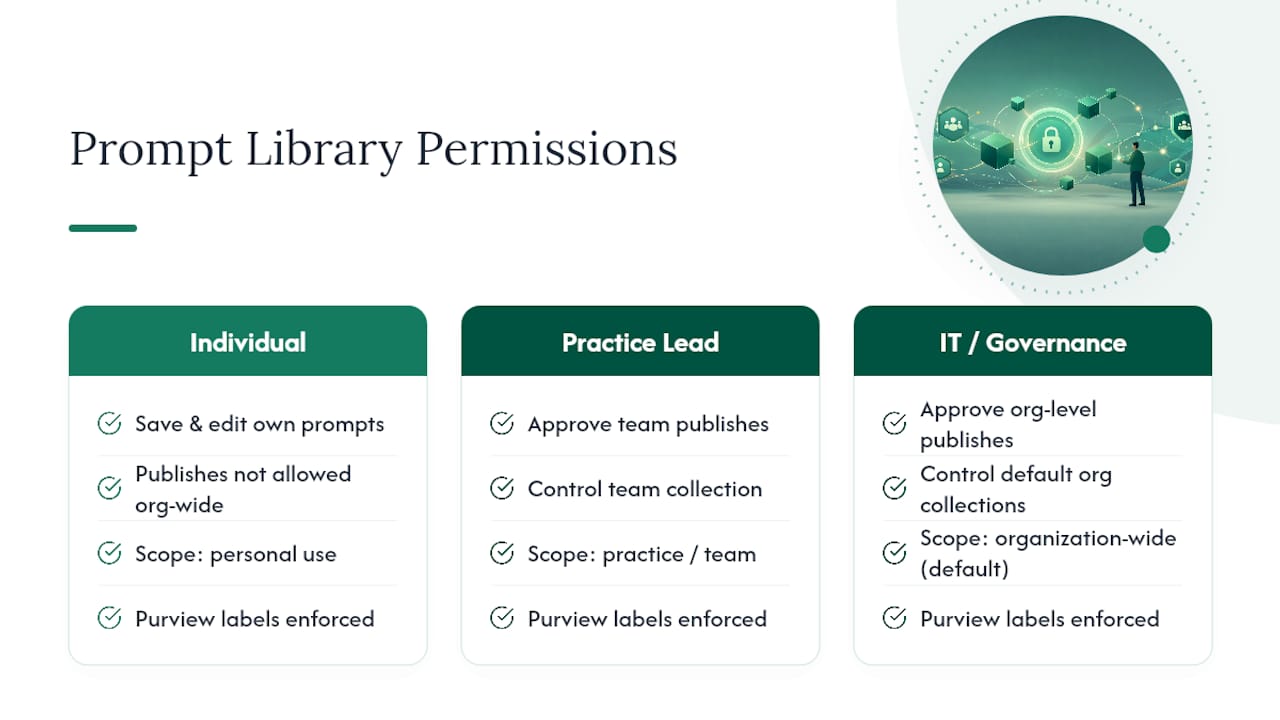
Sensitivity labels matter here too. If a prompt is designed to summarize documents that might contain privileged or confidential client information, make sure the underlying data sources respect your existing Microsoft Purview labels. A prompt doesn’t override your firm’s existing information barriers, but a poorly built one can accidentally surface data across those barriers if permissions aren’t checked first.
Audit who has publishing rights every six months, not only when someone leaves the firm. Turnover in mid-market firms is common enough that former employees retaining publish access to shared collections is a real, avoidable gap.
Customizing Prompts For Your Firm’s Actual Work
Generic prompts fail in professional-services settings because the generic version doesn’t know your firm’s terminology, formatting standards, or client expectations. A prompt that says “summarize this document” produces a different, less useful result than one that says “summarize this document in the format our litigation team uses for case status memos.”
Start customization by identifying the specific output your firm actually wants, not the output a default Microsoft prompt happens to produce. If your accounting practice needs variance explanations formatted a certain way for partner review, build that formatting instruction directly into the saved prompt rather than fixing it after every single output.
Troubleshooting a prompt that isn’t working usually comes down to one of three issues: the instruction is too vague, the model temperature is mismatched to the task (creative writing needs a higher setting, compliance summaries need a lower one), or the prompt is missing a reference to the actual file or data source it needs. Test each variable separately instead of rewriting the whole prompt at once. Change the temperature first if outputs feel too repetitive or too erratic, then adjust instruction wording if the content itself misses the mark.
Document drafting is a common failure point worth calling out specifically. Firms using Copilot for document drafting often find that a prompt working well for a simple memo breaks down entirely for a 40-page contract, because the instruction doesn’t account for section-by-section consistency. Build separate prompts for short-form and long-form drafting rather than forcing one template to handle both.
The Gap Between Gallery Browsing And Real Adoption
Here’s what the official guidance gets right and where it stops short. Microsoft’s Prompt Gallery and Copilot Studio templates are genuinely well built, tenant-scoped, versioned, and increasingly easy to share across a team. The documentation is thorough. The GitHub communities extending it, particularly pnp/copilot-prompts, are more production-ready than most internal IT teams expect from open-source resources.
But browsing a gallery isn’t the same as adoption, and adoption isn’t the same as ROI. The uncomfortable pattern across mid-market professional-services firms is a stack of unused Copilot licenses sitting next to a handful of people who found three or four prompts they love and never looked further. Neither official galleries nor community repositories fix that gap on their own. They’re inputs, not outcomes.
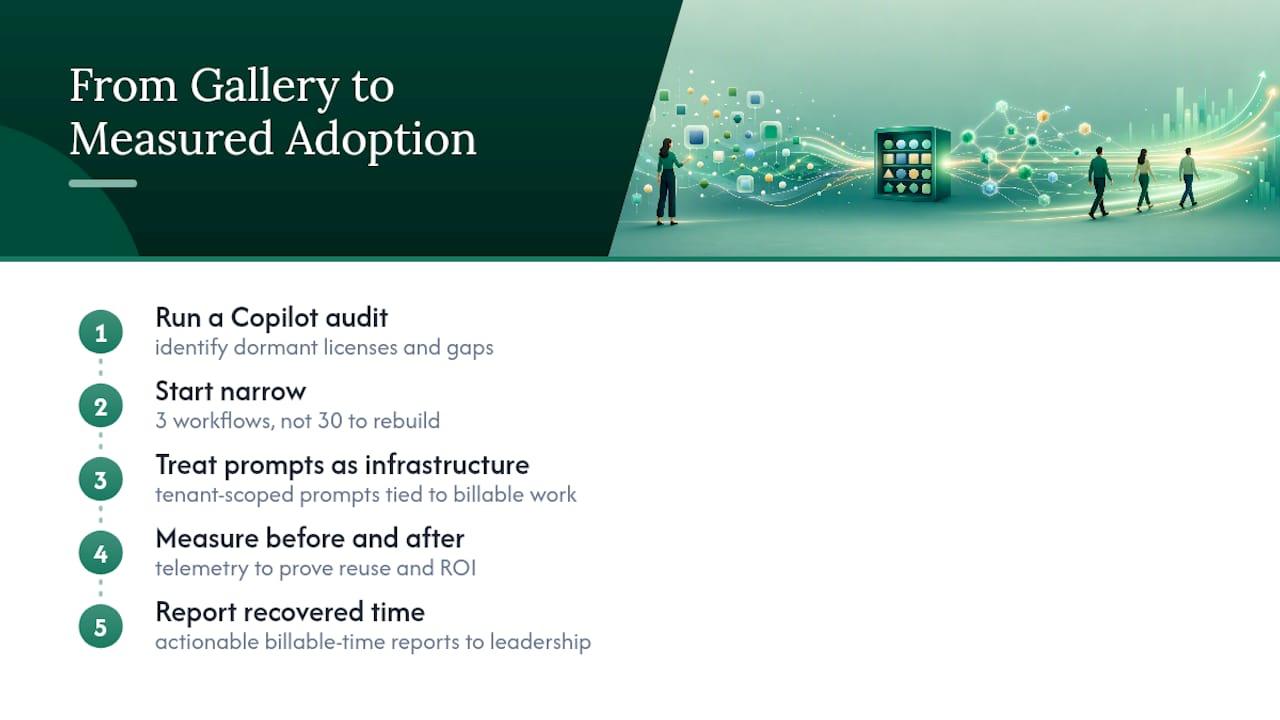
What actually moves the needle is treating the prompt library as living infrastructure tied to specific billable workflows, measured before and after, not as a feature to demo once in a training session. A firm that saves twelve prompts but never tracks whether anyone reuses them has built a gallery, not a productivity gain. The firms getting real return start narrower than they expect, three workflows, not thirty, and let telemetry tell them where to expand next.
If there’s one thing worth prioritizing above everything else in this article: measure before you customize. A perfectly worded prompt for a workflow nobody tracks is invisible value.
— Mad
Firms ready to move past gallery browsing and into measured adoption can start with a Copilot ROI and adoption audit that aims to identify dormant licenses, rebuild high-value workflows around tenant-scoped prompts, and report recovered billable time back to leadership in actionable terms.
Sources
- Get started with Microsoft 365 Copilot Chat | Microsoft Support
- Understand Prompt Gallery in Copilot | Microsoft Learn
- pnp/copilot-prompts