Python is the most practical tool available for automating Microsoft 365 at scale. Using the Microsoft Graph SDK for Python, the Office365-REST-Python-Client library, and the Azure Connectors Python SDK, you can automate virtually every Microsoft 365 service your firm runs: Outlook mail, Calendar, SharePoint, OneDrive, and Teams. Authentication runs through OAuth2 managed by MSAL (Microsoft Authentication Library) for Python, which handles token acquisition and refresh without custom wrappers. The result is production-grade automation that IT teams at law firms, accounting practices, and consulting companies can deploy and maintain without constant intervention.
Here is what you can automate with these tools:
- Outlook email: send, read, filter, and manage messages and attachments programmatically
- Calendar: create, update, and delete events; manage attendees and recurring appointments
- SharePoint Online: upload, download, and manage files, lists, and site permissions
- OneDrive: sync files, move folders, and trigger file-based workflows
- Teams: post channel messages, create teams, and manage memberships
- Task scheduling: run scripts on cron, APScheduler, or Azure Automation runbooks
- Advanced Graph REST calls: paginate large datasets, handle complex resources, and build custom integrations
How to set up your Microsoft 365 environment for Python automation
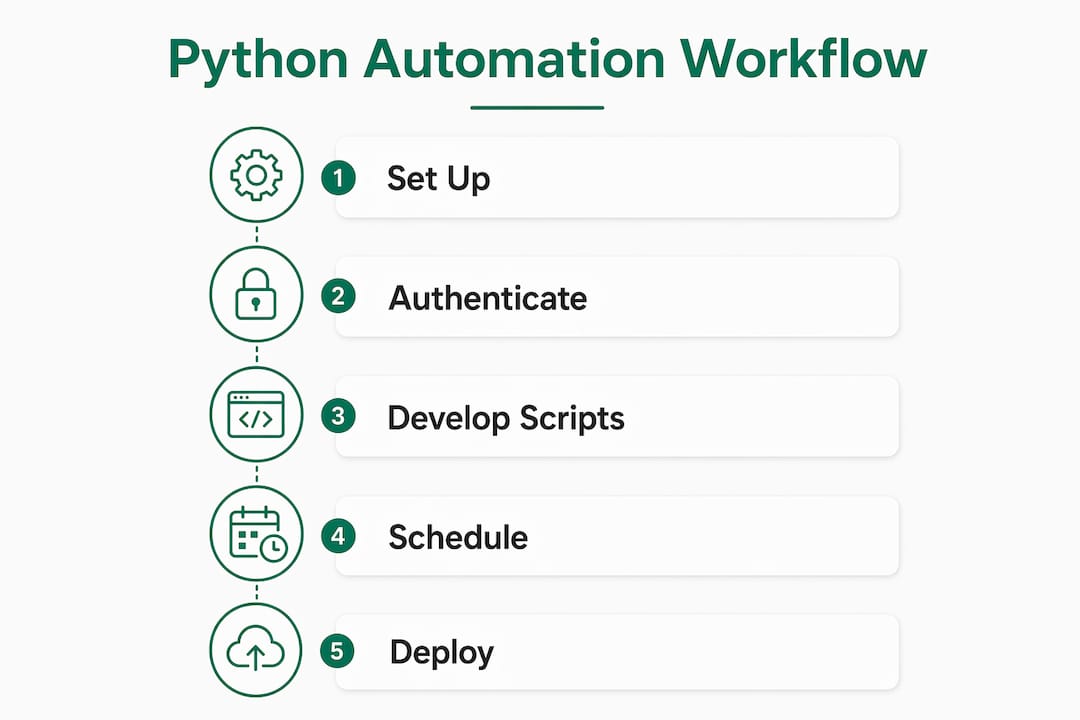
Before writing a single line of automation code, you need a registered app in Microsoft Entra (formerly Azure AD) and a properly configured Python environment.
App registration in Microsoft Entra
- Sign in to the Microsoft Entra admin center and navigate to App registrations.
- Select New registration, give the app a name (e.g.,
M365-Python-Automation), and choose the appropriate account type for your tenant. - On the Overview page, copy the Application (client) ID and Directory (tenant) ID.
- Under Certificates & secrets, create a new client secret and copy the value immediately. It will not be shown again.
- Under API permissions, add the Microsoft Graph permissions your scripts need (e.g.,
Mail.ReadWrite,Calendars.ReadWrite,Files.ReadWrite.All,Sites.ReadWrite.All). - Grant admin consent for the permissions you added.
Python environment prerequisites
- Python 3.8 or higher (Python 3.10 recommended for Azure Automation runbooks)
pipfor package management- Core libraries:
pip install msgraph-sdk azure-identity msal Office365-REST-Python-Client requests
Secure credential storage
Never hardcode credentials in scripts. Store your client_id, tenant_id, and client_secret in environment variables or a .env file loaded with python-dotenv, and add that file to .gitignore immediately.
import os
CLIENT_ID = os.environ["AZURE_CLIENT_ID"]
TENANT_ID = os.environ["AZURE_TENANT_ID"]
CLIENT_SECRET = os.environ["AZURE_CLIENT_SECRET"]
Secure credential management is not optional in production. Hardcoded secrets in source code are the leading cause of credential leaks in enterprise automation projects. Use environment variables, Azure Key Vault references, or managed identities for every deployment.
Pro Tip: For Azure Automation runbooks, skip client secrets entirely and use managed identities instead. Microsoft’s own tutorials recommend this approach because it eliminates secret rotation overhead and ties authentication directly to the Azure resource.
How to connect to Microsoft 365 APIs and authenticate with Python
Authentication is where most Microsoft 365 automation projects break down in production. The fix is straightforward: use MSAL for Python and never build a custom OAuth2 flow.
MSAL token acquisition for app-only access
import msal

authority = f"https://login.microsoftonline.com/{TENANT_ID}"
app = msal.ConfidentialClientApplication(
    client_id=CLIENT_ID,
    client_credential=CLIENT_SECRET,
    authority=authority
)

token_response = app.acquire_token_for_client(
    scopes=["https://graph.microsoft.com/.default"]
)
access_token = token_response["access_token"]
This is app-only authentication, which runs without a signed-in user. It is the right choice for unattended automation scripts. For workflows that act on behalf of a specific user, use delegated permissions with the device code flow instead.
Token lifecycle management
Refresh tokens expire after 90 days without re-authentication. In unattended automation, that means a script that worked in january can silently fail in april. MSAL’s built-in token cache handles refresh automatically when you serialize and persist the cache between runs.
All Microsoft 365 API authentication must use OAuth2 managed with MSAL. Basic authentication was deprecated by Microsoft, and any script still relying on username/password auth will fail in production environments.
Best practices for token management:
- Use
msal.SerializableTokenCacheand persist it to disk or Azure Key Vault between script runs - Never log or print access tokens
- Scope requests to the minimum permissions required (least-privilege principle)
- For Azure-hosted scripts, prefer managed identities over client secrets
Pro Tip: The Azure Connectors Python SDK has built-in authentication via ManagedIdentityTokenProvider and DefaultAzureCredential, which means you skip the MSAL setup entirely for Azure-hosted scripts. It is the fastest path to production for teams running automation inside Azure Functions or Automation Accounts.
How to automate Outlook email with Python
The two primary libraries for Python automation with Outlook are the Microsoft Graph SDK (msgraph-sdk) and the Office365-REST-Python-Client. Both work well; the Graph SDK is the more modern choice for new projects.
Sending email with the Graph SDK
from msgraph import GraphServiceClient
from msgraph.generated.users.item.send_mail.send_mail_post_request_body import SendMailPostRequestBody
from msgraph.generated.models.message import Message
from msgraph.generated.models.item_body import ItemBody
from msgraph.generated.models.recipient import Recipient
from msgraph.generated.models.email_address import EmailAddress
from azure.identity import ClientSecretCredential

credential = ClientSecretCredential(TENANT_ID, CLIENT_ID, CLIENT_SECRET)
client = GraphServiceClient(credential)

message = Message()
message.subject = "Automated Report"
message.body = ItemBody()
message.body.content = "Your weekly summary is attached."
recipient = Recipient()
recipient.email_address = EmailAddress()
recipient.email_address.address = "partner@yourfirm.com"
message.to_recipients = [recipient]

request_body = SendMailPostRequestBody()
request_body.message = message
await client.users.by_user_id("me").send_mail.post(request_body)
Reading the inbox and managing messages
messages = await client.users.by_user_id("me").mail_folders.by_mail_folder_id("inbox").messages.get()
for msg in messages.value:
    print(msg.subject, msg.received_date_time)
To mark a message as read, patch the is_read property. To move it to a folder, use the move action with the target folder ID.
Key email automation scenarios for professional services firms
- Auto-forwarding client intake emails to matter management systems
- Sending scheduled billing reminders with PDF attachments
- Parsing incoming invoices and routing them to the right approver
- Archiving emails by client matter number into SharePoint folders
Pro Tip: Microsoft Graph enforces API throttling on mail endpoints. If you are processing large volumes, add exponential backoff on HTTP 429 responses. The Graph SDK surfaces these as ODataError exceptions, so wrap your calls in a try/except block and retry after the Retry-After header value.
How to automate Microsoft 365 Calendar with Python
Calendar automation is one of the highest-ROI use cases for professional services firms. Scheduling client meetings, sending reminders, and syncing appointments with billing systems are all achievable with a few dozen lines of Python.

Creating a calendar event
from msgraph.generated.models.event import Event
from msgraph.generated.models.date_time_time_zone import DateTimeTimeZone
from msgraph.generated.models.attendee import Attendee

event = Event()
event.subject = "Quarterly Review"
event.start = DateTimeTimeZone()
event.start.date_time = "2026-03-15T10:00:00"
event.start.time_zone = "America/New_York"
event.end = DateTimeTimeZone()
event.end.date_time = "2026-03-15T11:00:00"
event.end.time_zone = "America/New_York"

attendee = Attendee()
attendee.email_address = EmailAddress()
attendee.email_address.address = "client@example.com"
event.attendees = [attendee]

await client.users.by_user_id("me").events.post(event)
Best practices for time zone and date handling
- Always specify
time_zoneexplicitly. Omitting it defaults to UTC, which causes meeting time mismatches for US-based attendees. - Store and compare datetimes as UTC internally; convert to local time only at the display layer.
- For recurring events, set the
recurrenceproperty usingPatternedRecurrencewith the appropriateRecurrencePatterntype (weekly,monthly, etc.).
Common calendar automation use cases
- Auto-scheduling follow-up calls after a contract is signed
- Blocking time for recurring compliance deadlines (tax filings, audit windows)
- Syncing court dates or deposition schedules from external case management systems
- Sending calendar invites when a new client matter is opened
Pro Tip: When updating an existing event, retrieve the event’s id first and use a PATCH request rather than deleting and recreating it. This preserves the original invite thread and avoids confusing attendees with duplicate notifications.
How to schedule tasks and trigger workflows with Python
Python scripts do not run themselves. You need a scheduler or a trigger mechanism, and the right choice depends on where your script lives.
Local and server-based scheduling
For scripts running on a Windows or Linux server, the two most common options are:
- APScheduler: a Python library that supports cron-style, interval, and date-based triggers with a clean API
- OS cron jobs (Linux) or Windows Task Scheduler: reliable for simple, time-based execution without additional dependencies
from apscheduler.schedulers.blocking import BlockingScheduler

scheduler = BlockingScheduler()

@scheduler.scheduled_job('cron', hour=8, minute=0)
def morning_report():
    # your Graph API calls here
    pass

scheduler.start()
Azure-hosted scheduling
For production deployments, Azure Automation runbooks are the right tool. You write a Python script, upload it as a runbook, attach a schedule, and Azure handles execution. Runbooks use managed identities for authentication, which removes the need for stored secrets entirely.
Power Automate Cloud does not execute Python natively. Python scripts in Power Automate Cloud require hosting in an Azure Automation Account or as an Azure Function with an HTTP trigger. The Power Automate flow calls the Azure Function URL, passes data as JSON, and the Python function returns a result. This hybrid pattern is the standard approach for combining event-driven orchestration with Python business logic.
Pro Tip: For failure recovery, configure Azure Automation runbooks with retry settings and alert rules in Azure Monitor. A runbook that fails silently is worse than no automation at all.
How to use Microsoft Graph REST APIs directly in Python
Sometimes the SDKs do not expose a specific endpoint, or you need fine-grained control over the request. Direct REST calls with the requests library fill that gap.
Making a raw Graph API call
import requests

headers = {
    "Authorization": f"Bearer {access_token}",
    "Content-Type": "application/json"
}

response = requests.get(
    "https://graph.microsoft.com/v1.0/me/messages",
    headers=headers,
    params={"$top": 50, "$select": "subject,receivedDateTime,from"}
)
response.raise_for_status()
data = response.json()
Handling pagination
Microsoft Graph returns paginated results for large collections. Check for @odata.nextLink in the response and loop until it is absent:
url = "https://graph.microsoft.com/v1.0/me/messages"
while url:
    response = requests.get(url, headers=headers)
    data = response.json()
    for message in data.get("value", []):
        process(message)
    url = data.get("@odata.nextLink")
Error handling and retry strategy
import time

def graph_get(url, headers, max_retries=3):
    for attempt in range(max_retries):
        response = requests.get(url, headers=headers)
        if response.status_code == 429:
            retry_after = int(response.headers.get("Retry-After", 10))
            time.sleep(retry_after)
        elif response.status_code >= 500:
            time.sleep(2 ** attempt)
        else:
            response.raise_for_status()
            return response.json()
    raise Exception("Max retries exceeded")
Advanced scenarios that require direct REST calls:
- Querying Microsoft Search API for cross-service content discovery
- Accessing beta-endpoint features not yet in the stable SDK
- Batch requests using the
$batchendpoint to reduce API call volume - Custom delta queries for incremental sync of large mailboxes or drives
Pro Tip: Use aiohttp instead of requests when you need concurrent API calls. Fetching 50 mailboxes sequentially with requests takes seconds; fetching them concurrently with asyncio and aiohttp takes a fraction of that time.
Production-ready patterns and best practices for Microsoft 365 Python automation
The teams that get Microsoft 365 Python automation into production fastest share one habit: they offload authentication complexity to managed SDKs rather than building their own OAuth2 flows. IT teams that avoid custom OAuth2 wrappers and rely on established SDKs report faster, more stable deployments with fewer API connection bugs.
The Azure Connectors Python SDK takes this further with a connector-first, async-native design. It provides type-safe, async-first Python clients with built-in authentication, configurable retry policies, and exponential backoff out of the box. For teams building automation inside Azure Functions, it is the cleanest path available.
Core production patterns:
- Least-privilege permissions: request only the Graph scopes your script actually uses. Broad permissions like
Mail.ReadWrite.Allon a script that only sends mail are a security liability. - Centralized logging: write structured logs (JSON format) to Azure Monitor or Application Insights so failures are traceable without SSH access to a server.
- Idempotent operations: design scripts so re-running them after a failure does not create duplicate emails, events, or files.
- Secret rotation: rotate client secrets on a schedule and use Azure Key Vault references in runbooks to avoid hardcoded expiry surprises.
- Hybrid architecture: use Power Automate for event triggers and Azure-hosted Python for the business logic. Power Automate handles the “when” and Python handles the “what.”
For mid-market professional services firms, the Copilot workflows guide from Gozera covers how these Python automation patterns integrate with Microsoft 365 Copilot to recover billable time at scale.
Pro Tip: Start with the Azure Connectors Python SDK’s Office365Client for new projects. The managed identity token provider and built-in retry logic eliminate two of the three most common production failure modes before you write a single business logic line.
How to automate SharePoint Online with Python
The Office365-REST-Python-Client library gives you two distinct clients for SharePoint: ClientContext for the SharePoint REST API v1 (lists, files, site admin, permissions) and GraphClient for Microsoft Graph-based SharePoint access. Use ClientContext when you need full SharePoint fidelity.
Uploading a file to SharePoint
from office365.sharepoint.client_context import ClientContext

ctx = ClientContext("https://yourtenant.sharepoint.com/sites/YourSite").with_client_secret(
    client_id=CLIENT_ID,
    client_secret=CLIENT_SECRET,
    tenant=TENANT_ID
)

with open("report.pdf", "rb") as f:
    file_content = f.read()

target_folder = ctx.web.get_folder_by_server_relative_url("/sites/YourSite/Shared Documents")
target_folder.upload_file("report.pdf", file_content).execute_query()
print("File uploaded.")
Reading a SharePoint list
list_obj = ctx.web.lists.get_by_title("Client Matters")
items = list_obj.items.get().execute_query()
for item in items:
    print(item.properties.get("Title"), item.properties.get("Status"))
Common SharePoint automation scenarios for professional services include auto-archiving completed matter folders, syncing client data from an external CRM into a SharePoint list, and enforcing document naming conventions on upload. For law firms managing document-heavy workflows, automating SharePoint document routing can cut manual filing time significantly.
How to automate OneDrive file operations with Python
OneDrive automation through Microsoft Graph uses the drives endpoint. The GraphClient from Office365-REST-Python-Client or the msgraph-sdk both work well here.

Listing files in a OneDrive folder
drive_items = await client.users.by_user_id("me").drive.root.children.get()
for item in drive_items.value:
    print(item.name, item.size)
Uploading a file to OneDrive
file_path = "/Documents/invoice.pdf"
with open("invoice.pdf", "rb") as f:
    content = f.read()

await client.users.by_user_id("me").drive.root.item_with_path("Documents/invoice.pdf").content.put(content)
For files larger than 4 MB, use the upload session API, which splits the file into chunks and handles resumable uploads. This is the correct approach for automating document delivery in accounting or legal workflows where PDF exports regularly exceed that threshold. Firms using finance automation integrations alongside Microsoft 365 often connect OneDrive file triggers to downstream processing pipelines using this pattern.
How to automate Microsoft Teams with Python
Teams automation via Microsoft Graph covers channel messaging, team creation, and membership management. The GraphClient handles all of it.
Posting a message to a Teams channel
from office365.graph_client import GraphClient
import msal

def acquire_token():
    authority = f"https://login.microsoftonline.com/{TENANT_ID}"
    app = msal.ConfidentialClientApplication(CLIENT_ID, CLIENT_SECRET, authority=authority)
    return app.acquire_token_for_client(["https://graph.microsoft.com/.default"])

client = GraphClient(acquire_token)

team_id = "your-team-id"
channel_id = "your-channel-id"

client.teams[team_id].channels[channel_id].messages.add(
    subject="Automated Alert",
    body="The nightly reconciliation completed with 0 errors."
).execute_query()
Common Teams automation scenarios
- Posting daily status updates from a Python monitoring script to a DevOps channel
- Creating a new Team automatically when a client matter is opened in your practice management system
- Adding or removing members from a Team when staff join or leave a project
- Sending approval request messages with Adaptive Cards via the Graph API
For law firms and accounting practices, Teams automation pairs naturally with bookkeeping workflow automation to notify the right people the moment a document is ready for review, without anyone manually checking a queue.
Key Takeaways
Production Microsoft 365 automation with Python requires three things working together: proper app registration in Microsoft Entra, MSAL-managed OAuth2 authentication, and the right SDK for each service.
| Point | Details |
|---|---|
| Use established SDKs | Microsoft Graph SDK and Office365-REST-Python-Client eliminate custom OAuth2 complexity and reduce connection bugs. |
| Refresh tokens expire | MSAL refresh tokens expire after 90 days; persist the token cache to prevent silent automation failures. |
| Azure hosts Python for Power Automate | Power Automate Cloud requires Azure Automation or Azure Functions to execute Python scripts. |
| Least-privilege permissions | Request only the Graph API scopes each script needs; broad permissions increase security exposure. |
| Hybrid architecture wins | Combine Power Automate event triggers with Azure-hosted Python logic for production-grade, event-driven workflows. |
If your firm is running Microsoft 365 Copilot licenses alongside Python automation and not seeing measurable ROI, Gozera can help. Gozera’s consulting practice measures actual Copilot usage via telemetry, identifies dormant licenses, and rebuilds workflows with Python and n8n to generate recoverable billable time. Visit Gozera to see how mid-market professional services firms turn idle licenses into documented productivity gains.