
If your firm already runs on Microsoft 365, OneDrive for Business is usually the better fit: the storage is bundled into licenses you pay for, co-authoring in Word and Excel is native, and the compliance tooling sits in the same admin console as everything else. Dropbox Business earns its place when your team mostly moves large creative files, wants a deliberately simple interface, or works outside the Microsoft stack. This guide compares the two on the criteria that matter to a 50 to 500 person professional-services firm in Canada: price, collaboration, security and privacy, migration risk, and what each means if you plan to roll out Microsoft 365 Copilot.
TL;DR
- Microsoft 365 shops: OneDrive is the lower-friction choice. Running Dropbox beside Microsoft 365 tends to add friction and complexity without much in return.
- Price: Microsoft 365 Business Basic lists at CAD $9.50 per user per month, paid yearly, with 1 TB per user. Dropbox Business Standard starts at $18 per user per month for 5 TB of team storage.
- Governance: OneDrive brings Purview DLP, sensitivity labels, eDiscovery and Conditional Access. Dropbox’s data-governance add-on costs extra and requires a sales quote.
- Copilot: Copilot works best on content that lives in Microsoft 365. Where your files live shapes what it can use.
- Switching: Migration is real work. Budget for pilots, permission mapping and retraining, not just licenses.
Table of Contents
- What you are actually comparing
- OneDrive vs SharePoint: clear this up first
- Pricing for Canadian firms
- Collaboration and daily use
- Security, compliance and Canadian privacy
- OneDrive or Dropbox: how to decide
- Switching without losing data or goodwill
- Why this matters for Copilot
- Our perspective
- Where we can help
- FAQ
- Sources
What you are actually comparing
The two products look similar from the desktop: a synced folder, share links, version history. The difference is what sits around them.
Microsoft describes OneDrive for work or school, formerly OneDrive for Business, as its cloud service for storing and protecting files, sharing them, reaching them from any device and syncing them to a computer. It is one piece of Microsoft 365, alongside Teams, SharePoint and Exchange.
Dropbox’s own material positions Dropbox Business as a team product: sharing files and folders, commenting, collecting files from people outside your account, and administrator controls. Dropbox states that more than 150,000 companies use it. It is a focused file product rather than a suite.
That framing matters. A Mango IT comparison written for Canadian readers puts it simply: the choice follows your software ecosystem. OneDrive suits firms built around Microsoft Office. Dropbox suits teams needing plain storage and sharing, or creative workflows.
OneDrive vs SharePoint: clear this up first
Many searches for this comparison actually hide a second question: where do firm files belong, OneDrive or SharePoint?
Microsoft’s guidance is that OneDrive is for your own work files, including work in progress and files shared with specific people. SharePoint is for files shared with a team or organization, with permissions management and sites. Teams channel files are stored in SharePoint, and you can also add OneDrive files to a channel.
For a law or accounting firm, a workable rule is:
- Client matter or engagement files: SharePoint document libraries (or Teams channels backed by them), with permissions by matter or client.
- Drafts, personal working files, a partner’s own notes: OneDrive.
- Anything leaving the firm for good: a controlled share link with expiry, or a dedicated transfer step.
Dropbox collapses this into one idea, a team folder. That is easier to explain on day one. It is also less expressive when you need matter-level permissions and audit trails, which is where Microsoft’s model pays off. Note that Microsoft itself says SharePoint powers much of file collaboration in Microsoft 365, with Teams, OneDrive and governance options playing their parts. A fair comparison of “OneDrive” against Dropbox is really a comparison of Dropbox against the OneDrive and SharePoint pair.
Pricing for Canadian firms
Storage is rarely bought alone, so compare what each plan bundles.
| Plan | Listed price | Storage | What else you get |
|---|---|---|---|
| Microsoft 365 Business Basic | CAD $9.50 per user/month, paid yearly, plus tax | 1 TB per user | Web and mobile Word, Excel, PowerPoint and Outlook, business email, Teams, identity and access management for up to 300 users |
| Microsoft 365 Apps for enterprise | CAD $19.80 per user/month, paid yearly | 1 TB per user | Desktop Word, Excel, PowerPoint and Outlook |
| OneDrive standalone Plan 1 | CAD $5.00 per user/month | 1 TB per user | File storage and sync only |
| OneDrive standalone Plan 2 | CAD $10.00 per user/month | Potentially unlimited for organizations of 5+ users (as of December 2025) | Storage and sync |
| Dropbox Business Standard | $18 per user/month | 5 TB of team storage | Sharing, commenting, admin controls |
| Dropbox Business Advanced | $30 per user/month | 15 TB of team storage | Expanded admin features |
Two cautions on this table. Prices change, so confirm on each vendor’s Canadian page before budgeting. And the Dropbox figures come from a March 2026 review, which should be checked against Dropbox’s current Canadian price list, including the currency and billing terms.
The pattern is still clear. PCMag Canada characterizes Dropbox Business as pricier than most of the field, though generous on storage per dollar. For a firm already paying for Microsoft 365, the OneDrive storage is effectively included. Adding Dropbox means paying for a second storage layer that mostly duplicates the first.
The subscription is also not the whole bill. Digital Fire’s 2026 comparison for Canadian businesses notes that total cost includes migration, training, ongoing administration, security management, integration and scalability. A cheaper per-seat price can lose to a pricier one that needs less administration.
A quick worked example
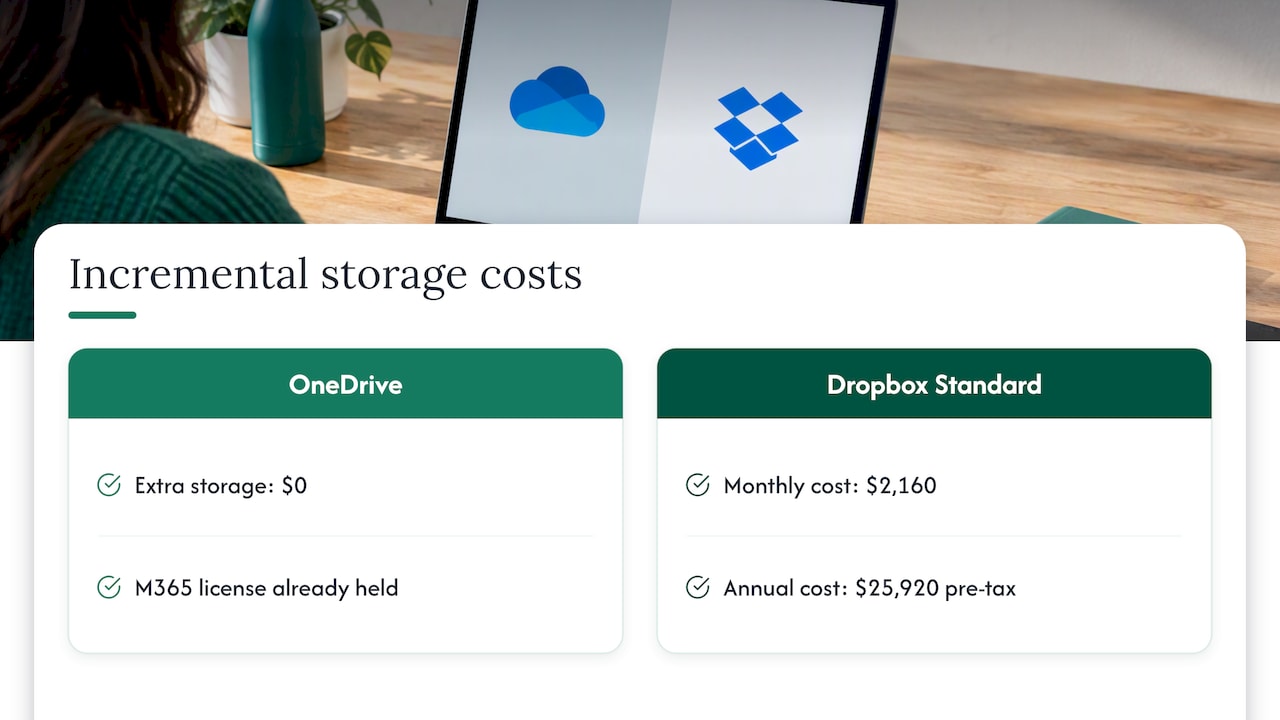
Take a 120-person consulting firm. Everyone already holds a Microsoft 365 license, so OneDrive storage costs nothing extra. Adding Dropbox Business Standard at $18 per user per month for 120 people is $2,160 per month, or $25,920 per year, before tax, for a second place to keep files. That money has to be justified by a specific need, such as heavy video or design work, or an external-sharing workflow your Microsoft setup cannot match. If it cannot, the budget is better spent on making the platform you already own work harder.
Collaboration and daily use
Document editing. OneDrive gives native real-time co-authoring in Office files and ties into Teams and SharePoint. An EPC Group comparison notes Dropbox supports Office editing but with occasional sync conflicts and a separate Teams integration. For a firm where five people may touch the same engagement letter or workbook, that is a practical difference rather than a feature checkbox.
Sync and file handling. Dropbox’s reputation is built on sync and handling of media. PCMag Canada credits it with advanced syncing, collaboration tools, multimedia support and mobile OCR, plus integrations with Adobe, Microsoft, Salesforce and Slack, and apps for Windows, macOS, Linux, Android and iOS. If your engineers or designers push large drawing sets or video, that strength is real.
Simplicity. Zapier’s comparison frames it as OneDrive offering reliable file management without complexity, while Dropbox appeals to power users and creative professionals. Both labels hold up in practice: OneDrive wins on being already there, Dropbox on feeling lighter.
Sharing outside the firm. Both services handle share links. For one-off transfers of large files to a client or counsel where you want a deliberate, separate step, a secure file transfer tool can sit beside either platform. Whatever you choose, set an internal rule: client-confidential material goes through approved channels only, with expiring links.
Security, compliance and Canadian privacy
This is where the gap is widest for law and accounting firms.
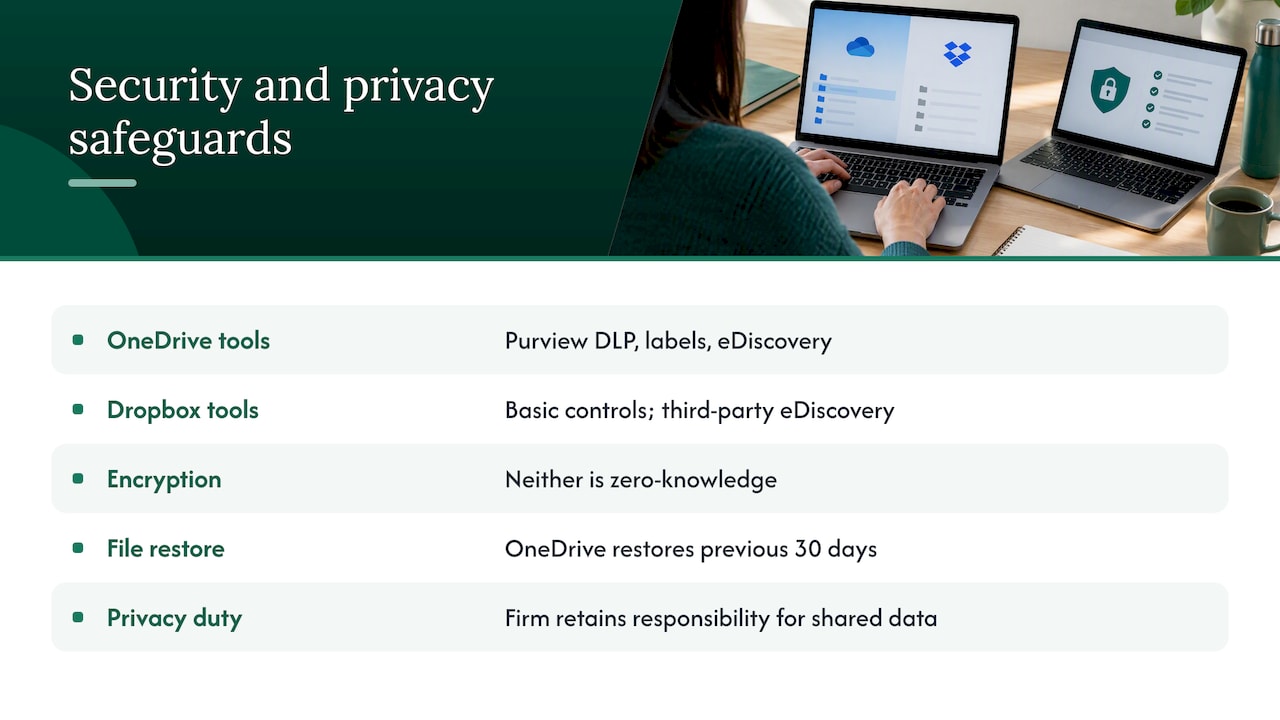
Governance tooling. Mango IT reports that OneDrive for Business includes Purview DLP, sensitivity labels and eDiscovery, while Dropbox offers basic content controls, no native sensitivity-label support, and needs third-party eDiscovery tools. EPC Group adds that OneDrive offers Conditional Access. PCMag Canada points out that Dropbox’s data-governance functionality costs extra and requires contacting sales, and that it lacks user-controlled encryption-key management.
Encryption claims. Neither is a zero-knowledge service. DragBin’s comparison states both retain control of decryption keys and use automated file scanning. If your clients require that the provider cannot technically read data, neither product alone satisfies that, and you would need client-side encryption on top.
Recovery. DragBin also notes that OneDrive’s restore feature can undo file and folder activity from the previous 30 days, and that version history keeps up to 500 versions per file. That matters the day a ransomware incident or a bulk deletion happens. Verify the current limits in your tenant before you rely on them in an incident plan.
Privacy law. Be wary of generic compliance badges. The Office of the Privacy Commissioner of Canada explains that PIPEDA applies to commercial activities within its scope, and that Alberta, British Columbia and Quebec have substantially similar provincial laws in specified circumstances. The same page stresses that organizations stay responsible for personal information passed to a service provider and must use contracts or other means to ensure comparable protection. In plain terms: your obligation does not transfer to the vendor. Ask your counsel which regime applies to your firm, then check data residency options and contract terms with whichever vendor you choose.
A note on US-oriented claims: EPC Group says OneDrive is FedRAMP authorized and offers a HIPAA Business Associate Agreement on certain licenses, with no BAA on standard Dropbox plans. Those are American frameworks. They are interesting as a signal of maturity but do not decide a Canadian compliance question.
OneDrive or Dropbox: how to decide
Work through these five questions with your IT lead and one partner.
- What is your office suite? If staff live in Word, Excel, Outlook and Teams, OneDrive and SharePoint remove a whole class of integration problems.
- What file types dominate? Contracts, workpapers and decks favor OneDrive. Large design, video or CAD files may favor Dropbox’s sync behavior.
- What do clients and regulators expect? If you must show matter-level permissions, labels and audit logs, price the governance features on both sides, including add-ons.
- Who will administer it? One admin console is cheaper to run than two.
- Can you get your data out? Test an export before you commit, not after.
For the typical mid-market law, accounting or consulting firm, answers one, three and four point to OneDrive. A specific creative or engineering group inside the firm might still justify Dropbox, but treat it as an exception with an owner and a review date, not a default.
Switching without losing data or goodwill
Migration is the part most comparisons skip. Northstar IT’s Canadian migration guide warns that planning cannot guarantee uninterrupted access, lossless transfer or preservation of every source feature, and recommends pilot testing and workload-by-workload migration. Sesame Disk’s 2026 comparison adds that vendor switches can involve possible loss of sharing or metadata, nontrivial permissions mapping, dual licensing during overlap, and retraining.
A sensible sequence:
- Inventory. Count users, folders, shared links, external collaborators and the largest files.
- Map permissions. Decide how Dropbox team folders become SharePoint libraries and which groups own them.
- Pilot. Move one practice group or one department first. Measure complaints and broken links.
- Migrate in waves, with a read-only period on the old side.
- Communicate external links. Clients with old share links need a heads-up and a new address.
- Retire the old subscription only after a defined quiet period.
Plan for a dual-license overlap in your budget. It is the line item most often forgotten.
Why this matters for Copilot
If you are licensing, or considering licensing, Microsoft 365 Copilot, file location becomes a strategy question. Copilot answers draw on the content and permissions inside your Microsoft 365 tenant. Files stranded in a separate storage product are, by default, outside that boundary, and oversharing inside the tenant surfaces in its answers. Our guides on the Copilot implementation process and on Copilot user licensing cover the rollout side. Treat storage consolidation and permission cleanup as groundwork: the firms that do it first have a much easier time showing value later.
Our perspective
We work with mid-market professional-services firms whose Copilot licenses sit idle, and the pattern is rarely about the AI itself. It is about the foundations: scattered files, inconsistent permissions, and workflows that never moved into the tools people were paying for. A firm that keeps client documents in a second storage product, with its own sharing rules, makes every later step harder, from measuring usage to rebuilding workflows to recovering billable time.
So our view is deliberately plain. If you run Microsoft 365, default to OneDrive and SharePoint, and make any exception earn its keep. Spend the saved subscription money on the part that pays back: baseline measurement, permission cleanup and a few well-chosen workflows. Choosing a storage product is a small decision. Making the platform you already own produce measurable results is the one that shows up in your utilization numbers.
— Mad
Where we can help
If your firm is consolidating on Microsoft 365 and wants Copilot to earn its license fees, we start with a fixed-scope Copilot ROI Audit: we measure actual usage through telemetry, identify dormant licenses and show where files, permissions and workflows are holding value back.
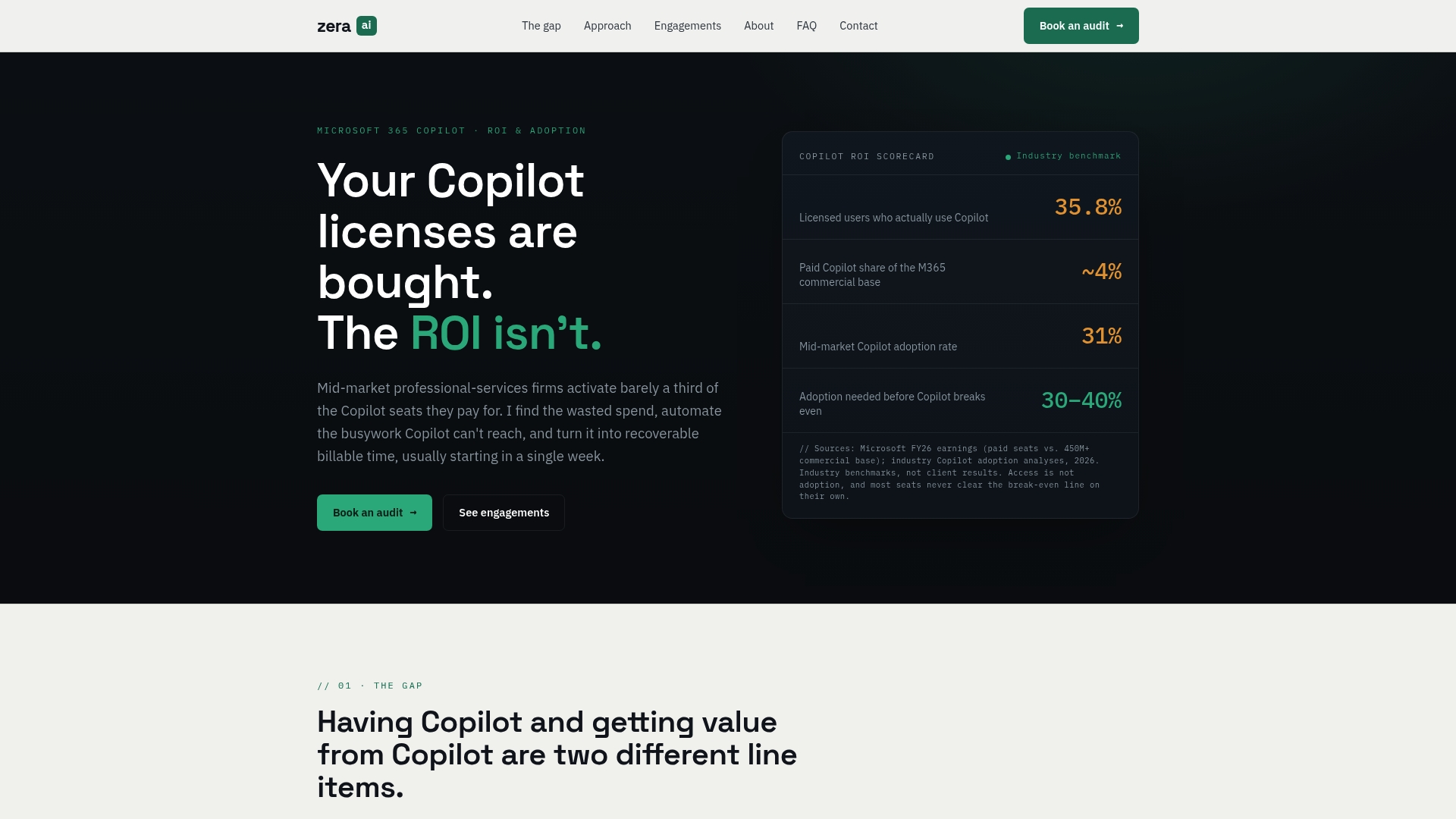
From there, a Workflow Integration Sprint rebuilds the highest-value workflows, and our Optimization Retainer, at $2,000 to $4,500 CAD per month, keeps usage and results improving. See the engagements on our services page and tell us where your files live today.
FAQ
Is OneDrive or Dropbox better for a business?
It depends on your ecosystem. For firms on Microsoft 365, OneDrive is generally better because storage, Office co-authoring, Teams and governance come in one package. Dropbox is stronger for simple sharing and media-heavy teams.
How much does OneDrive cost for business in Canada?
Microsoft lists Microsoft 365 Business Basic at CAD $9.50 per user per month, paid yearly, plus tax, including 1 TB per user. A standalone OneDrive Plan 1 has been listed at CAD $5.00 per user per month. Check Microsoft’s Canadian pages for current pricing.
What is the disadvantage of Dropbox for a Microsoft 365 firm?
Cost and overlap are the main ones. PCMag Canada describes it as relatively expensive, and its data-governance add-on requires a sales quote. It also lacks native sensitivity-label support, so you manage a second system alongside Microsoft’s.
What is the difference between OneDrive for Business and SharePoint?
OneDrive is for your own working files and files shared with specific people. SharePoint is for files shared with a team or the organization, with site-level permissions. Teams channel files are stored in SharePoint.
Sources
- Dropbox vs OneDrive, Mango IT
- Dropbox Business review, PCMag Canada
- Dropbox vs OneDrive comparison, EPC Group
- Microsoft 365 business plans, Canada
- What is OneDrive for work or school, Microsoft Support
- Dropbox Business Guided Tour
- Collaborating with Teams, SharePoint, and OneDrive, Microsoft Support
- Plan and deploy a file collaboration environment, Microsoft Learn
- Microsoft 365 Apps for enterprise, Canada
- OneDrive vs Google Drive vs Dropbox, Boulet Stratégies TI
- Microsoft 365 vs Google Workspace for Canadian businesses, Digital Fire
- Dropbox vs OneDrive security, DragBin
- PIPEDA and provincial privacy laws, Office of the Privacy Commissioner of Canada
- Microsoft 365 migration guide for Canadian businesses, Northstar IT
- Enterprise cloud storage comparison, Sesame Disk
- Dropbox vs OneDrive, Zapier
- File sharing and secure file transfer, Pingfloat