Author: zeraconsulting

  • Copilot for Contract Review: Practical Workflows for Legal Teams

    Copilot for Contract Review: Practical Workflows for Legal Teams

    Microsoft 365 Copilot works well as a first-pass contract review assistant for summaries, clause extraction, and side-by-side comparisons — when it runs inside governed Microsoft 365 workflows and every output gets human verification before it moves forward. It is not a substitute for legal judgment, and it should not touch final legal advice, high-value M&A, or litigation-sensitive documents without specialist oversight.

    The conditions that change the answer quickly:

    • Document sensitivity: Confidential third-party data and privileged communications need tenant-level data controls confirmed before any Copilot query runs against them.
    • Jurisdictional legal advice: Copilot has no jurisdiction-specific legal training. Any clause interpretation that carries legal consequence needs a qualified lawyer to verify it.
    • Audit trail requirements: High-stakes reviews that need defensible, source-linked extraction logs require a specialist legal-AI platform, not Copilot alone.

    Pro Tip: The fastest recoverable billable-time ROI comes from routine, high-volume contracts: NDAs, vendor agreements, and standardized service agreements. These are low-risk, structurally predictable, and exactly where Copilot’s summarization and clause-extraction capabilities cut first-pass review time most reliably.

    Key takeaways

    Copilot is a practical first-pass contract review assistant when it runs inside governed Microsoft 365 workflows and every output gets human verification before it moves forward.

    Point Details
    Best contract types for Copilot NDAs, vendor MSAs, and standardized service agreements deliver the fastest, lowest-risk ROI.
    Human review is non-negotiable Every Copilot output must be verified against the source document before use in a negotiation or opinion.
    Governance before deployment Confirm tenant permissions, audit logging, DPA terms, and sensitivity label controls before any legal workflow goes live.
    Measure recoverable billable hours Track per-user first-pass review time and rewrite-cycle reduction, not a vague firm-wide “time saved” figure.
    Gozera’s role Gozera audits dormant licenses, rebuilds intake workflows in Word/SharePoint/Teams, and delivers a documented ROI report for managing partners.

    Table of Contents

    What can Microsoft 365 Copilot do for contract review?

    Microsoft’s Copilot scenario library documents a concrete set of capabilities that legal teams can use today inside their existing Microsoft 365 environment. These are not theoretical features — they run in Word, Outlook, Teams, and SharePoint without requiring a separate application.

    Summarization and key-term extraction

    Copilot can read a long agreement and produce a structured summary covering duration, payment terms, renewal windows, and termination triggers. A prompt like “Summarize this agreement and list the key commercial terms” in Word returns a usable first-pass briefing in seconds. That output still needs review, but it replaces the 20-minute cold read that typically starts every contract intake.

    Clause identification and nonstandard language flagging

    Ask Copilot to identify all indemnity, limitation of liability, and confidentiality clauses in a document, and it will list them with the relevant section references. More usefully, you can prompt it to flag language that deviates from a standard template — for example, “Compare this indemnity clause to the following standard language and note any differences.” The output is a short differences list, not a legal opinion, but it tells the reviewer exactly where to focus.

    Agreement comparison

    Inside Word, Copilot can compare two versions of an agreement and produce a summary of what changed. This is particularly useful for redline-heavy negotiations where a reviewer needs to confirm which open issues remain unresolved across drafts.

    Redline suggestions and briefing notes

    Copilot can draft suggested redlines in plain language and generate briefing notes for counsel or business stakeholders. In a Teams or Outlook context, it can summarize a contract-related email thread and extract the outstanding action items, which cuts the time spent reconstructing negotiation history before a call.

    Concrete output examples:

    • One-line summary: “This is a 24-month SaaS agreement with automatic renewal, net-30 payment terms, and a mutual NDA provision in Section 7.”
    • Clause extraction snippet: “Limitation of liability: Section 12.3 caps aggregate liability at 12 months of fees paid. No carve-out for gross negligence.”
    • Comparison result: “Version 2 removes the supplier’s right to subcontract without consent (Section 9.1 in Version 1). Governing law changed from Ontario to New York.”

    Copilot’s contract review capabilities are real, but so are the failure modes. Legal teams that skip this section tend to discover the problems at the worst possible moment.

    Hands inspecting laptop screen for accuracy

    Accuracy risks

    Copilot can hallucinate — producing plausible-sounding clause summaries that misstate the actual text. It can also omit clauses when a document is long or poorly formatted, and it sometimes strips context from a clause in ways that change its meaning. A summary that says “liability is capped at 12 months of fees” without noting that the cap excludes IP indemnity obligations is technically incomplete and operationally dangerous.

    Legal hazards

    Relying on unverified AI output in a contract negotiation or legal opinion carries professional responsibility risk. If a lawyer presents a Copilot-generated clause summary as accurate without independent verification, and that summary is wrong, the error is the lawyer’s — not the tool’s. Copilot has no jurisdiction-specific legal training, no bar admission, and no professional indemnity. Treat its outputs as a first draft that requires the same scrutiny as work from a junior associate.

    Confidentiality and privilege are a separate concern. Queries sent through Copilot run against your Microsoft 365 tenant data, but the governance of what data Copilot can access — and how outputs are logged — depends entirely on how your tenant is configured. Uncontrolled access permissions can expose privileged communications to users who should not see them.

    Operational mitigations

    • Mandatory human review of every Copilot output before it is used in a negotiation, opinion, or filing.
    • Documented escalation protocol: any clause Copilot flags as nonstandard or high-risk goes to a senior lawyer before the review moves forward.
    • Verification steps logged: the reviewer signs off that they checked the Copilot output against the source document.
    • Scope exclusion list maintained and enforced: M&A, litigation-sensitive documents, regulatory filings, and any matter where a wrong summary could trigger financial or professional liability stay off Copilot’s intake list.

    The clearest rule: Copilot is a research and drafting assistant. It is not a legal advisor, and no workflow should treat its output as final.

    The honest answer is that Copilot and specialist legal-AI tools solve different problems, and the right choice depends on the task, the risk level, and the volume.

    Dimension Microsoft 365 Copilot Specialist legal-AI (e.g., Spellbook, eBrevia)
    Best-for task type Summaries, clause extraction, briefing notes, email recap Precedent-based redlines, playbook application, high-volume diligence extraction
    Accuracy / jurisdictional awareness General-purpose; no legal-specific training Tuned for legal language; some tools include jurisdiction-specific playbooks
    Audit trails / verifiability Output logs via Microsoft 365 audit; no native source-linking Source-linked extraction with clause-level traceability; designed for defensible review
    Integration Native Word, Outlook, Teams, SharePoint Typically Word add-in plus standalone platform; varies by vendor
    Pricing / license model Bundled with Microsoft 365 Copilot license Per-seat or per-document; separate contract required
    Data governance Microsoft enterprise DPA; tenant-level controls; admin-configurable Vendor-specific DPA; SOC 2 / ISO 27001 varies; confirm training opt-out

    When Copilot is the right call:

    • Routine, standardized contracts (NDAs, vendor MSAs, service agreements) where the risk profile is low and the goal is faster first-pass review.
    • Teams already inside Microsoft 365 who need a low-friction starting point without a separate procurement cycle.
    • Briefing notes, email summaries, and meeting recaps that support the review process rather than constitute the review itself.

    When a specialist tool is the better fit:

    • High-volume due diligence where you need structured extraction across hundreds of documents with consistent field mapping and bulk risk scoring.
    • Redlining against a specific playbook or precedent library, where Copilot’s general-purpose output lacks the legal specificity required.
    • Any review that needs a defensible audit trail linking each extracted data point back to the exact source clause — a requirement in regulated industries and eDiscovery contexts.
    • M&A, financing, and regulatory filings where jurisdictional precision and professional responsibility standards are non-negotiable.

    The practical decision rule: if the contract type is routine and the output is a starting point for a human reviewer, Copilot is sufficient. If the output needs to be defensible on its own, or if volume and consistency requirements exceed what a general-purpose tool can deliver reliably, a specialist platform is the right investment.

    How do you build a step-by-step contract review workflow with Copilot?

    The Microsoft automated contract review agent scenario describes an end-to-end pattern that legal teams can adapt. The key principle: keep Copilot inside Microsoft 365 contexts at every step. Copying contract text into an external chat window breaks the source link, creates data governance risk, and loses the formatting context Copilot uses to identify clause boundaries.

    End-to-end workflow

    1. Intake (Outlook/Teams): Contract arrives by email or Teams message. Prompt Copilot in Outlook: “Summarize this email thread and list any contract documents attached.” Output: a one-paragraph recap and a list of attachments with their apparent purpose.
    2. Ingestion (SharePoint/Word): Save the contract to the designated SharePoint library. Open in Word with the Copilot add-in active. This preserves the source document link for all subsequent queries.
    3. First-pass summary: Prompt in Word: “Summarize this agreement in 150 words, including the parties, term, payment structure, renewal mechanism, and governing law.”
    4. Clause extraction: Prompt: “List all indemnity, limitation of liability, IP ownership, and confidentiality clauses with their section numbers.” Review the output against the document. Flag any clause the reviewer cannot locate in the source text.
    5. Nonstandard language check: Prompt: “Compare the indemnity clause in Section [X] to the following standard language: [paste standard]. Note any deviations.”
    6. Redline suggestions: Prompt: “Draft suggested redline language for Section [X] to align with the following position: [describe position].” Treat the output as a first draft for counsel review, not a final redline.
    7. Briefing note: Prompt in Word or Teams: “Generate a one-page briefing note for the negotiation team summarizing the key open issues and our recommended positions.”
    8. Human review and sign-off: Reviewer checks every Copilot output against the source document, logs verification, and escalates any flagged clause to senior counsel before the review moves to negotiation.
    9. Handoff: Final reviewed summary and redlines saved to SharePoint. Teams message sent to the contracting or negotiation lead with the briefing note attached.

    Escalation protocol for high-risk findings

    • Any clause Copilot identifies as nonstandard, missing, or potentially unenforceable triggers an escalation flag.
    • The reviewing lawyer confirms the flag independently and decides whether to escalate to senior counsel or outside counsel.
    • Escalation decisions and their rationale are logged in the SharePoint document record.

    Pro Tip: Never paste contract text into the Copilot chat pane outside of Word or SharePoint. Use the Word add-in so every query runs against the stored document. This keeps the source link intact, supports audit logging, and avoids the data residency ambiguity that comes with external chat sessions.

    Deploying Copilot for contract review without validating the underlying configuration is the fastest way to create a privilege or data-breach problem. The Microsoft Copilot documentation covers the tenant-level controls administrators need to validate before any legal workflow goes live.

    Configuration checks

    • Confirm Copilot is scoped to the correct SharePoint libraries and document sets. Copilot inherits Microsoft 365 permissions — if a user can read a file, Copilot can query it on their behalf. Audit permission inheritance before rollout.
    • Disable Copilot access to document libraries containing privileged communications or matter files that should not be surfaced across the team.
    • Validate that sensitivity labels applied to confidential documents are respected by Copilot’s access controls.

    Documentation and logging

    1. Enable Microsoft 365 audit logging for all Copilot interactions in the legal environment.
    2. Confirm that Copilot outputs can be traced back to the source document and query — this is the minimum audit trail for professional responsibility purposes.
    3. Set retention policies for Copilot interaction logs consistent with your firm’s document retention schedule and applicable law society rules.
    4. Document the verification step: who reviewed the output, when, and what they confirmed against the source.

    Contractual and compliance requirements

    • Obtain and review Microsoft’s Data Processing Agreement (DPA) for your enterprise subscription. Confirm the data residency terms match your jurisdiction’s requirements.
    • Verify SOC 2 Type II and ISO 27001 certifications are current for the Microsoft 365 services your tenant uses.
    • Confirm that your Microsoft enterprise agreement includes the commercial data protection commitments that prevent your tenant data from being used to train shared models. Microsoft’s standard enterprise terms include this opt-out, but it must be confirmed for your specific agreement.

    Preserving legal professional privilege

    • Treat Copilot outputs that contain legal analysis as potentially discoverable. Do not route privileged communications through Copilot unless you have confirmed that the output will be handled with the same privilege protections as the underlying document.
    • Restrict Copilot access to matter files to the lawyers and staff assigned to that matter, using the same access controls you apply to the underlying documents.
    • Brief your team: Copilot is a tool, not a colleague. Outputs shared in Teams channels or Outlook threads can reach unintended recipients if channel permissions are not correctly set.

    How do you measure ROI and adoption with real telemetry?

    For mid-market firms, the right ROI frame is recoverable billable time and reduced rewrite cycles, not a vague “time saved” estimate. The Microsoft Copilot scenario guide frames this clearly: the value shows up in specific workflow bottlenecks, not across the board.

    KPIs worth tracking

    • Recoverable billable hours per user per week: Time previously spent on first-pass reading and clause extraction that Copilot now handles, converted to billable-hour equivalents.
    • Average first-pass review time: Baseline this before the pilot. Measure it weekly during and after.
    • Rewrite-cycle reduction: How many rounds of internal redrafting does a contract go through before it reaches the counterparty? Copilot-assisted first drafts tend to reduce this.
    • Copilot license active usage rate: Percentage of licensed users running at least one Copilot query per week. Dormant licenses are the most common ROI killer in mid-market deployments. See how to recover billable hours with AI tools for a detailed tactical breakdown.
    • Time-to-sign: From contract receipt to executed agreement. A useful lagging indicator, though it captures more than just review speed.
    • Escalation rate to senior counsel: If Copilot is working well, routine contracts should require less senior-counsel time. Track whether this rate changes.

    Telemetry sources

    • Microsoft 365 usage logs (Copilot activity reports in the admin center)
    • Word and SharePoint activity logs
    • Teams meeting recap usage
    • Custom telemetry from your CLM or document management system if integrated

    Illustrative case example

    A 12-lawyer mid-market firm processes roughly 40 NDAs and vendor agreements per month. Before Copilot, each first-pass review averaged 45 minutes. After embedding Copilot into the Word-based intake workflow, first-pass time drops significantly per contract, leading to substantial recoverable billable hours monthly. At a typical billing rate, this can translate into thousands of dollars of recoverable value from focused workflow changes on one contract type. These are conservative assumptions; the actual figure depends on your billing rate, contract volume, and how consistently the workflow is followed.

    Pro Tip: Set your pilot target around per-user recoverable hours and rewrite-cycle reduction, not a firm-wide “time saved” number. A per-user metric is auditable, attributable to Copilot specifically, and far easier to defend to a managing partner who wants to see the ROI before renewing licenses.

    What does a compact Copilot pilot plan look like?

    A well-scoped pilot runs 6–8 weeks and answers one question: does Copilot reduce first-pass review time on routine contracts enough to justify the license cost and governance overhead? Keep the scope tight.

    Pilot scope

    • In scope: NDAs, vendor MSAs, and standardized service agreements. These are structurally predictable and low-risk.
    • Out of scope: M&A, financing agreements, litigation-related documents, regulatory filings, and any matter with active privilege concerns.
    • Volume: 15–30 contracts over the pilot period, reviewed by 3–5 users.

    Roles and responsibilities

    • Pilot sponsor: Managing partner or legal ops director. Owns the go/no-go decision.
    • Legal ops lead: Designs the workflow, writes the prompts, and tracks KPIs.
    • IT admin: Configures tenant settings, validates permissions, enables audit logging.
    • Security reviewer: Confirms DPA, data residency, and sensitivity label controls before week 1.
    • End users: 3–5 lawyers or contract managers who run the actual reviews and log their time.

    Timeline milestones

    1. Week 0 — Scoping and access: Define contract types, exclusion list, and success criteria. Confirm IT and security sign-off.
    2. Weeks 1–2 — Configure and baseline: Enable Copilot in Word and SharePoint for pilot users. Baseline first-pass review time and rewrite cycles on the previous 30 days of contracts.
    3. Weeks 3–5 — Pilot execution: Users run Copilot-assisted reviews on in-scope contracts. Legal ops lead logs time per contract, escalation events, and any accuracy issues.
    4. Weeks 6–8 — Measure, iterate, decide: Compare KPIs against baseline. Identify the two or three workflow steps where Copilot delivered the most time recovery. Decide whether to expand, adjust, or stop.

    Success criteria and go/no-go gates

    • First-pass review time reduced by at least 25% on in-scope contracts.
    • Active Copilot usage rate above 80% among pilot users by week 5.
    • Zero unverified Copilot outputs used in a negotiation or legal opinion.
    • Escalation rate to senior counsel stable or declining.

    If the pilot hits these gates, the ROI case for a broader rollout is defensible. If it misses, the telemetry tells you exactly which workflow step failed — and that is fixable without starting over.

    A practical note on what actually moves the needle

    Most mid-market law firms that buy Microsoft 365 Copilot licenses see a familiar pattern: a burst of enthusiasm in the first two weeks, followed by a slow drift back to old habits. Within 90 days, a significant share of licenses sit dormant. The tool did not fail — the adoption plan did.

    The firms that convert Copilot into a genuine productivity asset share one habit: they embed it into the exact workflow steps where manual effort is highest, rather than leaving it as an optional add-on that lawyers can use if they feel like it. Contract intake and first-pass review is the single highest-leverage entry point for most legal teams. It is repetitive, time-consuming, and structurally predictable — exactly the conditions where Copilot performs best.

    Hands preparing contract intake workflow materials

    What the Vodafone enterprise adoption story and similar enterprise deployments consistently show is that process change drives the result, not the tool itself. Copilot paired with a redesigned intake workflow outperforms Copilot dropped into an unchanged process by a wide margin. That is the insight most vendor guides skip.

    The other thing worth saying plainly: Copilot is not the right tool for every contract review task, and pretending otherwise wastes the credibility you need when you tell a managing partner the pilot worked. Use it where it fits, pair it with specialist legal-AI where it does not, and measure the difference honestly.

    Most mid-market firms already own the Copilot licenses. The gap is between owning them and actually recovering billable time from them. Gozera closes that gap with a telemetry-first approach: we audit which licenses are active, identify the workflow bottlenecks where Copilot should be embedded, and rebuild those workflows inside Word, SharePoint, and Teams so the tool does real work on real contracts.

    Gozera

    Engagements are fixed-price and structured around outcomes: recoverable billable hours, active license utilization rates, and rewrite-cycle reduction. We use Python and n8n to automate the gaps Copilot cannot fill natively, and every pilot produces a documented ROI report you can put in front of a managing partner. No lengthy change management programs. No vague productivity promises. If you want to see what a Copilot adoption audit looks like for a legal team your size, reach out for a scoping call.

    Sources

    The following resources cover implementation detail, security configuration, and specialist legal-AI context that complement the guidance above.

  • Copilot Rollout Communications: A Practical Playbook

    Copilot Rollout Communications: A Practical Playbook

    Your Copilot rollout communications plan in one sentence: assign a Business Owner and Executive Sponsor today, send pilot access notices to your selected users this week, and push a firm-wide “Coming soon” message simultaneously so the rest of the organization hears the news from leadership, not the rumor mill.

    Your next 7 days:

    1. Confirm your Executive Sponsor and Business Owner in writing (today).
    2. Finalize your pilot cohort from high-value workflow roles.
    3. Send pilot access notices with login instructions, expectations, and a support path.
    4. Send the organization-wide “Coming soon” message from the Executive Sponsor.
    5. Schedule your first Power Hour for pilot users within the first two weeks.

    Immediate checklist:

    • Governance sign-off received (privacy, security, data residency)
    • Pilot cohort list approved by Business Owner
    • Support triage path documented and helpdesk briefed

    The rest of this guide unpacks each step with templates, timelines, KPIs, and the Microsoft and Gozera evidence behind every recommendation.


    Key Takeaways

    Effective Copilot rollout communications require governance sign-off before the first message goes out, a two-track pilot and org-wide messaging model, role-based skilling tied to real work, and telemetry-driven iteration to sustain adoption past the 90-day mark.

    Point Details
    Governance before communications Confirm sensitivity labels, DLP, data residency, and AI admin role before sending any pilot notice.
    Two-track messaging model Send pilot access notices and org-wide “Coming soon” emails simultaneously to prevent confusion and manage demand.
    Role-based skilling drives MAU Microsoft’s internal program reached 90% MAU by tying Power Hours and workshops to real role-specific work scenarios.
    Telemetry and feedback loops Track MAU, activation rate, NSAT, and helpdesk volume weekly during pilot; use ticket themes to refine messaging.
    Gozera for mid-market firms Gozera’s fixed-price audit identifies dormant licenses and high-ROI workflows for Canadian professional-services firms.

    Table of Contents

    What does a solid Copilot rollout communications plan actually require?

    Before a single message goes out, the technical and legal foundation has to hold. Promising access you cannot deliver, or enabling Copilot before sensitivity labels are in place, creates exactly the kind of helpdesk chaos that poisons adoption before it starts.

    Governance and technical readiness checklist

    Per Microsoft’s rollout guidance, the minimum requirements before communications begin include:

    • Sensitivity labeling: Labels applied to SharePoint sites, Teams, and OneDrive so Copilot respects your information boundaries.
    • DLP rules: Data Loss Prevention policies reviewed and updated to cover Copilot-generated outputs.
    • Retention and eDiscovery posture: Confirm that Copilot interactions are covered by your existing retention policies or update them.
    • AI administrator role: Assign the dedicated AI admin role in the Microsoft 365 admin center. This person owns Copilot configuration, usage reporting, and policy enforcement.
    • Data residency and privacy: For Canadian firms, confirm your Microsoft 365 tenant is provisioned in Canadian data centers where available, and review your privacy impact assessment against PIPEDA and any applicable provincial privacy legislation (PIPA in Alberta and BC, Law 25 in Quebec).
    • License assignment plan: Document which users get licenses in which wave, and confirm license lifecycle governance is in place before pilot access goes live.

    Sign-off required from three roles before communications launch:

    • Executive Sponsor: Approves the pilot scope and the organization-wide messaging.
    • Business Owner: Owns the service catalog entry, risk acceptance statement, and wave entry/exit criteria.
    • Security and Privacy Lead: Confirms DLP, labeling, and data residency posture.

    A disciplined change-management structure — including a RACI, defined SLAs for support tiers, and a documented rollback or kill-switch for each wave — prevents helpdesk overload and keeps your expansion auditable.

    Pro Tip: Stage your support readiness before the pilot notice goes out. Brief your helpdesk on the top five expected questions (access issues, prompt errors, privacy concerns, mobile access, and Teams integration) and publish a short internal FAQ on your intranet. This alone cuts first-week ticket volume significantly.

    For Canadian professional-services firms, add one sentence to every external-facing communication: “Microsoft 365 Copilot processes data in accordance with Microsoft’s data processing terms and applicable Canadian privacy law. Contact [privacy lead] with questions.” It is a small addition that prevents large compliance conversations later.


    How do you define goals and KPIs that actually connect to adoption?

    The mistake most firms make is measuring activity (licenses assigned, training sessions attended) instead of outcomes (time recovered, throughput increased). Finance and managing partners care about the latter.

    Personas and communication objectives

    Persona Communication objective
    Executive leadership Understand strategic rationale, ROI model, and governance posture
    Practice group managers Know how to reinforce usage, set expectations, and escalate issues
    Knowledge workers (associates, consultants, analysts) Learn what Copilot does for their specific work, how to access it, and where to get help
    Regulated teams (compliance, legal, privacy) Understand data handling, what Copilot can and cannot access, and policy guardrails
    IT and helpdesk Own support triage, escalation paths, and telemetry dashboards

    KPI definitions to track

    • Monthly Active Users (MAU): Users who interact with Copilot at least once in a 30-day window. Target: 90% of licensed seats within 90 days of wave launch, consistent with Microsoft’s internal program results.
    • Activation rate: Percentage of licensed users who complete their first meaningful Copilot interaction within 14 days of access.
    • DAU/seat ratio: Daily active users divided by total licensed seats. A ratio above 0.4 signals habitual use.
    • NSAT (Net Satisfaction): Pulse survey score on Copilot usefulness, collected at 30, 60, and 90 days post-launch.
    • Helpdesk ticket volume: Tracks support load as a proxy for friction. Rising tickets after week 2 signal a messaging or enablement gap.

    Data collection checklist:

    • Enable Copilot usage reports in the Microsoft 365 admin center before pilot launch.
    • Set a baseline measurement date (the day before pilot access goes live).
    • Schedule pulse surveys at days 14, 30, and 60.
    • Assign a dashboard owner (typically the AI administrator or adoption lead).

    For deeper telemetry methods, the Microsoft Copilot telemetry guide covers dashboard setup and reporting cadence in detail.


    What should your pre-launch communications actually say?

    The goal of pre-launch messaging is not to explain every feature. It is to create the right expectations, direct curiosity to the right channels, and prevent the “Why does she have access and I don’t?” conversation from consuming your helpdesk.

    Two-track messaging model

    Microsoft Digital recommends running two simultaneous message tracks: a personalized pilot access notice to your pilot cohort and a broader “Coming soon” message to the rest of the organization. The timing matters. Send both on the same day.

    Track 1 — Pilot access notice (to pilot users only):

    • Sender: IT or Business Owner
    • Content: Confirmation of access, login steps, what to expect in week 1, link to the knowledge base, support contact, and the date of the first Power Hour
    • Tone: Practical, not promotional. These users are being asked to do real work with a new tool.

    Track 2 — Organization-wide “Coming soon” (to all staff):

    • Sender: Executive Sponsor
    • Content: Why the firm is deploying Copilot, what the phased plan looks like, when broader access is expected, and how staff can register interest or ask questions
    • Tone: Strategic and honest. Acknowledge that not everyone gets access on day one and explain why.

    Channel and timing plan

    Channel Audience Timing Owner
    Email (personalized) Pilot cohort Day 0 (access day) IT / Business Owner
    Email (org-wide) All staff Day 0 Executive Sponsor
    Viva Amplify / Viva Engage All staff Day 0 + weekly updates Communications lead
    Teams channel (Champions) Champions network Day -7 (pre-launch) Adoption lead
    Intranet banner All staff Day -14 through Day 30 Communications lead
    Manager briefing People managers Day -7 Business Owner

    The Viva Amplify Copilot Deployment Kit provides prebuilt campaign content and publication reports so you can measure message reach and engagement without building a reporting stack from scratch. Use it. It saves two to three weeks of asset production.

    Diversified executive sponsorship — org-wide emails plus Leadership Corner posts in Viva Engage, with regional or practice-group emphasis — increases relevance and uptake across a distributed firm.


    How do you design the pilot and run a strong launch day?

    Pilot cohort design

    Target a small group of users for your initial pilot. Too few and you lack statistical signal; too many and you lose the tight feedback loop that makes the pilot useful.

    Selection criteria:

    • High-value workflows where Copilot has clear, measurable impact (drafting, summarization, research, billing narrative)
    • Mix of roles: at least one practice group manager, several senior associates or consultants, and one billing or operations staff member
    • Users with a track record of adopting new tools (your early adopters, not your skeptics — save skeptics for wave 2 when you have proof)
    • Adequate IT support coverage for their time zone and office location

    Wave entry and exit criteria:

    • Entry: Governance sign-off complete, support briefed, knowledge base published, Power Hour scheduled.
    • Exit (go to next wave): MAU above 70% at day 30, NSAT above 3.5/5, helpdesk ticket volume stabilized, at least three documented workflow wins to share with the next cohort.

    Launch day playbook

    1. Verify access for all pilot users by 8:00 AM. Have IT on standby for access failures.
    2. Send the pilot access notice email by 9:00 AM.
    3. Send the org-wide “Coming soon” email by 9:15 AM.
    4. Activate the Champions Teams channel with a welcome post from the Business Owner.
    5. Post the knowledge base link and support triage path in the Champions channel.
    6. Run a 60-minute launch event: 10-minute executive welcome, 30-minute live Copilot demo using real firm scenarios, 20-minute Q&A.
    7. Send a same-day follow-up with the recording link, knowledge base URL, and Power Hour date.

    Weekly pilot checkpoints:

    • Week 1: Access issues resolved, first Power Hour delivered, baseline survey sent.
    • Week 2: Activation rate reviewed, helpdesk ticket themes analyzed, first NSAT pulse collected.
    • Week 4: MAU reviewed against 70% target, wave exit criteria assessed, go/no-go decision for wave 2.
    • Week 6: Full pilot retrospective, documented workflow wins compiled, wave 2 cohort finalized.

    What does role-based skilling look like in practice?

    Generic “here’s how to use Copilot” training does not move the needle. Role-specific skilling tied to actual billable work does.

    Curriculum by role

    1. Partners and managing directors: 60-minute executive briefing on strategic use cases (client proposal drafting, meeting summarization, competitive research). Focus on time recovery, not feature lists.
    2. Associates and senior consultants: 90-minute hands-on workshop with real prompts mapped to their actual work (drafting engagement letters, summarizing discovery documents, generating billing narratives). Participants leave with a personal prompt library.
    3. Billing and operations staff: 60-minute Power Hour on Copilot in Excel and Outlook (invoice reconciliation, email drafting, data summarization). Concrete, task-specific.
    4. IT and helpdesk: 90-minute technical session covering admin center telemetry, common error patterns, escalation paths, and the rollback procedure.
    5. Regulated teams (compliance, privacy): 45-minute briefing on what Copilot can and cannot access, how sensitivity labels work in practice, and how to report a concern.

    Recommended formats:

    • Power Hours: 60 minutes, live, with a facilitator and a co-pilot (someone managing chat questions). Record every session.
    • Role workshops: 90 minutes, hands-on, with pre-loaded prompts and real documents (anonymized). Participants practice, not just watch.
    • In-flow learning: Short playbooks (one page, PDF or SharePoint page) with three to five prompts for the most common tasks in that role. Publish in the Champions channel and the intranet.

    For Canadian firms with bilingual obligations, produce French-language versions of all playbooks and Power Hour recordings. Microsoft’s Copilot interface supports French, and your prompt libraries should include French-language examples for Quebec-based staff.

    Pro Tip: Map every workshop prompt to a real task your firm does this week. “Summarize this meeting transcript” lands differently when the transcript is from an actual client call (anonymized). Prompt reuse in follow-up telemetry is the signal that training actually worked — track it.

    For detailed coaching frameworks, the Copilot coaching guide covers role-based session design and prompt library structure.

    Hands handling training prompt cards on table


    Which communications assets do you actually need to produce?

    The minimal asset inventory that covers a full pilot-to-scale rollout:

    • Pilot access notice: Personalized email with access confirmation, login steps, support path, and Power Hour date.
    • Org-wide “Coming soon” email: Executive-signed, strategic framing, timeline, and FAQ link.
    • Launch welcome email: Sent to pilot users on day 1 with recording link, knowledge base URL, and next steps.
    • Role cheat sheets: One-page prompt guides for each role (partners, associates, billing, IT, compliance). Host on SharePoint.
    • Manager brief: Two-page document for people managers covering what Copilot does, what their team has access to, how to reinforce usage, and where to escalate issues.
    • Champions playbook: Covers champion responsibilities, how to run a Power Hour, how to collect and route feedback, and how to recognize wins.
    • Intranet banner and Teams header image: Visual presence that signals the rollout is real and ongoing.

    The Microsoft Copilot Success Kit provides prebuilt campaign materials, implementation guides, and templates you can adapt rather than build from scratch. The Viva Amplify Copilot Deployment Kit lets you publish these assets across channels and pull campaign publication reports to measure reach.

    For mid-market professional-services firms, adapt the Microsoft kit language to reflect your firm’s terminology. Replace “employee” with “associate” or “consultant” where appropriate. Add your firm’s privacy contact and a one-line Canadian compliance note to every external-facing template.

    Versioning and approval: Keep a simple version log (date, change, approver) in SharePoint. Route every asset through the Business Owner and Security/Privacy Lead before publishing. A two-day approval SLA keeps the process moving without creating a bottleneck.

    Pro Tip: A 90-second screen-recorded video of Copilot summarizing a meeting or drafting an email outperforms any written description of the same capability. Include one short video in your launch welcome email and track click-through. It is consistently the highest-engagement asset in any launch kit.

    The Microsoft Copilot Launch Day Kit includes editable digital assets, banners, and social posts designed specifically for internal launch events.


    How do you measure adoption and know when something is wrong?

    Dashboard fields and owners

    Metric Definition Owner Review cadence
    Monthly Active Users (MAU) Licensed users with at least one Copilot interaction in 30 days AI Administrator Monthly
    Activation rate Users completing first interaction within 14 days of access Adoption Lead Weekly (pilot phase)
    DAU/seat ratio Daily active users divided by total licensed seats AI Administrator Weekly
    NSAT Pulse survey score on Copilot usefulness (1–5 scale) Adoption Lead Days 14, 30, 60, 90
    Helpdesk ticket volume Copilot-related tickets per week IT Lead Weekly
    Feature request volume Requests routed to product feedback channel Champions Lead Monthly

    Diagram of Copilot adoption KPIs and responsibilities

    Pull MAU and activation data from the Microsoft 365 admin center Copilot usage reports and Viva Insights dashboards. These are your primary telemetry sources.

    Survey cadence and feedback routing

    Run a three-question pulse survey at days 14, 30, and 60:

    • “How useful has Copilot been to your work this week?” (1–5 scale)
    • “What is the biggest barrier to using Copilot more?” (open text)
    • “What feature or capability would most improve your experience?” (open text)

    Collect responses in Microsoft Forms. Route the open-text responses to the Champions Lead weekly. Prioritize recurring themes and route them to your Microsoft account team or through the Microsoft Feedback portal. Collecting in-app telemetry and qualitative feedback and routing prioritized requests to product teams accelerates both adoption and product improvements.

    Operational triggers

    • Helpdesk tickets spike above 20% of pilot cohort in week 2: Pause wave expansion. Identify the root cause (access issue, training gap, policy confusion) and address it before proceeding.
    • NSAT drops below 3.0 at day 30: Convene a champions retrospective. Identify the top three blockers and address them with targeted messaging and a follow-up Power Hour.
    • Activation rate below 50% at day 14: Send a personal outreach from the Business Owner to non-activated users. Offer a 30-minute one-on-one session.

    The iteration loop is: measure → surface issues → adjust messaging or enablement → communicate the fix to affected users. Never let a known issue sit without a corresponding communication to the people experiencing it.


    How do you expand beyond the pilot and keep adoption durable?

    Wave expansion criteria

    Before adding the next cohort, confirm:

    • Pilot MAU above 70% at day 30
    • NSAT above 3.5/5
    • Helpdesk ticket volume stable or declining
    • At least three documented workflow wins ready to share with the next wave
    • Support capacity confirmed for the expanded user count

    Governance timeline for scaling

    • Month 1–2: Pilot wave. Weekly telemetry reviews. Go/no-go at day 30.
    • Month 3–4: Wave 2 expansion (next 150–300 users). Bi-weekly telemetry reviews. NSAT at day 60.
    • Month 5–6: Wave 3 or full deployment. Monthly telemetry reviews. Quarterly ROI review with finance.
    • Quarter 2 onward: Quarterly policy refresh, license audit, and feature re-introduction sessions for major Copilot updates.

    Champions program structure

    A champions network combined with manager reinforcement is the multiplier that turns access into habitual use. Champions coach in workflows; managers set expectations.

    Champion responsibilities:

    1. Attend a monthly champions sync (60 minutes).
    2. Run or co-facilitate at least one Power Hour per quarter.
    3. Collect and route user feedback to the Adoption Lead.
    4. Share at least one workflow win per month in the Champions Teams channel.
    5. Act as the first point of contact for peer questions before escalating to IT.

    Expected time commitment: 2–3 hours per month. Recognize champions publicly in firm-wide communications and include their contributions in performance review conversations where appropriate.

    Manager reinforcement tactics:

    • Brief managers before each wave launch so they can set expectations with their teams.
    • Ask managers to reference Copilot in team meetings at least once per week during the first 90 days.
    • Share MAU data with managers monthly so they can see their team’s usage and have informed conversations.

    Sustainment activities:

    • Quarterly “What’s new in Copilot” sessions tied to Microsoft feature releases.
    • A shared Teams channel where staff post prompt wins and time-saving examples.
    • Quarterly ROI review with finance: hours recovered, billing narrative time reduced, document turnaround improvement.

    What do Microsoft’s internal lessons and Gozera’s evidence tell us?

    Microsoft ran Copilot on its own workforce before broad commercial release, making it the most credible “customer zero” case study available. Their change management approach centered on three things: role-based segmentation to identify adoption hotspots, Power Hours and interactive workshops tied to real work scenarios, and Viva telemetry to track MAU. That number is not a marketing claim. It is the output of a disciplined, measurement-first rollout.

    The lesson for Canadian mid-market firms: the technology is ready. The gap is almost always in the change management, not the product.

    Gozera’s ROI methodology

    Gozera’s Copilot adoption consulting approach maps directly to the phases in this article. The engagement typically runs in three stages:

    1. Baseline audit: Telemetry measurement to identify which licenses are active, which are dormant, and which workflows have the highest ROI potential. This is the data that makes the business case concrete for managing partners.
    2. Workflow rebuild and integration: High-value workflows (billing narrative drafting, contract review summarization, client report generation) are rebuilt with Copilot integrated at the point of work. Automation gaps are filled with Python and n8n where Copilot alone is insufficient.
    3. Ongoing optimization: Monthly telemetry reviews, quarterly ROI reporting to leadership, and license lifecycle management to recover spend from dormant seats.

    Sample ROI model inputs

    The recoverable billable time figure is the number that gets a managing partner’s attention. Build your one-page ROI summary around it, using your firm’s actual billing rates and the baseline telemetry data from the audit. For workflow integration ideas specific to professional services, the top Microsoft 365 workflow tools guide covers high-ROI integration patterns.


    How does Copilot fit into your broader change management program?

    Copilot rollout communications should not exist in a separate lane from your firm’s broader change management initiatives.

    Integration guidelines

    Align with existing change governance. If your firm uses a formal change management framework (PROSCI ADKAR, Kotter, or an internal model), map Copilot rollout milestones to that framework’s stages. Awareness, Desire, Knowledge, Ability, and Reinforcement translate directly to the pilot notice, org-wide “coming soon,” Power Hours, hands-on workshops, and champions program described in this guide.

    Connect to HR and performance frameworks. Copilot adoption is more durable when managers reference it in goal-setting conversations. Work with HR to include Copilot proficiency as a development objective for relevant roles during the rollout year. This is not about mandating usage. It is about making the expectation visible.

    Coordinate with other technology initiatives. If your firm is simultaneously rolling out a new practice management system, a document management upgrade, or a security platform, sequence your Copilot communications to avoid change fatigue. A firm absorbing three major technology changes in one quarter will under-invest attention in all of them. The AI in professional services guide covers sequencing and prioritization for Canadian firms managing multiple technology transitions.

    The recommended range is 15–20% of Copilot spend allocated to change activities: champions, training, communications, and measurement. For a 50-seat deployment, that is a meaningful but recoverable investment when measured against the billable time the tool can generate.

    Hands budgeting change management expenses

    Use Copilot communications to reinforce firm values. The most effective rollout messages connect the tool to something the firm already cares about: client service quality, associate development, or competitive positioning. “Copilot helps you spend less time on drafts and more time on client strategy” lands better than “Copilot is an AI assistant that uses large language models.” Frame every message around the outcome, not the technology.

    Establish a single source of truth. Publish all Copilot communications, playbooks, and FAQs in one SharePoint site. Link to it from every email, Teams post, and intranet banner. When staff have a question, they should know exactly where to go. A fragmented information environment generates helpdesk tickets that a well-organized intranet page would have prevented.


    What most firms get wrong about Copilot communications

    The most common failure pattern is feature-led messaging. “Copilot can summarize meetings, draft emails, and analyze data” is a feature list, not a reason to change behavior.

    The second failure is absent or underfunded champions. A champions network with no time budget, no recognition, and no clear mandate becomes a list of names on a slide. Champions need 2–3 hours per month, a direct line to the adoption lead, and visible recognition from leadership. Without that, they quietly disengage by month 2.

    The third failure is treating the support queue as a crisis instead of a feedback channel. Every helpdesk ticket in the first 30 days is a data point about where your messaging or enablement fell short. Review ticket themes weekly and use them to update your FAQ, adjust your next Power Hour agenda, and refine your communications. The firms that do this well see ticket volume drop by half between week 2 and week 6.

    For Canadian mid-market firms specifically: do not overpromise on AI capabilities in your launch communications. PIPEDA and provincial privacy laws create real constraints on how Copilot can be used with client data, and your staff will test those boundaries. Be explicit in your launch messaging about what Copilot can and cannot access, and publish a clear policy before the pilot goes live. A privacy question that goes unanswered in week 1 becomes a compliance concern by month 3.

    One non-obvious tactic worth testing: ask your highest-usage pilot users to record a 60-second video of their favorite Copilot use case at the end of week 3. Share those videos in the org-wide “Coming soon” update for wave 2. Peer evidence from a recognized colleague outperforms any vendor-produced content.


    Gozera helps you turn this plan into measurable results

    Most firms have the licenses. What they lack is the baseline data to know which seats are actually being used, which workflows have the highest ROI potential, and which communications are landing. That gap between licensed and active is where Gozera works.

    Gozera

    Gozera’s fixed-price Copilot adoption consulting engagements are built for mid-market professional-services firms in Canada: law, accounting, consulting, and engineering practices with 50–500 employees. A typical engagement starts with a telemetry audit that surfaces dormant licenses and identifies your top three workflow opportunities, then moves into a pilot design and enablement sprint, and closes with a one-page ROI report your managing partner can present to the partnership. No lengthy retainer required to get started. The audit sprint runs in two to three weeks and gives you the data to make the business case internally before committing to a broader rollout. To book a discovery call or a fixed-price audit, visit Gozera.


    Primary sources and Microsoft deployment kits

    Use these resources to access official templates, telemetry guidance, and governance artifacts referenced throughout this guide:

    Sources

  • Copilot for Power BI: Analytics Teams’ 2026 Guide

    Copilot for Power BI: Analytics Teams’ 2026 Guide

    Copilot for Power BI lets analysts and report authors use natural language to generate insights, draft visuals and DAX measures, and accelerate report builds — but it only delivers reliable results when your tenant is properly enabled and your semantic models are clean. Before your team touches the Copilot pane, three things need to happen: your Fabric admin must turn on Copilot in the Fabric admin portal, your workspace must be assigned to a supported Fabric capacity, and someone needs to run a data-readiness audit on the models Copilot will query.

    • Check tenant settings in the Fabric admin portal (Copilot toggle, cross-geo sharing, standalone experience).
    • Confirm capacity — your workspace needs F2 or higher Fabric capacity, or a supported P SKU; Premium Per User (PPU) does not qualify.
    • Run a data-readiness audit before broad rollout — poor model quality is the single biggest cause of unreliable Copilot output.

    Copilot in Power BI augments BI professionals; it does not replace them. Every AI-generated DAX measure, report page, or summary needs a human review pass before it goes anywhere near a client deliverable.


    Key Takeaways

    Copilot for Power BI delivers reliable results only when tenant settings, Fabric capacity, and semantic model quality are all in place before broad rollout.

    Point Details
    Tenant and capacity first Enable Copilot in the Fabric admin portal and assign workspaces to F2+ capacity before any user testing.
    Model readiness drives output quality Clean field names, measure descriptions, and certified models are what separate useful Copilot responses from hallucinations.
    Phased rollout with governance gates Pilot on 3–5 certified models, measure telemetry, then scale — never enable tenant-wide before the pilot passes peer-review benchmarks.
    Agentic tools for scale Use the powerbi-authoring plugin and MCP servers when you need reproducible, CI/CD-driven report deployments across many reports.
    Gozera accelerates the path to ROI A structured readiness audit and telemetry setup from Gozera identifies and fixes the gaps that keep Copilot licenses idle.

    Table of Contents

    What does Copilot in Power BI require to run?

    Getting Copilot active is a layered checklist. Miss one layer and users see nothing, or worse, they see a Copilot icon that silently fails.

    Tenant and admin settings

    The Fabric admin portal controls four tenant-level switches you must verify before anything else:

    • Copilot and Azure OpenAI Service — the master toggle; must be ON.
    • Cross-geo data sharing — required if your tenant’s home region lacks Azure OpenAI capacity; understand the data-movement implications before enabling.
    • Standalone Power BI Copilot experience — a separate toggle for the full-screen, tenant-wide Copilot chat (currently in preview).
    • Capacity-level Copilot enablement — even with the tenant toggle on, each Fabric capacity must be individually enabled.

    Capacity and licensing

    • Supported capacities: F2 or higher Fabric SKUs, or P1 and above Power BI Premium SKUs.
    • PPU (Premium Per User) is a common trap. PPU workspaces do not support Copilot consumption the same way Fabric capacities do — teams that assume PPU qualifies often spend weeks troubleshooting a non-issue.
    • A Fabric Copilot Capacity (FCC) can be delegated specifically for Copilot workloads, keeping AI burst usage from competing with your primary ETL and refresh jobs.

    Workspace roles and client prerequisites

    • Users need Admin, Member, or Contributor workspace roles to interact with Copilot features in a report.
    • Power BI Desktop must be on a recent monthly release and connected to a workspace assigned to a supported Fabric capacity — local-mode datasets do not activate Copilot.
    • Copilot is available in Power BI Desktop, the Power BI service (web), and mobile; sovereign cloud tenants (GCC High, DoD) are not supported due to GPU availability constraints.

    Pro Tip: Before your pilot launch, open the Fabric admin portal and screenshot each of the four tenant toggles. Share that screenshot with your IT lead so there’s a documented baseline — it takes 30 seconds and prevents a week of “why isn’t it working” tickets.


    What can Copilot actually do in Power BI?

    The short answer: more than most teams use, less than the marketing implies. Copilot in Power BI covers two distinct modes — consumption and authoring — and the experience you get depends on which surface you’re working in.

    Consumption features (in-report Copilot pane)

    The Copilot pane lives inside an open report and is scoped to that report’s data. It handles:

    • Natural-language Q&A against the report’s semantic model (“Show me revenue by region for Q1”).
    • Report summaries — a one-paragraph plain-English summary of what the current page shows.
    • Linked visuals — Copilot can generate a new visual and insert it into the report canvas based on your prompt.

    The West region declined slightly, with the largest drop in the SMB tier."* That’s useful context for a client briefing. However, a human still needs to verify the underlying numbers.

    Authoring features

    On the authoring side, Copilot can:

    • Generate DAX measures from a plain-English description (“Create a measure for rolling 12-month revenue”).
    • Draft report pages — suggest a layout with relevant visuals based on your model’s fields.
    • Suggest measure descriptions for documentation inside the semantic model.
    • Support web modeling edits — limited model changes via the Power BI service.

    Copilot pane vs. standalone Copilot experience

    Feature Copilot pane (in-report) Standalone Copilot (preview)
    Scope Single open report Entire tenant
    Find reports/models No Yes
    Generate summaries Yes Yes
    Create new visuals Yes Yes
    Link back to source report No Yes
    GA status Generally available Preview

    The standalone Copilot experience is the full-screen version — it searches across reports, semantic models, and apps in your tenant, then generates summaries and visuals that link back to the source content. Think of it as a tenant-wide Power BI assistant rather than a per-report tool.

    Biggest misconception teams bring into pilots: Copilot is not an automated BI developer. It accelerates repetitive tasks — drafting a DAX skeleton, summarizing a page, suggesting a visual type. High-value modeling, business-logic validation, and relationship design stay with your analysts.


    How do you enable Copilot in Power BI step by step?

    Admin-side enablement

    1. Sign in to App as a Fabric administrator.
    2. Open Admin portal > Tenant settings > Copilot and Azure OpenAI Service — set to Enabled.
    3. Enable Cross-geo data sharing if your region requires it (read the data-residency note first).
    4. Enable the Standalone Power BI Copilot experience toggle (preview — confirm your org’s preview policy before enabling).
    5. Navigate to Capacity settings, select your Fabric capacity, and enable Copilot at the capacity level.
    6. Optionally, create a Fabric Copilot Capacity and delegate it to Copilot workloads to isolate billing and prevent resource contention.

    Delegating to a Fabric Copilot Capacity

    Assigning a dedicated FCC is worth the setup time for any team running more than a handful of active Copilot users. It gives you a clean billing surface for Copilot consumption, protects your primary data pipelines from AI burst traffic, and makes telemetry much easier to read.

    User-side entry points

    • Power BI service: Open a report, click the Copilot icon in the ribbon to open the Copilot pane.
    • Standalone experience: Navigate to the Copilot hub from the left nav in the Power BI service (when the tenant toggle is on).
    • Power BI Desktop: Connect your Desktop file to a Fabric-capacity workspace, then look for the Copilot pane in the ribbon.
    • Mobile: Available in the Power BI mobile app on supported capacity workspaces.

    Validation steps

    • Open a certified report in a Fabric-capacity workspace and confirm the Copilot icon appears in the ribbon.
    • Type a simple prompt (“Summarize this page”) and verify a response loads without an error.
    • Check the Fabric admin portal’s Usage metrics to confirm Copilot capacity units are being consumed — zero consumption after a test prompt usually means a capacity toggle was missed.

    Pro Tip: Run your first validation test on a report backed by a certified, well-documented semantic model. A clean model gives Copilot the best chance of producing a coherent first response, which builds stakeholder confidence early.


    How do you prepare your data so Copilot produces reliable outputs?

    Model readiness is where most Copilot rollouts succeed or fail. Semantic model optimization directly determines whether Copilot returns useful answers or confident-sounding nonsense.

    Why this matters more than the license

    Copilot reads your model’s field names, measure names, descriptions, and relationships to understand what questions it can answer. A model with columns named col_1, tbl_rev_adj_2, and no descriptions gives Copilot almost nothing to work with. The output will be vague, wrong, or both.

    Data-readiness checklist

    • Field naming: Use plain-English column and measure names (Monthly Revenue, not mth_rev_adj).
    • Measure descriptions: Add a description to every published measure — Copilot uses these to understand intent.
    • Linguistic modeling: Define synonyms for key terms so natural-language queries resolve correctly.
    • Remove dormant sources: Unused tables and disconnected queries confuse Copilot’s context window.
    • Verify relationships: Broken or ambiguous relationships produce wrong aggregations.
    • Certify and endorse models: Use Power BI’s endorsement feature to mark Copilot-ready models as Promoted or Certified.

    Tagging models as Copilot-ready

    In the Power BI service, go to a dataset’s settings and set its endorsement to Certified. Pair that with a description that explains the model’s business domain and key measures. This signals to both Copilot and your users that the model is trustworthy.

    Sample readiness prompts

    Use these in the Copilot pane to test a model before broad rollout:

    1. “What measures are available in this model?”
    2. “Summarize the data on this page.”
    3. “Show me the top 5 clients by revenue this quarter.”

    If Copilot returns blank visuals, misidentified fields, or generic errors on these basic prompts, the model needs more work before you expand access.

    Pro Tip: Treat the readiness audit as a one-time investment that pays dividends across every Copilot interaction. A half-day spent cleaning field names and adding measure descriptions typically cuts Copilot error rates dramatically in early pilots.


    What prompting patterns actually work for report authors?

    Copilot responds to specificity. Vague prompts produce vague outputs; prompts that name columns, filters, and desired visual types produce usable first drafts.

    Prompt templates by use case

    • Exploration: “Show me [Measure] by [Dimension] for [Time Period] as a bar chart.”
    • Summarize: “Summarize the key trends on this page in two sentences.”
    • Visualize: “Create a line chart showing [Measure] over the last 12 months, filtered to [Segment].”
    • DAX generation: “Write a DAX measure for [Measure Name] that calculates [business logic description] using [Table].[Column].”
    • Layout/filter changes: “Add a slicer for [Field] to this page and move the revenue chart to the top left.”

    Structuring prompts to reduce hallucination

    Name the column or measure explicitly. Instead of “show me revenue trends,” write “show me Monthly Revenue by Order Date for the last 6 months as a line chart.” The more context you give, the less Copilot has to infer — and inference is where errors creep in.

    Author workflow: generate to publish

    1. Generate — submit your prompt and review the initial output.
    2. Review DAX — open any generated measure in DAX editor and verify the logic against a known value.
    3. Test visuals — cross-check the visual’s totals against a trusted source (an existing report or a direct query).
    4. Peer review — have a second analyst confirm the output before it enters a client-facing report.
    5. Publish — move the validated content to the production workspace.

    Pro Tip: Keep a shared prompt library in a Teams channel or OneNote. When a prompt produces a reliable output, document it with the model name and context. Within a month, your team will have a reusable catalog that cuts authoring time on repeat report types.

    Validation checklist before accepting AI-generated content

    • Does the DAX measure produce the expected result on a known test date?
    • Does the visual’s total match the source table’s aggregate?
    • Are all filters applied correctly (date range, segment, geography)?
    • Has a second person reviewed the output?

    What are the limits and governance risks you need to manage?

    Known limitations

    Copilot in Power BI can hallucinate — it can generate a DAX measure that looks syntactically correct but calculates the wrong thing. It can misinterpret an ambiguous field name and return a plausible but wrong visual. These aren’t edge cases; they’re predictable failure modes that governance controls can contain.

    Other limitations to plan around:

    • Copilot’s context window is bounded — very large models with hundreds of tables may produce less accurate results than focused, well-scoped models.
    • Some experiences remain in preview (standalone Copilot, certain authoring features) — preview features can change or be removed; don’t build production workflows on them without a fallback.
    • Sovereign clouds are not supported. US government tenants on GCC High or DoD cannot use Copilot in Power BI due to GPU availability constraints.

    Governance checklist

    • Restrict initial rollout to a pilot group with trained users and certified models only.
    • Role-based access — use workspace roles to limit who can use Copilot authoring features vs. consumption features.
    • Mandatory training — require Copilot users to complete Microsoft’s Copilot for Power BI learning path before accessing production workspaces.
    • Output review gate — no AI-generated content enters a client-facing report without a named human reviewer.
    • Capacity delegation — use a Fabric Copilot Capacity to create a measurable billing surface and prevent Copilot burst usage from affecting primary workloads.

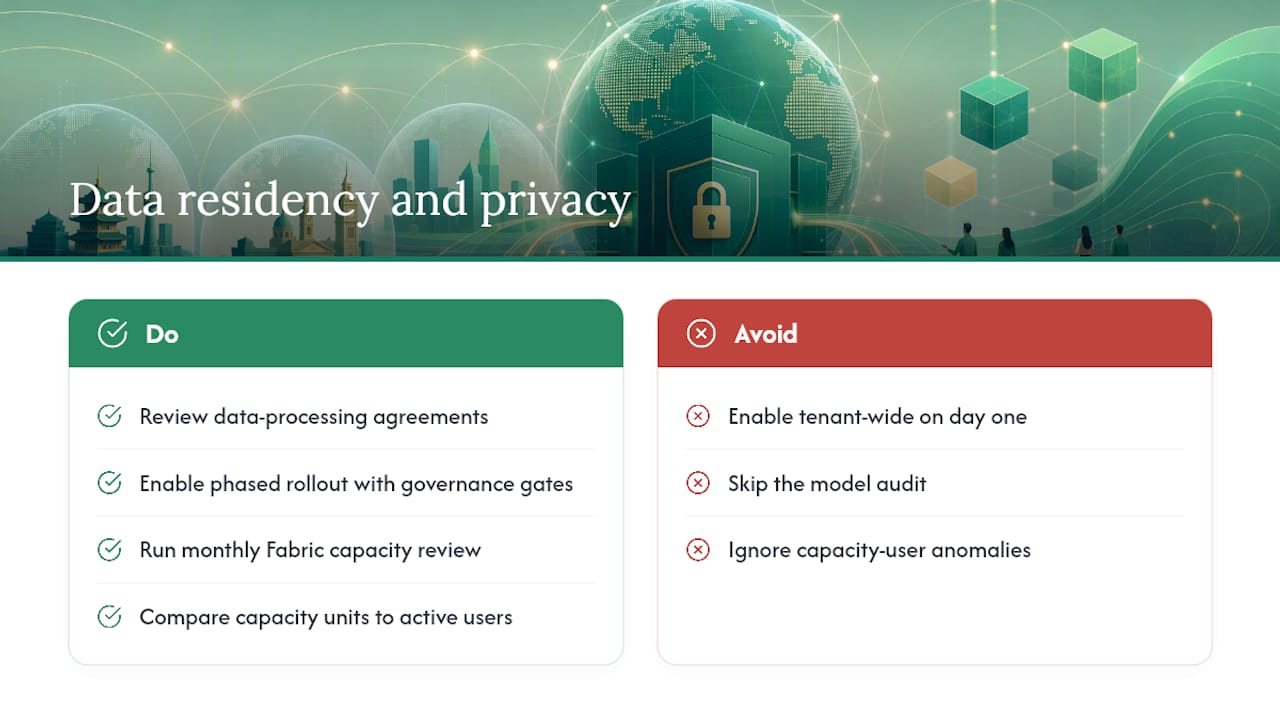
    Data residency and privacy

    Cross-geo data sharing means your prompts and model data may be processed in an Azure OpenAI region outside your tenant’s home geography. For US-based professional-services firms handling client data, review your data-processing agreements before enabling this toggle. Microsoft’s trust documentation covers what data leaves the tenant and under what conditions.

    Governance reality check: The firms that get burned by Copilot aren’t the ones that move slowly — they’re the ones that enable it tenant-wide on day one, skip the model audit, and then spend three months explaining to clients why a dashboard showed the wrong numbers. A phased rollout with a governance gate at each stage isn’t bureaucracy; it’s the difference between a successful pilot and a credibility problem.

    Pro Tip: Set a monthly Fabric capacity review. Pull the Copilot usage metrics from the admin portal and compare capacity units consumed against the number of active Copilot users. If consumption is high but active users are low, someone is running expensive queries on poorly-scoped models.


    Data residency and privacy — overview diagram

    When should you use agentic authoring tools instead of the Copilot pane?

    For most report authors, the interactive Copilot pane is the right tool. But when you need to produce or modify dozens of reports programmatically, or when you want Copilot-driven changes to flow through a CI/CD pipeline, Power BI Agentic is the answer.

    What Power BI Agentic provides

    Power BI Agentic bundles agent skills and tools that let AI agents author and validate semantic models and reports at scale. The two core components:

    • powerbi-authoring plugin — distributed through the Skills for Fabric marketplace; includes the powerbi-report-authoring skill, which enables natural-language creation, editing, and validation of PBIR/PBIP report definitions.
    • MCP servers — let agents inspect model schemas, run DAX queries, and drive Power BI Desktop for verification steps, all programmatically.

    Supported agent entry points

    Entry point Use case Prerequisites
    GitHub Copilot CLI Scripted report authoring, CI/CD pipelines GitHub Copilot license, powerbi-authoring plugin installed
    VS Code Copilot Interactive agent-driven edits in development VS Code with Copilot extension, MCP server configured
    Other agent runtimes Custom automation workflows MCP server, compatible runtime

    When to use agentic tooling vs. interactive Copilot

    Use the interactive Copilot pane when an analyst is building or exploring a single report. Switch to agentic tooling when:

    • You need to apply the same structural change to 20 reports simultaneously.
    • Report definitions need to be version-controlled and deployed through a CI/CD pipeline.
    • Your team wants reproducible, auditable report-generation workflows rather than ad-hoc prompting.

    Agentic workflows require more setup and technical depth, but they pay off at scale. A law firm rolling out standardized matter-status dashboards across 15 practice groups, for example, benefits far more from a scripted agentic workflow than from having 15 analysts prompt Copilot individually.


    How do you measure Copilot ROI and operationalize adoption?

    Licenses that sit idle are the most common Copilot failure mode in mid-market firms. The fix isn’t more training emails — it’s a structured adoption playbook with telemetry from day one.

    Adoption playbook: pilot, measure, iterate

    1. Scope the pilot — select 3–5 certified semantic models and 5–10 power users across one practice group.
    2. Establish stakeholders — assign a BI lead, an IT admin, and a practice operations contact to the pilot.
    3. Set governance gates — define what “ready to scale” looks like before the pilot starts (e.g., 80% of Copilot outputs pass peer review, capacity utilization stays under a defined threshold).
    4. Run telemetry from day one — don’t wait until the pilot ends to start measuring.
    5. Iterate on model quality — use pilot feedback to improve field names, descriptions, and relationships before scaling.

    This sequence mirrors the practical rollout approach used by practitioners: capacity and admin enablement first, then a pilot on certified models, then telemetry baseline, then workflow rebuilds, then scale.

    Telemetry metrics to track

    • Active prompts per user per week — baseline for engagement.
    • Author edits accepted — what percentage of Copilot-generated content survives peer review.
    • DAX suggestions validated — how often generated DAX passes the test-against-known-values check.
    • Capacity units consumed — from the Fabric admin portal; track against active user count.
    • License utilization rate — active Copilot users divided by total licensed seats.

    For a deeper look at setting up Copilot telemetry in a mid-market environment, the metrics above are the starting point, not the ceiling.

    Sample KPIs tied to ROI

    • Time saved per report — compare pre-Copilot authoring time against post-Copilot authoring time for the same report type.
    • Billable hours recovered — for law and accounting firms, track whether analyst time freed by Copilot flows back into billable work.
    • License cost per active user — total Copilot license spend divided by users who logged at least one active prompt in the period.

    Pro Tip: Set a 90-day review gate. The most common causes are model quality issues, missing training, or a mismatch between the pilot use case and actual analyst workflows. Fix those before expanding seats.

    For professional-services teams building Copilot workflows across practice groups, the adoption playbook above applies directly — the difference is that billable-hour recovery becomes the primary ROI metric rather than general productivity.


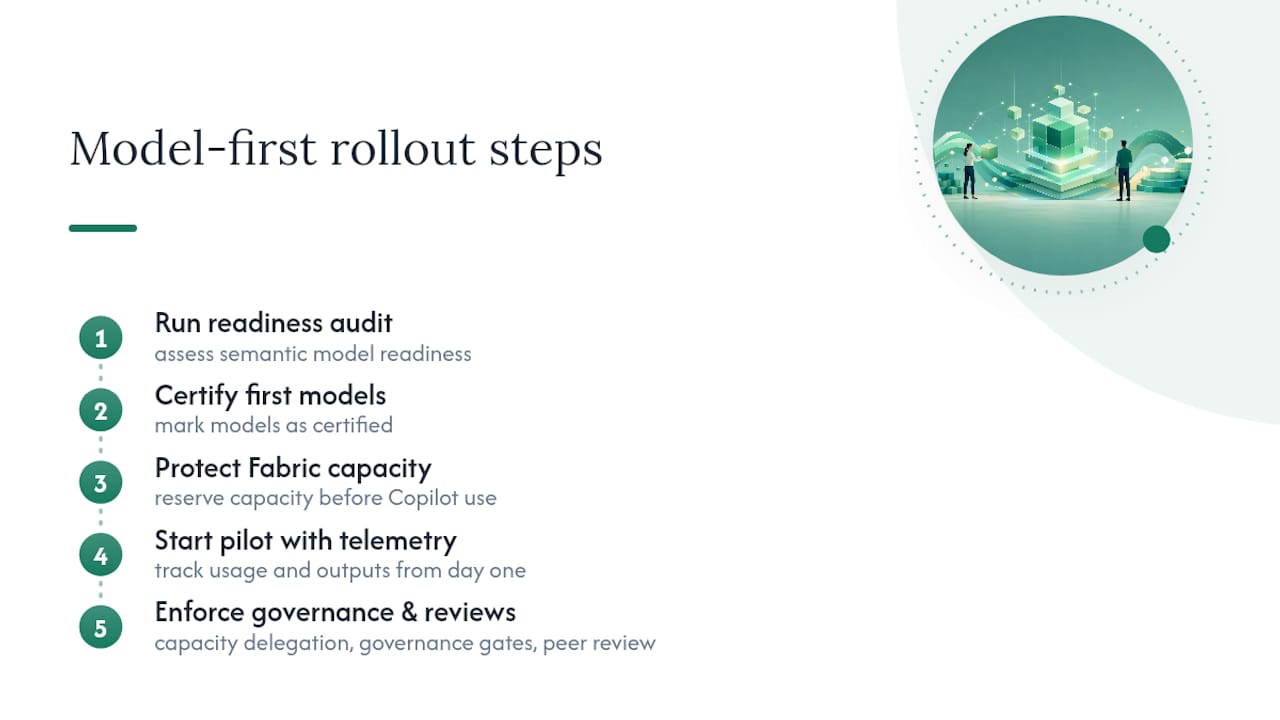
    The model-first lesson most teams learn too late

    The instinct in most firms is to enable Copilot broadly and let adoption happen organically. That approach almost always produces the same result: a handful of enthusiastic early adopters, a wave of frustrated users who got bad outputs from poorly-documented models, and a leadership team that concludes “Copilot doesn’t work for us.”

    The firms that get real value from Copilot in Power BI share one habit: they fix the semantic models before they touch the tenant settings. Not after. Not in parallel. Before.

    That means running a readiness audit, certifying a first set of models, and protecting your Fabric capacity before a single user opens the Copilot pane. It also means tracking telemetry from the first day of the pilot, not as an afterthought. Capacity delegation, governance gates, and a peer-review workflow aren’t overhead — they’re what separates a successful rollout from an expensive experiment.

    The biggest risk isn’t moving too slowly. It’s enabling Copilot enterprise-wide on models that aren’t ready, then spending months rebuilding trust with users who saw it fail.


    The model-first lesson most teams learn too late — overview diagram

    Gozera helps you get measurable value from Copilot in Power BI

    Most mid-market firms have the licenses. What they’re missing is the model readiness, the telemetry, and the workflow design that turns Copilot from a feature into a productivity gain their leadership can actually see.

    Gozera

    Gozera’s engagements start with a Copilot readiness audit — a structured review of your semantic models, capacity configuration, and tenant settings that identifies exactly what’s blocking reliable Copilot output. From there, a typical 90-day engagement delivers telemetry setup, workflow rebuilds for your highest-value report types, and a governance framework your IT team can own long-term. No open-ended retainers, no change-management theater. Fixed-price sprints with defined deliverables at each stage.

    If your firm has Copilot licenses that aren’t producing measurable returns, book a readiness audit with Gozera to find out what’s in the way and what it takes to fix it.


    Sources

    • Enable Fabric Copilot for Power BI – Power BI | Microsoft Learn
  • Copilot Billing Narratives: A Practical ROI Guide

    Copilot Billing Narratives: A Practical ROI Guide

    Enable Copilot in Dynamics 365 Project Operations, run a two-week pilot with preset billing templates, and you can start recovering billable time that currently disappears into vague, write-down-prone entries. The term “copilot billing narratives” refers specifically to AI-generated external comments and time-entry descriptions produced inside Microsoft 365 Copilot via Dynamics 365 Project Operations — not Copilot pricing or usage billing. When these narratives are governed correctly, they become audit-ready, client-compliant records that hold up in vendor bill reviews.

    Your next action in the next 24–72 hours:

    • Confirm your tenant meets Project Operations version and region requirements.
    • Enable “Copilot in time entry” for one pilot org unit only.
    • Loop in your tenant administrator, head of billing or timekeeping, and one partner sponsor before you touch any settings.

    Pro Tip: Scope the pilot to a single org unit with 15–20 active timekeepers. A focused group gives you clean before/after data without the noise of a firm-wide rollout.

    Key Takeaways

    Copilot billing narratives deliver recoverable revenue only when the feature is enabled correctly, governed with approval thresholds, and fed firm-specific context through structured prompt templates.

    Point Details
    Enable for one pilot org unit Activate “Copilot in time entry” in Feature Control for a single org unit before any firm-wide rollout.
    Feed context to get specificity Include matter ID, UTBMS task code, role, and a one-line style guide in every prompt to avoid vague, write-down-prone output.
    Preserve the AI Generated Content field Never edit entries solely to remove the Sparkle icon; the audit trail depends on provenance flags surviving to approver review.
    Measure write-downs and billable capture Track submission rate, approval rate, write-down frequency, and billable-hour capture before and after the pilot to quantify recoverable revenue.
    Gozera accelerates pilot-to-ROI Gozera’s fixed-price engagement delivers baseline telemetry, prompt design, and governance playbook for mid-market professional-services firms.

    Table of Contents

    What Copilot billing narratives are and what the platform won’t do

    Copilot-generated billing narratives are external (customer-facing) comments drafted automatically inside Dynamics 365 Project Operations. The feature uses four inputs: Project, Project Task, Role, and Duration. That’s it. Copilot does not read email threads, prior invoices, or matter notes unless you feed that context manually through a prompt.

    Key platform behaviors to know before you enable anything:

    • Suggestion scope: Copilot suggests draft time entries for the current work week only. It will not backfill earlier weeks.
    • Comment length: Generated external comments are capped at roughly 100 characters.
    • Provenance flags: Every Copilot-created entry carries a Sparkle icon. Entries whose external comments were generated entirely by Copilot also surface an “AI Generated Content” field visible to approvers.
    • No overwrite: Copilot will not replace an existing external comment. If a timekeeper has already typed something, Copilot leaves it alone.
    • UI refresh: Entries created by Copilot may not appear immediately. Users need to manually refresh the grid.
    • Availability: The feature’s availability varies by Project Operations version and region. Confirm your environment before enabling.

    The 100-character limit matters more than most firms realize. A narrative that reads “Reviewed contract clauses per client matter” is defensible. One that reads “Reviewed docs” is not — and Copilot will produce the latter if you give it nothing to work with.

    Admin checklist: confirm availability and enable Copilot in time entry

    Before touching any settings, verify your environment. Copilot in time entry has been generally available in Project Operations, but preview behavior and on-by-default status differ across version ranges. Check the Microsoft documentation for the exact version your tenant runs.

    1. Sign in to Dynamics 365 Project Operations as a system administrator.
    2. Navigate to Settings → Parameters → Organization Units.
    3. Select the pilot org unit (not your entire organization).
    4. Open Project Parameters → Feature Control.
    5. Toggle Copilot in time entry to enabled.
    6. Save, then ask a pilot user to refresh their time entry grid to confirm the Sparkle icon appears.
    7. Notify approvers that they will now see an “AI Generated Content” field on submitted entries.

    Pro Tip: Create a dedicated pilot org unit that mirrors one real practice group. Pre-assign projects, tasks, and roles so Copilot’s suggestions map to actual work. Suggestions tied to unassigned or generic tasks produce vague narratives that approvers reject.

    The Power Community’s walkthrough covers the Copilot sidecar UX in detail, including bulk “Log my time” and “Generate comments” workflows that save the most time for high-volume timekeepers.

    How to make Copilot narratives accurate, billable, and defensible

    Context is the single biggest lever. Copilot generates from Project, Task, Role, and Duration — four fields that, without enrichment, produce generic output. Feed it more.

    • Always include: matter ID or client reference, UTBMS task code or your firm’s task taxonomy, and any client-specific billing guidelines as a short style note in the prompt.
    • Enforce character discipline: 100 characters forces specificity. A prompt that says “no block billing; include section reference and deliverable” produces a usable narrative. One that says “write a billing entry” does not.
    • Require partner validation thresholds: set a minimum review requirement for entries above a rate band or matter risk level before submission.

    Prompt scaffold (copy and adapt):

    Sample narratives by practice area:

    • Law: “Reviewed §4.2–4.5 indemnification clauses; drafted redline per client outside counsel guidelines. (2.5 hrs)”
    • Accounting: “Prepared Q3 revenue schedules; reconciled variance against prior period forecast per engagement scope. (3.0 hrs)”
    • Consulting: “Facilitated requirements workshop; drafted slide deck sections 3–5 for stakeholder review. (4.0 hrs)”

    Case-study evidence from legal workflows shows that Copilot-assisted drafting can reduce drafting time for client updates and status summaries by roughly 60%, with improved realization rates tied directly to clearer narratives.

    Pro Tip: Build a “gold source” phrase bank per major client — required keywords, prohibited terms, preferred task descriptions — and paste the relevant lines into every Copilot prompt as a style guide. Fifteen seconds of context prep prevents a write-down conversation later.

    How to make Copilot narratives accurate, billable, and defensible — overview diagram

    Governance controls and the audit trail your approvers need

    Governance is where most pilots stall. Partners see “AI Generated Content” and freeze. The fix is policy, not technology.

    • Preserve provenance: never instruct timekeepers to edit a Copilot entry just to remove the Sparkle icon. The icon disappears on edit, which breaks the audit trail. Edits should happen only when the narrative is substantively wrong.
    • Define approval tiers: entries above a set rate band or on high-risk matters require partner sign-off before submission. Entries below that threshold can follow standard workflow.
    • Retain change history: your tenant’s data-retention policy must cover time-entry change logs, including timestamps of manual edits and approvals, to satisfy audit and ethics obligations.
    Governance Layer Owner What to Capture
    Provenance flag System (auto) Sparkle icon, AI Generated Content field
    Approval threshold Managing partner Rate band or matter risk tier
    Edit audit log IT / tenant admin Edit timestamp, user, before/after text
    Retention policy IT / compliance Change history aligned to firm retention schedule

    AI billing optimization workflows that combine narrative generation with pre-screening against client billing rules consistently show lower write-down rates and fewer billing disputes — but only when the approval layer is enforced, not bypassed.

    Two-week pilot roadmap and the KPIs that prove recoverable revenue

    A focused pilot beats a broad rollout every time. Run 15–20 active users, one billing period, three to five prompt iterations guided by partner feedback.

    Phase Objective Telemetry Signal Go/No-Go Criteria
    Prepare (Days 1–3) Baseline metrics Submission rate, approval rate, write-down frequency Baseline captured for one full billing period
    Pilot (Days 4–7) Enable Copilot, deploy templates Specificity score, matter-reference presence Most entries include matter reference

    | Measure (Days 8–10) | Before/after comparison | Billable-hour capture, dispute rate | Measurable reduction in write-downs |
    | Scale | Expand org units | Recoverable revenue uplift per user | Partner sponsor sign-off |

    KPIs to report to partners: recoverable revenue uplift (modeled from reduced write-downs), time saved per timekeeper per week, submission-to-approval cycle time, and dispute rate change. Microsoft Copilot reduces administrative overhead by reusing firm data held within the tenant, which is why telemetry-driven pilots show measurable billable-time gains quickly. Capture both quality signals (specificity score, prohibited keywords flagged) and revenue signals (write-down frequency, dispute rate) to connect Copilot usage to recoverable revenue directly. See Gozera’s telemetry guide for instrumentation details.

    Common failure modes and how to fix them fast

    Duplicated entries or missing assignments. Verify resource assignments in Project Operations. Copilot generates suggestions only for tasks the user is assigned to. Unassigned or generic tasks produce either duplicates or no suggestions at all. Fix: audit resource assignments before the pilot starts.

    Vague or block-billed comments. The most common failure. Copilot produced “Worked on project tasks” because the prompt had no context. Fix: enforce the prompt scaffold from Section 4 as a mandatory template. Add required fields — client matter reference, task detail, deliverable — to your time-entry form.

    Approver pushback. Partners see the AI Generated Content flag and reject entries on principle. Fix: run a 30-minute session showing provenance, the approval threshold policy, and a side-by-side quality comparison of AI-generated versus manually written narratives from the same period.

    Triage runbook:

    1. Check resource assignments in Project Operations.
    2. Confirm the pilot org unit’s Feature Control toggle is still enabled.
    3. Ask the user to refresh the time-entry grid.
    4. If narrative quality is consistently poor, revert to manual entry for that org unit (disable the toggle at org unit level) and revise prompt templates before re-enabling.

    Ready-to-use prompts and sample narratives for law, accounting, and consulting

    Law — contract clause review:
    Accounting — financial schedules:
    Consulting — requirements workshop:
    Quick prompt library:

    • “Generate comments for all current-week entries on [Project Name].”
    • “Make this narrative client-facing, billable, and free of block billing.”
    • “Add matter reference [ID] and time reason to this entry.”

    Pro Tip: Store approved narratives from past billing cycles as a phrase bank in a shared OneNote or SharePoint page. Feed the most relevant examples as context lines in your Copilot prompt. Copilot mirrors the style of what you give it.

    How Copilot connects to billing systems beyond Project Operations

    Project Operations handles time entry and external comment generation. What it does not do is push those narratives into your downstream billing or practice management system automatically. That gap is where firms lose the efficiency gains they just created.

    For firms running eBilling platforms (e.g., Thomson Reuters Legal Tracker, TyMetrix, or similar), the approved time entries from Project Operations need to export in LEDES or UTBMS format. Confirm your Project Operations instance has the correct billing integration or export connector configured before the pilot ends. If it does not, a lightweight automation layer using n8n or Python can bridge the gap — mapping approved entries to the correct matter codes and pushing them to your billing platform on a schedule. Gozera’s n8n automation playbook covers this pattern for professional-services firms specifically.

    For firms using time-entry systems outside Project Operations entirely, Copilot’s narrative generation capability is not directly portable. The prompt patterns and governance controls in this guide still apply — but the technical integration path requires a custom connector or API bridge.

    Security and data privacy when using AI-generated billing narratives

    Copilot in Project Operations operates within your Microsoft 365 tenant boundary. Client matter data, project names, and task descriptions do not leave your tenant to train Microsoft’s models. That said, three risks deserve explicit policy:

    Prompt injection. If timekeepers paste unvetted external content (client emails, third-party documents) into a Copilot prompt, that content enters the generation context. Restrict prompts to internal matter data only.

    Oversharing through context. A prompt that includes a client’s confidential negotiating position as “style context” exposes that information to anyone who can view the time entry. Train timekeepers to use matter IDs and task codes, not substantive client communications, as context.

    Tenant data governance. Ensure your Microsoft 365 data-loss prevention (DLP) policies cover time-entry fields. Copilot outputs are stored as standard Dataverse records and fall under your existing retention and access-control policies — but only if those policies explicitly include Project Operations entities.

    Handling exceptions and manual edits without breaking the audit trail

    Manual edits are inevitable. The governance question is whether you can tell, after the fact, what Copilot originally wrote and what a human changed.

    The Sparkle icon disappears the moment a user edits a Copilot-generated entry. That is by design — the edited version is no longer purely AI-generated. Your audit trail therefore depends on two things: the “AI Generated Content” field (which persists even after edits) and your tenant’s change-history logging for Dataverse records.

    Policy guidelines:

    • Require timekeepers to note the reason for any substantive edit in a separate internal comment field, not in the external comment itself.
    • Set a threshold: edits that change the billable time by more than a defined amount (e.g., 15 minutes) require approver acknowledgment before submission.
    • Never instruct users to edit entries solely to remove the AI flag. That practice destroys provenance and creates a compliance risk if the matter is ever audited.

    For exceptions — entries where Copilot’s suggestion is entirely wrong (wrong project, wrong task, wrong role) — the correct action is to delete the Copilot entry and create a manual one. Do not edit a fundamentally incorrect AI entry into a correct one; the change log will show a heavily modified AI entry, which looks worse in an audit than a clean manual entry.

    The firms that wait are the ones paying for idle licenses

    Mid-market professional-services firms are sitting on Microsoft 365 Copilot licenses that generate no recoverable revenue because no one ran a governed pilot. The technology is already embedded in Dynamics 365 Project Operations. The telemetry to measure ROI is available today. The only missing piece is a tightly scoped pilot — two to four partners, 15–20 users, two weeks — with preset templates and an approval threshold that makes the output defensible.

    Firms that run this pilot first, measure write-down reduction and billable-hour capture, and then scale to additional org units will have a concrete ROI number to show their partners. Firms that wait will have the same idle licenses and the same write-down conversations next quarter.

    If you want to accelerate the pilot with a vendor-savvy implementer, Gozera (Zera.ai) runs exactly this kind of engagement — baseline telemetry, prompt design, governance playbook, and a short enablement sprint. Led by Cale Werake, the team has built the Copilot adoption framework specifically for mid-market law, accounting, and consulting firms.

    Gozera’s fixed-price pilot package for billing narrative ROI

    Most firms spend more time debating whether to pilot Copilot billing narratives than it takes to actually run one. Gozera’s fixed-price engagement removes that friction: baseline telemetry capture, prompt and template design for your practice areas, a governance playbook your approvers will accept, and a two-week enablement sprint for your pilot users — delivered without a long-term retainer or a six-month change management program.

    Gozera

    The engagement produces a conservative ROI projection modeled from reduced write-downs and increased billing capture per user — a number your managing partner can act on. If the pilot does not show measurable recoverable-revenue uplift, you know before you scale. Book a pilot scoping call with Gozera and get your baseline telemetry running this week.

    Sources

  • How to Build a Copilot Champions Program That Drives ROI

    How to Build a Copilot Champions Program That Drives ROI

    Stand up an invite-only Copilot Champions hub, enroll in Microsoft 365 Champions resources, and launch a 90-day nurture plan this week. That is the single move that separates firms with active Copilot adoption from those paying for dormant licenses. Here is the immediate checklist to get moving:

    • Identify a small team of founding Champions across your highest-value practice areas
    • Send a personalized invite and welcome communication via Teams or email
    • Deploy a baseline poll to gauge Copilot familiarity and scenario preferences
    • Schedule a kickoff call with executive sponsor introductions within the first 7 days
    • Enroll the program lead in the Microsoft 365 Champions program on Day 1

    Your IT director or adoption lead owns the first 7 days. Everything else flows from that kickoff.

    Key Takeaways

    A Copilot Champions program succeeds when it combines invite-only recruitment, a structured 90-day nurture plan, and telemetry-backed ROI measurement tied to license utilization and billable time saved.

    Point Details
    Start invite-only Recruit Champions by influence and function coverage, not enthusiasm; target roughly 1 Champion per 50 employees.
    Baseline telemetry first Pull your Microsoft 365 usage report before launch so you can prove the program’s impact against a real pre-program snapshot.
    Run the hub-and-spoke model Core team owns assets and governance; Champions tailor delivery to their specific team’s workflows and language.
    Measure what leadership tracks Tie KPIs to dormant license counts, active Copilot sessions, and a billing-rate ROI formula segmented by practice area.
    Gozera closes the gap Gozera audits dormant licenses, rebuilds Copilot workflows, and delivers a documented ROI model for mid-market professional-services firms.

    Table of Contents

    What is the Copilot Champions program?

    A Copilot Champions program is an internal peer-enablement network where selected employees, called Champions, learn Microsoft 365 Copilot deeply and then teach, demo, and advocate for it within their own teams. It is not an IT help desk extension. Champions handle peer coaching, role-specific workflow demos, and feedback routing back to IT and product teams.

    The program connects directly to the Microsoft 365 Champions ecosystem, a free global community offering training materials, monthly community calls, and adaptable best practices. Champions complete Microsoft Learn Copilot training modules as their baseline curriculum, then deliver that knowledge through role-specific sessions. Viva Engage serves as the cross-org community platform where Champions share wins, surface blockers, and keep momentum alive between formal sessions.

    Why a Champions program matters for Copilot adoption and ROI

    Centralized IT communications rarely change behavior at the workflow level. A peer who shows a billing attorney exactly how Copilot drafts a demand letter in 4 minutes moves the needle faster than any all-hands email.

    The practical outcomes that justify the investment:

    • License utilization rises when Champions identify dormant users and run targeted micro-sessions to get them active
    • Time-saved signals become measurable once Champions log demo attendance and Copilot session frequency per role
    • Feedback loops close faster because Champions surface real friction points to IT before they become adoption blockers
    • Behavior change accelerates through peer-to-peer engagement, which contextualizes Copilot for specific job tasks rather than generic use cases
    • Leadership gets credible ROI data from telemetry tied to Champion activity, not just anecdotal reports

    Microsoft Digital’s own Copilot Champs framework confirms this shift from centralized comms to role-specific enablement as the core mechanism driving adoption.

    Who should you recruit as a Copilot Champion?

    Influence matters more than title. A mid-level analyst who peers trust and ask for help is a better Champion than a senior manager who rarely collaborates. The Copilot Champs framework recommends starting invite-only, which keeps quality high and avoids diluting Champion influence with headcount.

    Handshake symbolizing trusted invitation

    A practical starting ratio is approximately one Champion per team for every 50 employees, with at least one representative per major function or workflow.

    Useful persona profiles for professional services:

    • Practice lead advocate: A senior associate who runs client engagements and can demo Copilot in Word and Teams during real work, not staged scenarios
    • Power-user analyst: Someone already deep in Excel who can show Copilot’s forecasting and data-summarization flows to peers
    • Operations liaison: The person who manages internal processes and can champion Copilot in Outlook and SharePoint for scheduling and document management
    • Change-friendly introvert: Often overlooked, but highly credible in small-group settings; effective in 1:1 coaching and Viva Engage posts rather than large demos

    Cross-functional and geographic coverage matters. A Champion in your Chicago office cannot effectively coach a team in Dallas.

    Onboarding checklist for the first 30 days

    The Copilot Champs Community Framework maps the first month clearly. Execute in this order:

    • Week 1: Send personalized welcome communication via Teams or email; include links to the Champions hub, baseline training, and the community channel
    • Week 1: Hold a kickoff call with the executive sponsor; cover program goals, time expectations, and the first 90-day plan
    • Week 1: Deploy a baseline poll covering Copilot familiarity (scale of 1–5), preferred scenarios by app, and weekly time availability
    • Week 2: Complete baseline Microsoft Learn modules; use the AI Fluency: Get Started with Microsoft Copilot module as the starting point
    • Week 3: Run the first demo session; keep it under 30 minutes and focused on one scenario the Champion’s peers actually use
    • Week 4: Collect initial feedback from peers who attended; log it in the Champions Teams channel for IT review

    Pro Tip: Keep the baseline poll to 5 questions or fewer. Long surveys kill response rates, and you only need three data points at this stage: current familiarity, top scenario interest, and available hours per week.

    Training and enablement path for Champions

    Champions need a clear curriculum, not a library dump. The recommended sequence:

    1. Baseline modules: Complete the AI Fluency module on Microsoft Learn, then the role-based learning path Draft, Analyze, and Present with Microsoft 365 Copilot, which covers Word, Excel, PowerPoint, Teams, and Outlook across 7 modules
    2. Role-specific skill labs: Each Champion picks 2–3 app flows most relevant to their practice area; a lawyer focuses on Word drafting and Teams meeting summaries, an accountant on Excel and Outlook
    3. Train-the-trainer session: A 90-minute facilitated session where Champions practice delivering a 15-minute demo to each other before going live with peers

    Badges matter for social proof. When a Champion completes a module, that achievement should appear on their Viva Engage profile. Set a renewal cadence of every 6 months to keep credentials current as Copilot features evolve. The Microsoft 365 Champions program provides ready-made assets and monthly community calls that Champions can attend to stay current without burdening your internal team.

    How does the hub-and-spoke operating model work?

    The core team (IT, adoption lead, executive sponsor) acts as the hub: it owns the asset library, messaging, and governance. Champions are the spokes: they tailor delivery to their specific team’s workflows and language.

    Channel setup:

    • Viva Engage community: Cross-org sharing, win posts, and peer Q&A; this is where social proof accumulates
    • Teams Champions channel: Operational coordination, asset distribution, and escalation to SMEs
    • SharePoint resource library: Version-controlled decks, demo scripts, and onboarding materials

    Recommended cadence per the Copilot Champs hub-and-spoke model: active Champions run 1–2 demo sessions per week, the full community holds a monthly call, and leadership receives a quarterly update with telemetry data. Champions should expect to commit a few hours per week. Escalation path: Champion surfaces a blocker in the Teams channel, the adoption lead triages, and a subject-matter expert responds within 48 hours.

    Measurement and telemetry: KPIs and a simple ROI formula

    Track these core KPIs from Microsoft 365 usage reports and Copilot telemetry:

    KPI Data Source Target Signal
    Active Copilot users (weekly) M365 Admin Center usage reports Rising trend vs. baseline
    Copilot sessions per user Copilot telemetry dashboard Frequency increase by role
    Demo session attendance Champion logs / Teams attendance Majority of invited peers attend
    Champion engagements logged Teams channel records 4+ per Champion per month
    Dormant Copilot licenses License assignment vs. activity report Decreasing count month over month

    A compact ROI formula: multiply average hours saved per user per week by the billing rate proxy for that role, then by the number of active users. For a 10-person litigation team saving 1.5 hours per attorney per week at a $350/hour billing rate, that is $5,250 per week in recoverable time. Segment by practice area because billing rates vary significantly across law, accounting, and consulting.

    Pro Tip: Pull your baseline telemetry report before the Champions program launches, not after. Without a pre-program snapshot, you cannot prove the program moved the needle. See Copilot ROI measurement guidance for a practical template.

    Sample 90-day nurture plan

    Week Activity Owner Output
    Identify Champions, send invites, baseline poll Core team Confirmed Champion roster
    1 Kickoff call, welcome comms, hub setup Core team + Champions Active Teams channel and SharePoint library
    2–3 Baseline Microsoft Learn modules completed Champions Completion records, badge assignments
    4 First demo sessions (1 per Champion) Champions Attendance log, peer feedback
    5–8 Weekly demos, Viva Engage posts, feedback collection Champions Engagement data, blocker list
    9 Mid-point telemetry review, dormant license audit Core team Updated KPI dashboard
    11 Leadership ROI update, recognition event, next-quarter planning Core team + Sponsor Quarterly report, renewed Champion commitments

    Common pitfalls and how to fix them

    • Poor recruiting: Selecting volunteers instead of vetted influencers produces low-quality demos and peer skepticism. Fix: revert to invite-only and re-screen using influence criteria, not enthusiasm
    • No leadership recognition: Champions who feel invisible quit. Fix: executive shout-outs in all-hands meetings and visible badge displays on Viva Engage profiles restore motivation within 30 days
    • One-and-done training: A single onboarding session followed by silence is the fastest way to kill a program. Fix: monthly community calls and train-the-trainer refreshers keep Champions current
    • No measurable goals: Without KPI targets, Champions have no feedback on whether their work matters. Fix: assign each Champion a specific dormant-license reduction target or demo attendance goal for the quarter

    A 30–60 day corrective plan should include a re-recruitment sprint, a recognition event, and a fresh telemetry review to reset the baseline.

    When should you hire an external Copilot adoption consultant?

    Three signals suggest you need outside help: license utilization has stalled despite 60+ days of internal training, your team lacks bandwidth to run telemetry audits alongside day-to-day IT operations, or leadership is demanding ROI proof you cannot yet produce.

    A qualified consultant should deliver: a baseline telemetry audit identifying dormant licenses and usage gaps, rebuilt Copilot workflows mapped to your highest-value practice areas, automation of repetitive gaps using tools like Python and n8n, a documented ROI model tied to billing rate proxies, and an enablement playbook Champions can run independently. For a mid-market firm, expect an audit sprint of 2–4 weeks followed by a 90-day optimization engagement. See Copilot adoption services for a detailed breakdown of engagement models.

    How do you get leadership to sponsor a Champions program?

    Executives sponsor what they can measure. Lead with the dormant license cost: if 40 of your 100 Copilot licenses are inactive, that is a quantifiable monthly spend producing zero return. Frame the Champions program as the mechanism to recover that spend, not as a training initiative.

    Practical tactics: present a one-page telemetry snapshot at the next leadership meeting, name a specific executive as the program sponsor with a defined role (quarterly update attendance and one all-hands mention per quarter), and tie the program’s first 90-day KPIs to a metric the executive already tracks, such as billable utilization or client delivery speed.

    How does this program fit into your broader Microsoft 365 adoption strategy?

    A Copilot Champions program works best when it runs alongside, not instead of, your broader Microsoft 365 adoption initiatives. Champions should be aware of any active Teams, SharePoint, or Viva rollouts so they can connect Copilot to tools employees already use daily. The Microsoft 365 Copilot implementation guide maps how Copilot governance fits within a broader M365 deployment.

    Practically, this means Champions attend the same governance calls as your M365 adoption team, share a common SharePoint library, and report KPIs in the same dashboard. Siloed programs compete for employee attention; integrated ones reinforce each other.

    Keeping Champions engaged after the first 90 days

    Engagement drops when communication becomes one-directional. Rotate the format: one month is a live demo, the next is a written Viva Engage case study, the next is a peer panel. Variety prevents the program from feeling like a recurring obligation.

    Hand passing monthly newsletter on table

    A monthly newsletter to Champions, summarizing new Copilot features, top peer wins, and upcoming community calls, takes under an hour to produce and significantly reduces the “what am I supposed to be doing this month?” confusion that kills mid-program momentum. Pair it with a standing 30-minute monthly call and Champions stay oriented without heavy coordination overhead.

    Closing the feedback loop from Champions to your adoption team

    Champions are your best source of ground-level product intelligence. Build a structured feedback channel: a monthly 5-question form in Microsoft Forms covering what scenarios are working, what is confusing peers, and what features are missing or broken. Route responses directly to your adoption lead and, where relevant, to your Microsoft account team.

    This loop does two things. It gives Champions a sense that their observations matter, which is a retention lever. It also gives IT and leadership early warning on adoption blockers before they show up in telemetry as flat usage curves.

    Recognition beyond badges: what actually motivates Champions

    Badges are a starting point, not a program. The Champions who stay engaged longest are those who receive visible, public recognition from leadership and who see their feedback translated into real changes.

    Effective recognition beyond badges: a named mention in the firm’s internal newsletter, a “Champion of the Quarter” spotlight in Viva Engage with a brief write-up of their impact, early access to new Copilot features as beta testers, and a seat at the table in quarterly adoption planning meetings. That last one is underused. Champions who help shape the program’s next quarter feel ownership, not obligation.

    What the data actually tells you about Champions programs

    Most firms treat the Champions program as a soft initiative and measure it loosely. That is a mistake. The programs that survive past 6 months are the ones with hard KPIs tied to license utilization and time-saved metrics, not just demo attendance counts.

    Peer enablement works because colleagues contextualize Copilot for specific job tasks in ways that centralized IT communications cannot. A Champion who shows a tax manager exactly how Copilot summarizes a 40-page IRS notice in 90 seconds is more persuasive than any adoption email. The Microsoft Digital Copilot Champs write-up documents this dynamic directly. The firms that treat Champions as a measurement asset, not just a training resource, are the ones that can walk into a partner meeting with a real ROI number.

    Gozera accelerates your Copilot Champions program with measurable results

    Firms that run the Champions program without a telemetry baseline often cannot prove ROI when leadership asks. Gozera solves that gap directly: we audit your Copilot license utilization, identify dormant seats, rebuild high-value workflows for your specific practice areas, and deliver a documented ROI model your partners can act on. The engagement starts with a 2–4 week audit sprint, followed by a 90-day optimization retainer that runs alongside your Champions program, not instead of it.

    Gozera

    Gozera works exclusively with mid-market professional-services firms in the U.S., including law, accounting, consulting, and engineering practices with 50–500 employees. If your Copilot licenses are underperforming, the fastest path to recovery is a baseline audit that shows exactly where the gap is. Book a Copilot adoption audit with Gozera and get a clear picture of your ROI opportunity within the first two weeks.

    Sources

  • Solicitor-Client Privilege and AI: What Canadian Counsel Must Do Now

    Solicitor-Client Privilege and AI: What Canadian Counsel Must Do Now

    Using a public consumer AI chatbot on privileged matters will likely waive solicitor-client privilege in Canada. Counsel-directed, closed enterprise AI deployed under strict contractual controls is far less likely to do so. That single distinction is what two landmark U.S. decisions handed down in early 2026 make clear, and Canadian practitioners should treat those rulings as a preview of where domestic courts are heading.

    Three variables determine most outcomes: the type of AI platform and its data-retention or training policies; whether a lawyer directed the use of the tool; and how the material was shared or disclosed to the platform. Get all three right and privilege likely survives. Get any one wrong and you may have handed opposing counsel a gift.

    If you have already used AI on a privileged matter, take these steps before anything else:

    • Stop uploading further privileged material to the platform immediately.
    • Preserve all session logs, prompts, and outputs before they are auto-deleted.
    • Notify supervising counsel so a privilege assessment can begin.

    Key Takeaways

    Counsel-directed, enterprise AI used under documented controls is the single most effective way to preserve solicitor-client privilege while capturing the productivity benefits of tools like Microsoft 365 Copilot.

    Point Details
    Public AI waives privilege Uploading privileged material to a public consumer chatbot risks waiver under Canadian doctrine and the Heppner reasoning.
    Enterprise controls are the fix Tenant isolation, training opt-outs, and documented counsel direction address the three factors courts have found dispositive.
    Governance is not optional An AI Acceptable Use Policy, engagement letter language, and telemetry logging are the minimum viable governance stack.
    Incident response must be immediate Stop uploads, preserve logs, and notify counsel within 24 hours of any potential disclosure to an AI vendor.
    Gozera audits and fixes Copilot deployments Gozera’s governance-first Copilot engagements give Canadian law firms the documentation and controls needed to defend privilege claims.

    Table of Contents

    How solicitor-client privilege and AI interact under Canadian law

    Courts in Canada and abroad are not inventing new privilege doctrine for AI. They are applying the same tests that have governed solicitor-client privilege for decades to a new set of facts. That framing matters, because it tells you exactly which elements to protect.

    The Canadian test for solicitor-client privilege requires: (1) a communication between a client and a lawyer acting in a professional capacity; (2) made in confidence; and (3) for the purpose of obtaining or giving legal advice. Litigation privilege (the Canadian equivalent of work-product protection) requires that the dominant purpose of the document be preparation for anticipated or ongoing litigation, and it extends to third parties who assist counsel in that preparation.

    Both forms of privilege are owned by the client, not the lawyer. That ownership principle matters when an AI platform’s terms of service allow the vendor to retain, review, or train on user inputs, because the client’s confidential communications may be flowing to a third party without the client’s informed consent.

    The elements that AI use most directly implicates are confidentiality and counsel direction. A communication that leaves the solicitor-client relationship and enters a platform that can retain, share, or train on it is no longer confidential in any meaningful sense. And a document that an employee generates by querying a public chatbot without any lawyer involvement fails the “communication with counsel” element entirely.

    Canadian commentary, including analysis published by Hull and Hull LLP, warns that uploading privileged material to open AI platforms is analogous to posting it online and can trigger waiver under Canadian fairness and consistency principles. No Canadian court has issued a definitive ruling yet, but the doctrinal path is well-lit.


    What the Heppner and Warner decisions say — and why they reached opposite results

    Two U.S. federal decisions issued in February 2026 are the most instructive data points available. Neither creates new law. Both apply existing privilege doctrine to AI-generated materials, and the contrast between them is the lesson.

    United States v. Heppner (S.D.N.Y.)

    The defendant generated documents using a publicly available AI chatbot and later claimed those materials were protected by attorney-client privilege and the work-product doctrine. The court rejected both claims on three grounds: the communications were not with an attorney; the platform’s privacy terms permitted retention and potential third-party disclosure of user inputs; and no lawyer had directed or supervised the use of the tool. As Goodwin’s analysis of the decision explains, the lack of confidentiality under the platform’s own terms was independently dispositive. The defendant could not claim a reasonable expectation of confidentiality while using a tool whose terms explicitly disclaimed it.

    Warner v. Gilbarco, Inc. (E.D. Mich.)

    A pro se litigant used AI to help prepare litigation materials. The opposing party moved to compel production. The court denied the motion and held the materials protected as work product. The key distinction, as Sidley’s Data Matters analysis explains, was that the materials reflected the litigant’s own mental impressions prepared in anticipation of litigation, and disclosure to the AI platform did not meaningfully increase the likelihood that the adversary would obtain them. The court applied the standard work-product waiver test: does the disclosure materially increase adversary access? On those facts, it did not.

    The two decisions sit at opposite ends of the risk spectrum. Heppner represents the worst-case scenario: public platform, no counsel direction, no confidentiality. Warner represents a narrow safe harbor: materials reflecting the user’s own litigation strategy, disclosed to a tool that did not route them to the adversary. Most real-world law firm scenarios fall somewhere between these poles, which is precisely why governance controls matter.

    White & Case’s guidance on this point is direct: controlled, confidential, counsel-directed use of enterprise AI platforms that prohibit retention and training on client inputs is more likely to preserve privilege than public consumer AI. Courts are not treating AI as a special category. They are asking the same questions they always ask.


    When AI use is likely to destroy privilege — and when it might not

    The risk is not uniform across all AI tools or all use cases. Platform type, data-handling terms, and the presence or absence of counsel direction produce very different outcomes.

    Scenario Platform Type Counsel Direction Data Retention / Training Privilege Outcome
    Employee queries public chatbot on client matter Public consumer (e.g., free-tier ChatGPT) None Inputs may be retained and used for training High risk of waiver
    Lawyer uses public chatbot to draft legal memo Public consumer Partial (lawyer is user) Inputs may be retained Significant risk; confidentiality element likely fails
    Lawyer uses enterprise AI with no-training contract Enterprise (e.g., Microsoft 365 Copilot for M365 tenant) Yes No retention; no training on client data Lower risk; privilege more likely to survive
    In-house counsel directs IT to run AI analysis on privileged docs Enterprise, isolated tenant Yes, documented Logs escrowed; no external training Lowest risk with proper documentation
    Any user shares AI output via public “share” link Any Irrelevant Output indexed by web archives High risk of permanent waiver

    Comparison matrix of AI use and privilege risk

    The last row deserves particular attention. Share and export features that generate public URLs are a silent privilege killer. The NYC Bar Association’s report flags these features explicitly: links can be archived by services like the Wayback Machine and persist even after the original user deletes them. A single accidental “share” click can create a permanent public disclosure.

    Vendor privacy and training policies are not boilerplate. Courts in Heppner treated the platform’s terms as direct evidence that the user had no reasonable expectation of confidentiality. Before any AI tool touches a privileged matter, someone needs to read those terms and confirm in writing that the vendor does not retain, review, or train on client inputs.

    Pro Tip: The single most effective technical control is deploying AI exclusively within a dedicated Microsoft 365 tenant with data residency set to Canada, training opt-outs confirmed in writing with Microsoft, and a documented counsel-direction policy. That combination addresses the three factors courts have found dispositive in Heppner and Warner simultaneously.


    Concrete steps to reduce privilege risk when using AI

    The following checklist is organized by urgency. Immediate controls can be implemented today. Short-term fixes require a policy sprint. Longer-term governance requires IT and legal working together.

    Immediate controls (this week)

    1. Audit which AI tools your firm currently uses on client matters. Include free-tier tools, browser extensions, and any AI features embedded in existing software.
    2. Suspend use of any public consumer AI tool for privileged work until a platform review is complete.
    3. Identify all matters where AI has already been used and flag them for a privilege assessment by supervising counsel.
    4. Preserve all existing AI session logs, prompts, and outputs before any auto-deletion window closes.

    Short-term fixes (30 days)

    1. Draft and circulate an AI Acceptable Use Policy that distinguishes permitted enterprise tools from prohibited public tools, and requires counsel direction for any AI use on privileged matters.
    2. Add a short AI disclosure clause to engagement letters: “This firm may use AI tools in the delivery of legal services. All AI use on your matter will be conducted using enterprise-grade platforms that prohibit retention and training on client data, under the direction of supervising counsel.”
    3. Review vendor contracts for every AI tool in use. Confirm no-training, no-retention, and data-deletion provisions in writing. If those provisions are absent, negotiate them or stop using the tool on privileged matters.
    4. Confirm that Microsoft 365 Copilot (if deployed) is configured with your firm’s own tenant isolation, Canadian data residency, and training opt-outs enabled.

    Longer-term governance (90 days)

    1. Implement telemetry and audit logging for all Copilot and AI tool usage, so you can reconstruct who used what tool, on which matter, under whose direction, and when.
    2. Run a structured training session for all lawyers and paralegals covering the Heppner and Warner decisions, the firm’s AI policy, and the specific steps required before using AI on a privileged matter.
    3. Build a privilege-review checkpoint into your matter-opening workflow: before AI is used on any new matter, a supervising lawyer must confirm the tool, the scope, and the data-handling terms.
    4. Establish a vendor-review cycle (at least annually) to reassess AI tool terms as platforms update their privacy and training policies.

    Stikeman Elliott’s guidance for Canadian firms aligns with this checklist: enterprise deployment features, no training on client data, data retention controls, and documented counsel direction are the practical steps that reduce privilege risk. Practical governance, including engagement letters, training, and technical tenancy controls, is the primary way firms can use Copilot productively while reducing that risk, as Hull and Hull’s analysis confirms.


    Concrete steps to reduce privilege risk when using AI — overview diagram

    Implementing Microsoft 365 Copilot safely in Canadian law practices

    Enterprise AI deployed correctly is not the enemy of privilege. It is the answer to the public-chatbot problem. The key is that “deployed correctly” requires deliberate configuration, not just a license purchase.

    For mid-market Canadian law firms, a safe Copilot implementation follows four phases.

    Phase 1: Governance design (before any rollout)

    Confirm Canadian data residency in your Microsoft 365 tenant settings. Verify that the Microsoft Product Terms for your subscription include the commercial data protection commitments that prohibit Microsoft from training on your tenant data. Document this confirmation in writing and store it in your matter management system as a privilege-preservation record.

    Phase 2: Pilot with telemetry

    Run a controlled pilot on non-privileged administrative tasks first. Use Microsoft 365 usage analytics and Copilot telemetry to establish a baseline of what the tool is being used for, by whom, and on which document types. This baseline serves two purposes: it lets you measure productivity gains, and it creates the audit trail that supports a privilege argument if a dispute arises later.

    Governance Control Implementation in Microsoft 365 Copilot Privilege Benefit
    Tenant isolation Dedicated M365 tenant; no cross-tenant data sharing Limits disclosure to adversarial parties
    Training opt-out Commercial data protection terms with Microsoft Removes vendor-retention argument courts used in Heppner
    Data residency Canada region set in tenant admin Supports Canadian privacy law compliance (PIPEDA)
    Audit logging Microsoft Purview audit logs enabled Documents counsel direction and scope for privilege claims
    Access controls Role-based access; Copilot restricted to licensed, supervised users Prevents unauthorized employee use on privileged matters

    Phase 3: Counsel-direction documentation

    Every privileged matter where Copilot will be used needs a short written record: the supervising lawyer’s name, the scope of permitted AI use, the date, and a confirmation that the tool meets the firm’s approved platform criteria. This record does not need to be long. One paragraph in the matter file is enough. What it does is create contemporaneous evidence that AI use was counsel-directed, which is the factor that distinguished the losing party in Heppner from the winning party in Warner.

    Phase 4: Ongoing optimization and review

    Review telemetry quarterly. Track which workflows are generating the most productivity gains, and which users are still defaulting to non-approved tools. A Copilot workflows guide for professional services can help identify the highest-value use cases for law firms specifically.

    Pro Tip: Create a one-page “AI Use Authorization” form that lawyers complete before using Copilot on any privileged matter. The form captures: matter number, supervising lawyer, permitted scope, platform confirmation, and date. File it in the matter record. If privilege is ever challenged, that form is your first line of defense.


    If privileged material was shared with an AI vendor: what to do immediately

    Incident response for a potential privilege waiver follows the same logic as any data breach: contain first, assess second, document everything.

    Immediate steps (within 24 hours)

    1. Stop all further uploads or queries to the platform on the affected matter.
    2. Capture forensic screenshots or exports of all sessions, prompts, and outputs before any auto-deletion window closes. Do this before contacting the vendor, because vendor notification can sometimes trigger automated data-handling processes.
    3. Identify every piece of privileged material that was shared: document names, dates, content categories, and the name of the person who made the upload.
    4. Notify supervising counsel and, if applicable, the firm’s privacy officer. This step is not optional. The privilege assessment and any waiver argument must be led by a lawyer.
    5. Check the platform’s privacy policy and terms of service as they stood on the date of disclosure. Screenshot and preserve the current version as well, in case terms have changed.

    Short-term steps (within 72 hours)

    1. Contact the vendor in writing and request: (a) confirmation of whether the material was retained; (b) whether it was used for training; © deletion or isolation of all copies; and (d) a written certification of deletion. Keep all correspondence.
    2. Check whether any “share” or “export” links were generated during the session. If so, disable them immediately and check whether the URLs have been indexed. The NYC Bar’s guidance is explicit: archived links can persist even after deletion, so speed matters.
    3. Prepare a privilege-hold memorandum documenting: who authorized the AI use, whether counsel directed it, what the platform’s data terms were, what steps were taken to contain the disclosure, and the timeline of events.

    Documentation that strengthens a privilege argument after the fact

    • Contemporaneous notes from the lawyer who directed (or should have directed) the use.
    • Written confirmation from the vendor of no retention or training.
    • Evidence that the platform was enterprise-grade with contractual data protections.
    • The firm’s AI Acceptable Use Policy, showing the incident was a deviation from policy rather than standard practice.

    A court assessing whether privilege was waived will look at the totality of circumstances. Prompt containment, vendor cooperation, and thorough documentation all support an argument that any disclosure was inadvertent and that reasonable steps were taken to remedy it.


    The governance gap most firms are ignoring

    The conversation about AI and privilege tends to focus on the dramatic scenario: a lawyer accidentally uploads a confidential memo to ChatGPT and opposing counsel finds out. That scenario is real, but it is not where most Canadian firms are actually losing privilege.

    The more common failure is quieter. A paralegal uses a free AI writing tool to draft a discovery summary. An associate pastes a client email into a public chatbot to check grammar. An in-house analyst uses a consumer AI tool to summarize board minutes. None of these people think they are doing anything wrong, because no one has told them the rules.

    The Heppner decision did not turn on bad intent. It turned on the absence of governance. The defendant used a public tool, the tool’s terms permitted disclosure, and no lawyer was directing the work. Three ordinary facts, each individually unremarkable, combined to defeat privilege entirely.

    Canadian firms that have deployed Microsoft 365 Copilot under proper enterprise controls are in a materially better position than firms relying on ad hoc consumer tools. But even a well-configured Copilot deployment fails if lawyers and staff are not trained on when and how to use it, and if no one is monitoring actual usage against policy. Telemetry is not just an ROI tool. It is a privilege-preservation tool. Knowing that a user queried Copilot on a specific matter, under a specific lawyer’s supervision, using a platform with confirmed no-training terms, is exactly the kind of contemporaneous record that supports a privilege argument in court.

    The firms that will navigate this well are not the ones that ban AI entirely. They are the ones that treat governance as a first-class deliverable of any AI deployment, not an afterthought.


    Gozera helps Canadian law firms deploy Copilot with privilege protection built in

    Law firms that want the productivity gains from Microsoft 365 Copilot without the privilege exposure need more than a license. They need a deployment that is configured correctly from day one, with telemetry to prove it.

    Gozera

    Gozera works with mid-market Canadian law firms and professional-services practices to audit existing Copilot deployments, identify governance gaps, rebuild workflows with privilege-safe configurations, and deliver the audit logs and documentation that support privilege claims if they are ever challenged. The engagement covers tenant isolation, training opt-outs, counsel-direction documentation, and staff enablement, all tied to measurable productivity outcomes. For firms with dormant Copilot licenses, Gozera’s telemetry-first approach identifies exactly where value is being left on the table and what it would take to recover it.

    If your firm is using AI on privileged matters without a documented governance framework, the risk is real and the fix is not complicated. Book a Copilot governance audit with Gozera to get a clear picture of your current exposure and a prioritized remediation plan.


    Selected primary sources and further reading

    The sources below are the primary authorities cited in this article. They are listed for reference and further reading. This list is not legal advice. Firms should consult qualified counsel for guidance on their specific circumstances.

    This article provides general information only and does not constitute legal advice. Canadian firms should consult qualified legal counsel for guidance on their specific privilege and AI-use circumstances, and should verify current platform terms and regulatory requirements directly with their providers.

    This article is general information, not a substitute for advice from a qualified lawyer. Consult a qualified legal professional about your own circumstances before acting on anything here.

    Sources

    • Attorney-client privilege and work product in the age of generative AI | White & Case
    • AI Chatbots, Privilege, and Pitfalls: Lessons for Keeping Generative AI Exchanges Out of the Hands of Legal Adversaries | Goodwin
    • Generative AI and Privilege: Practical Lessons from Two Early Decisions and What Comes Next | Data Matters Privacy Blog (Sidley)
    • The Intersection of Artificial Intelligence, Privacy, and Privilege | New York City Bar Association
    • The Probater, Vol. 32, No. 2, June 2026: Preserving solicitor-client privilege in the age of generative AI: Emerging lessons from abroad and potential implications for Canadian law – Hull and Hull LLP
    • Privilege and AI-generated Documents: Lessons for Canada from Recent U.S. Rulings | Stikeman Elliott
  • Copilot Integration with CRM: IT Leaders’ Guide

    Copilot Integration with CRM: IT Leaders’ Guide

    Yes, you can integrate Microsoft Copilot with CRM systems. Copilot works natively inside Dynamics 365 (backed by Dataverse) and extends to external CRMs like Salesforce, ServiceNow, and Zendesk through Microsoft 365 Copilot connectors, embedded Service widgets, or custom connectors built in Copilot Studio.

    Your immediate next steps:

    • Check licensing and region availability in the Power Platform admin center before touching any connector settings. Missing a license SKU or being outside a supported region is the most common reason pilots stall on day one.
    • Choose your integration path: native Copilot in Dynamics 365 if you’re already on that platform, or the connector/embedded-agent route for Salesforce and other external CRMs.
    • Stand up a limited pilot group of 10–20 users before any org-wide rollout. Validate identity mapping through Microsoft Entra ID, confirm field-level security (FLS) settings, and capture baseline telemetry before you expand.

    Three entities you need to know from the start: Copilot in Dynamics 365 (the native experience), the Salesforce CRM connector (the fastest path to indexing Salesforce records into Microsoft 365), and Microsoft Entra ID (the identity layer that controls what each user can see across CRM boundaries).

    Pro Tip: Don’t try to enable every Copilot feature at once. Pick one high-value use case — record summarization or meeting prep — and prove ROI on that before expanding scope.


    Key Takeaways

    Copilot integrates natively with Dynamics 365 and extends to Salesforce, ServiceNow, and Zendesk via connectors, embedded widgets, or custom agents — but ROI depends on choosing the right path, validating governance before launch, and measuring adoption with real telemetry.

    Point Details
    Choose the right integration path Native Dynamics 365 for fastest deployment; Salesforce connector for read-only indexing; embedded widget or custom connector for write-back.
    Validate licensing and region first Missing license SKUs or unsupported Azure OpenAI regions are the top pilot blockers; check the Power Platform admin center before any configuration.
    Identity mapping is non-negotiable Configure Microsoft Entra ID identity mapping before enabling any connector; skipping it causes empty results or cross-user data exposure.
    Instrument telemetry from day one Capture active users, queries per user, and time-to-first-answer during the pilot to build a defensible ROI calculation for stakeholders.
    Gozera accelerates time-to-ROI Gozera’s fixed-price audits and workflow integration engagements deliver baseline-to-post-pilot ROI reporting for mid-market professional services firms.

    Table of Contents

    Which integration path fits your CRM environment?

    There are four distinct technical approaches to Copilot integration with CRM, and picking the wrong one costs weeks of rework.

    Path A: Native Copilot in Dynamics 365. If your CRM is Dynamics 365, this is the default choice. Copilot runs directly on Dataverse, which means no connector configuration, no identity mapping complexity, and full read/write capability from day one. Features like record summarization, email assist, and meeting prep are available out of the box.

    Path B: Microsoft 365 Copilot connectors (index-and-search). The Salesforce CRM connector indexes core Salesforce objects — Account, Contact, Opportunity, Lead, Case — so users can discover CRM content inside Outlook, Teams, and SharePoint without leaving Microsoft 365. This is a read-only path. It’s fast to deploy and low-risk, but it does not write back to Salesforce.

    Path C: Embedded Copilot Service widget / Direct Line. Microsoft Copilot for Service can be embedded directly into a third-party CRM desktop console using a preconfigured widget and CTI adapter. Agents get AI assistance inside their existing CRM interface. This path requires more configuration (named credentials, CTI adapter URL, Apex classes for Salesforce), but it delivers the richest in-app experience.

    Path D: Custom connector or agent via Copilot Studio. For write-back, agentic actions, or CRMs not covered by a prebuilt connector, you build a custom connector using the Copilot connectors API or Graph connectors, often with Azure middleware for secure write operations. This is the highest-effort path and the one that delivers the most operational value once it’s running.

    Dimension Path A: Native Dynamics 365 Path B: Connector (index) Path C: Embedded widget Path D: Custom connector
    Implementation speed Fast Medium duration Medium-high duration Slow, several weeks
    Read capability Full Full (indexed objects) Full (via CRM API) Configurable
    Write capability Full None Limited Full (with middleware)
    Security surface Low (Dataverse native) Medium (FLS risk) Medium (named credentials) High (custom auth)
    Admin skill required Power Platform admin M365 admin + connector config CRM admin + CTI config Developer + architect
    ROI timing Immediate Few weeks post-index Several weeks A few months

    Pro Tip: Start with Path B (read-only connectors) for a fast win. Reserve write-back and agentic actions for a second phase after you’ve completed a thorough security review of your permission model.


    What Copilot actually does inside a CRM

    The feature set matters because it determines which user roles benefit most and which workflows to redesign first.

    Copilot in Dynamics 365 Sales delivers these core capabilities natively:

    • Record summarization: a plain-language summary of an account, opportunity, or case without opening every related record
    • Recent changes / catch-up: surfaces what changed on a record since you last viewed it
    • Meeting preparation: pulls relevant account data, open opportunities, and recent interactions before a call
    • Email assist: drafts context-aware emails using CRM record data
    • Case summaries and resolution notes: auto-generates a summary of a support case and a draft resolution note
    • Knowledge retrieval: queries SharePoint and internal knowledge bases to surface relevant articles during a case
    • Cross-app news enrichment: pulls external news about an account into the record view

    For sellers, meeting prep is the highest-ROI feature. Instead of spending significant time pulling together account history before a call, a seller gets a structured brief in seconds. For service agents, auto-generated case resolution notes cut the time spent on after-call work. For managers, pipeline summaries give a snapshot of deal health across the team without running manual reports.

    The real business case for mid-market professional services firms isn’t any single feature. It’s the reduction in context switching — the constant movement between CRM, Outlook, Teams, and SharePoint that fragments attention and erodes billable time. When Copilot surfaces CRM data inside the tools people already use, that switching drops and recoverable time goes up.


    Prerequisites and licensing before you start

    Run this checklist before touching any admin settings. Skipping it is the single most reliable way to delay your pilot by two weeks.

    License requirements:

    • Copilot in Dynamics 365 Sales requires a Dynamics 365 Sales Enterprise or Premium license plus a Microsoft 365 Copilot add-on (check the current Dynamics 365 licensing guide for exact SKU combinations, as these change with each wave release).
    • Microsoft Copilot for Service requires its own license and a base Microsoft 365 license.
    • The Salesforce CRM connector requires Microsoft 365 Copilot licenses for the users who will query indexed content.
    • Admin roles needed: Power Platform admin, Dynamics 365 System Administrator, and Microsoft 365 global admin (or delegated admin with connector permissions).

    Platform prerequisites:

    • Dataverse is required for all native Dynamics 365 Copilot features. If your Dynamics environment isn’t backed by Dataverse, that’s a migration task before anything else.
    • Azure OpenAI availability: some Copilot features depend on Azure OpenAI services, which are not available in every region. Check the Power Platform admin center for your environment’s region status and whether cross-region data movement must be enabled.
    • Microsoft Entra ID must be configured for identity mapping if you’re connecting an external CRM. Users’ Microsoft 365 identities need to map to their CRM identities for Copilot to return only the records they’re authorized to see.

    Rollout-readiness checklist:

    1. Confirm all target users have the correct license SKUs assigned in the Microsoft 365 admin center.
    2. Verify your Dynamics 365 environment is Dataverse-backed (Settings > Advanced Settings > System).
    3. Check region availability and Azure OpenAI service status in the Power Platform admin center.
    4. Confirm Microsoft Entra ID is configured and user identity mapping is complete.
    5. Create a dedicated pilot security group (10–20 users) for staged rollout.
    6. Document your current FLS settings in Salesforce before enabling any connector.
    7. Set up a test tenant or sandbox environment to validate connector behavior before production.
    8. Define your opt-in/opt-out governance policy for Copilot data movement.

    How Salesforce, ServiceNow, and Zendesk connect to Copilot

    Each external CRM has a slightly different integration story, and the technical constraints vary enough that it’s worth understanding them before you commit to an approach.

    Salesforce has the most mature integration path. You have two options: the Salesforce CRM connector (index-and-search, read-only) or the embedded Copilot Service widget using Direct Line and CTI integration. The connector indexes Account, Contact, Opportunity, Lead, and Case objects. The embedded widget, documented step-by-step in Microsoft’s Salesforce embedding guide, puts a Copilot panel directly inside the Salesforce console using a CTI adapter URL, named credentials, and Apex classes for Direct Line connectivity.

    Key constraints for Salesforce:

    • FLS-restricted fields are not indexed by default. You can opt in to index them, but doing so exposes those fields to all Microsoft 365 users unless you’ve carefully reviewed access controls first.
    • Custom fields require explicit mapping. They don’t appear automatically.
    • API quotas matter during initial crawls. A full index of a large Salesforce org can consume a significant portion of your daily API limit.
    • Identity mapping must be configured so each Microsoft 365 user maps to their Salesforce counterpart. Without this, Copilot either returns no results or returns results the user shouldn’t see.

    ServiceNow and Zendesk follow a similar pattern. Microsoft Copilot for Service supports both platforms through connectors or the embedded Copilot Service experience, letting agents access case summaries, draft responses, and resolution notes without migrating to Dynamics 365. Feature availability may vary by region, and some capabilities remain in preview outside North America per Microsoft’s documentation.

    Custom connectors via Copilot Studio handle CRMs not covered by prebuilt connectors. You build the connector using the Copilot connectors API or Graph connectors, then add Azure middleware if write-back is required. This path also supports plugin-based embedding for organizations that want Copilot inside a CRM desktop console without a full CTI setup.

    Pro Tip: For Salesforce specifically, run a Salesforce API usage report before you start the connector crawl. If you’re already near your daily API limit, schedule the initial full crawl for off-peak hours and set incremental crawl frequency to match your actual data-change rate.


    Admin setup: the step-by-step configuration sequence

    This is the sequence that works. Deviating from the order — particularly enabling features before confirming identity mapping — is the most common source of “access denied” errors in production.

    Step-by-step admin sequence:

    1. Confirm licensing and region availability. In the Microsoft 365 admin center, verify all pilot users have the correct Copilot license assigned. In the Power Platform admin center, confirm your environment’s region and whether cross-region data movement needs to be enabled for Azure OpenAI.
    2. Enable Copilot features in the Power Platform admin center. Navigate to Environments > [your environment] > Settings > Features. Toggle on the Copilot features relevant to your deployment. For Customer Service, use the Copilot Service admin center to enable specific capabilities and configure experience profiles.
    3. Create the connector or embedded instance. For the Salesforce connector, go to the Microsoft 365 admin center > Settings > Search & Intelligence > Data sources > Add a connector. Select Salesforce CRM, enter your Salesforce instance URL, configure OAuth 2.0 authentication, and set the connector display name (this is what users see in search results — make it recognizable).
    4. Map identities and permissions. Configure identity mapping so Microsoft Entra ID user accounts map to their Salesforce (or other CRM) counterparts. Use the minimum-privilege principle: the integration service account should have read access to only the objects you intend to index.
    5. Configure experience profiles and rollout scope. In the Copilot Service admin center, assign experience profiles to your pilot security group. This limits Copilot exposure to your test cohort before org-wide rollout.
    6. Validate in the pilot environment. Run test queries against indexed records. Verify that a user with restricted CRM permissions cannot retrieve records they shouldn’t see. Check that custom fields you mapped appear correctly.
    7. Staged expansion. After pilot validation, expand the security group in phases — department by department — rather than all at once.

    Common rework triggers:

    • Permission mapping errors (the integration account has too many or too few permissions)
    • Custom fields not appearing because they weren’t explicitly included in the connector configuration
    • Identity mapping mismatches causing empty results or cross-user data leakage

    Pro Tip: Set the connector display name to something your users will recognize — “Salesforce Accounts” rather than “CRM Connector 1.” Discoverability in Microsoft 365 search depends on users knowing what to look for.


    Data residency, privacy, and governance controls

    Governance is where most mid-market firms underinvest, and it’s where the most serious compliance risks live.

    Region availability and data movement. Azure OpenAI, which powers several Copilot features, is not available in every Azure region. If your Power Platform environment is in a region without Azure OpenAI coverage, you must explicitly opt in to cross-region data movement in the Power Platform admin center. That opt-in means your prompts and CRM data may be processed in a different Azure region. For law firms and accounting practices handling client confidential data, this requires a deliberate review against your data residency commitments before you enable it.

    Field-level security and indexing risk. The Salesforce CRM connector deployment guide is explicit: opting in to index FLS-restricted fields can expose that data to all Microsoft 365 users unless access controls are carefully reviewed first. The default behavior excludes FLS fields from indexing. Leave that default in place until you’ve audited exactly which fields are FLS-restricted and confirmed that indexing them won’t violate your internal access policies.

    Governance checklist:

    • Apply the minimum-privilege principle to all integration service accounts. The account used to crawl Salesforce should have read access to indexed objects only, with no write permissions.
    • Enable audit logging in both the Power Platform admin center and Salesforce before the pilot starts. You need a record of what Copilot queried and when.
    • Document your opt-in decisions for cross-region data movement and FLS indexing. These decisions should be reviewed by your security and compliance team, not made unilaterally by the CRM admin.
    • Configure staged opt-ins: enable features for the pilot group first, review audit logs after two weeks, then expand.
    • Train pilot users on what Copilot can and cannot access, and establish a process for reporting unexpected data exposure.
    • For professional services firms, add a specific check: confirm that client matter data stored in CRM fields is not being indexed and surfaced to users who don’t have matter-level access.

    Pilot planning and a realistic rollout timeline

    Budget this correctly and you avoid the most common failure mode: a pilot that runs indefinitely because no one defined what “done” looks like.

    Suggested milestones and effort:

    1. Environment prep (Week 1–2): IT + Power Platform admin. Confirm licensing, region, Dataverse status, and Entra ID configuration. Estimated effort: 8–16 hours.
    2. Connector setup and identity mapping (Week 2–3): CRM admin + security team. Configure OAuth 2.0, run initial crawl, validate identity mapping. Estimated effort: 16–24 hours.
    3. Pilot training and enablement (Week 3–4): IT + trainers. Onboard 10–20 pilot users, run a 60-minute enablement session, distribute a one-page quick-reference guide. Estimated effort: 8–12 hours.
    4. Feedback loop and telemetry review (Week 4–6): IT + business owner. Collect qualitative feedback surveys, review Copilot admin logs and Microsoft 365 telemetry, identify adoption blockers. Estimated effort: 4–8 hours per week.
    5. Phased expansion (Week 6–12): IT + department leads. Expand by department, address permission issues, add additional objects or fields as validated. Estimated effort: 4–8 hours per expansion wave.
    Milestone Owner Duration Effort
    Environment prep IT / Power Platform admin 1–2 weeks 8–16 hours
    Connector setup + identity mapping CRM admin + security 1–2 weeks 16–24 hours
    Pilot training IT + trainers 1 week 8–12 hours
    Feedback + telemetry review IT + business owner 2 weeks 4–8 hrs/week
    Phased expansion IT + department leads 4–6 weeks 4–8 hrs/wave

    Minimum telemetry to capture during the pilot: active user count per week, queries per user, time-to-first-answer on record summarization, draft email usage count, case summarization counts, and any write-back events if you’ve enabled agentic actions. Without this baseline, you can’t make a credible ROI case to stakeholders.


    Troubleshooting common integration problems

    Most integration failures fall into five categories. Here’s what causes them and how to fix them quickly.

    • Authentication failures (OAuth 2.0 errors). Usually caused by an expired OAuth token or a misconfigured callback URL. Verify the Salesforce Connected App settings match the redirect URI in your Microsoft 365 connector configuration exactly. Regenerate the OAuth token if it’s expired and re-authenticate the connector.
    • Missing records in Copilot responses. Almost always an identity mapping problem. The Microsoft 365 user’s Entra ID account isn’t mapped to their Salesforce identity, so the connector returns zero results. Check the identity mapping configuration in the connector settings and confirm the email addresses match on both sides.
    • “Access denied” responses. The integration service account lacks permission to the object or field being queried. Review the Salesforce permission set assigned to the integration user and add read access to the specific objects. Per Microsoft’s admin guidance, misconfigured permissions and changing custom fields are the most frequent causes of this error.
    • API quota exhaustion during full crawls. A large Salesforce org can hit daily API limits during the initial index. Schedule full crawls during off-peak hours, reduce crawl scope to high-priority objects first, and monitor Salesforce API usage in Setup > System Overview.
    • Mixed-language or garbled output. Typically caused by CRM records containing data in multiple languages. Copilot generates output in the language of the prompt, but source data in a different language can produce inconsistent summaries. Set a consistent language expectation in your pilot training.

    For embedded widget issues specifically:

    • Verify the CTI adapter URL is saved correctly in the Salesforce Softphone Layout settings.
    • Confirm named credentials are configured in Salesforce Setup and match the Direct Line endpoint.
    • Check that pop-up blockers aren’t suppressing the Copilot widget panel in the Salesforce console.
    • If the widget loads but shows no data, recheck the Apex class configuration for Direct Line connectivity per the Microsoft Salesforce embedding guide.

    To validate connector health, go to the Microsoft 365 admin center > Search & Intelligence > Data sources and check the connector status. A “Partial success” status usually means some objects failed to index — drill into the error log to identify which objects and why. Recreate the connection only if the error log shows persistent authentication failures that token refresh doesn’t resolve; for most other issues, updating the connector settings is faster.


    How to measure Copilot adoption and prove ROI

    Adoption without measurement is just spend. Here’s the telemetry architecture and the ROI calculation framework that gives you something to show stakeholders.

    Key telemetry to capture:

    • Active users per week (from Copilot admin logs in the Microsoft 365 admin center)
    • Queries per active user per week
    • Time-to-first-answer on record summarization (baseline vs. post-deployment)
    • Draft email usage count (emails drafted with Copilot assist vs. manually written)
    • Case summarization counts per agent per day
    • Write-back events (if agentic actions are enabled)
    • Qualitative satisfaction scores from bi-weekly pulse surveys

    Sources: Copilot admin logs, Microsoft 365 usage analytics, Dataverse usage reports, and Salesforce API usage logs for connector activity.

    ROI calculation framework:

    1. Establish a baseline: how many minutes per day does a seller or service agent spend on context switching (moving between CRM, Outlook, Teams, and SharePoint to assemble information before a call or case)?
    2. Set a target reduction: a realistic target for mid-market professional services is a meaningful reduction in that context-switching time during the pilot phase.
    3. Calculate recovered time: multiply the daily time reduction by the number of active users and the number of working days in the measurement period.
    4. Assign a value: for a billable professional, recovered time has a direct dollar value. For a non-billable role, use a loaded hourly rate.
    5. Compare against license cost: divide the recovered-time value by the monthly Copilot license cost per user to get a payback ratio.

    For Copilot workflows in professional services, the most defensible ROI metric is billable time recovered per licensed user per month. It’s concrete, auditable, and directly tied to revenue.

    Microsoft frames Copilot adoption in sales as primarily driven by the ability to query CRM data in natural language, which reduces manual query time and speeds seller workflows. The productivity case is strongest when you can show that reduction in a specific workflow, not as an aggregate estimate.

    Pro Tip: Run a two-week pre-pilot time-tracking exercise with your pilot cohort. Ask them to log time spent on CRM-related context switching. That baseline is the denominator in your ROI calculation and the most persuasive number you’ll have when presenting results to leadership.


    What most implementations get wrong

    The three mistakes I see most often in Copilot CRM deployments aren’t technical. They’re sequencing errors.

    The first is skipping identity mapping until something breaks. Teams get excited about the connector features, rush through the OAuth setup, and defer identity mapping because it feels like a detail. It isn’t. When a user queries Copilot and gets back records belonging to a colleague — or gets nothing at all — the pilot loses credibility fast. Identity mapping through Microsoft Entra ID is a prerequisite, not an afterthought.

    The second is underestimating FLS impact. In Salesforce environments with mature security models, a significant portion of fields are FLS-restricted. Admins sometimes opt in to index those fields without a full audit, assuming the connector will respect existing Salesforce permissions. It does not work that way. Once a field is indexed into Microsoft 365, its visibility is governed by Microsoft 365 permissions, not Salesforce FLS. For law firms and accounting practices, that’s a client confidentiality risk.

    The third is enabling write-back too soon. Agentic write-back — logging meeting outcomes, creating follow-up tasks, updating opportunity stages — is where the real operational value lives for mid-market professional services ROI. But it requires custom Azure middleware, a thorough security review, and a tested rollback plan. Teams that enable it in week two of a pilot almost always hit permission errors or unintended data changes that set the whole program back.

    The right sequence is: read-only connector first, prove adoption and ROI on that, then add write-back in a second phase with proper governance. Treating Copilot for Service as an extension on top of your existing CRM — not a replacement — is the framing that keeps expectations realistic and pilots on track.


    Gozera turns Copilot licenses into measurable billable time

    Most mid-market firms that come to Gozera have the same problem: Copilot licenses assigned, adoption flat, and no clear picture of what’s actually being used. The gap isn’t the technology. It’s the absence of a structured implementation and measurement process.

    Gozera

    Gozera’s consulting engagements are fixed-price and built around your specific CRM environment. The work includes a Copilot readiness audit (licensing, region, Dataverse, identity mapping), connector and identity-mapping setup, pilot design with telemetry instrumentation, workflow rebuilds using Python and n8n where Copilot has gaps, and ongoing optimization retainers. Every engagement ends with a baseline-to-post-pilot ROI report that shows exactly how much billable time was recovered per licensed user.

    For IT directors and managing partners at law, accounting, and consulting firms, that report is what secures budget for the next phase. If you’re ready to stop guessing at adoption numbers and start measuring them, book a Copilot readiness audit with Gozera to get a clear picture of where your licenses stand today.


    Sources

    These are the canonical Microsoft admin docs to follow step-by-step during deployment:

  • How to Build a Copilot Business Case That Wins Approval

    How to Build a Copilot Business Case That Wins Approval

    Yes, a defensible Copilot business case is achievable, and finance will approve it when you bring three things: role-level time-savings estimates, a scoped pilot with defined success criteria, and telemetry-based measurement through the Copilot Dashboard and Business Impact Report.

    Here is the short formula that works with CFOs:

    • Role-level savings: Identify two or three roles where Copilot affects repeatable, high-frequency tasks. Assign conservative time-savings assumptions (start at 15–30 minutes per user per day for document-heavy roles). Convert to dollars using fully loaded hourly rates.
    • Pilot evidence: Run an 8–12 week cohort pilot before committing to a broad rollout. Define success criteria upfront (assisted hours, cycle time, win rate). No pilot data means no credible projection.
    • Measurement plan: Commit to monthly telemetry reporting via Copilot Dashboard and Viva Insights. Finance needs checkpoints at months 3, 6, and 12 to make go/no-go decisions.

    The payback math is straightforward. Forrester’s guidance shows that as few as four hours of saved time per user per month can justify the license cost under conservative hourly rate assumptions. For a professional-services firm billing at a conservative hourly rate, even a 10% productivity recapture on document work covers the annual license spend many times over.

    Pro Tip: Don’t pitch a firm-wide rollout. Lead with a single high-impact pilot in Sales, Finance, or Client Service. One cohort with clean data beats a broad deployment with no measurement.


    Key Takeaways

    A defensible Copilot business case requires role-level time-savings math, a scoped 8–12 week pilot with defined success criteria, and telemetry-based measurement through Copilot Dashboard and the Business Impact Report.

    Point Details
    Three evidence pillars Role-level savings math, pilot data with defined KPIs, and monthly telemetry reporting are what finance requires.
    Forrester ROI range A Forrester TEI study commissioned by Microsoft projects three-year ROI for Microsoft 365 Copilot in SMBs ranging from 132% (low-impact), 243% (midpoint), to 353% (high-impact); cite the 132% scenario as your CFO anchor.
    14 minutes per day Saving 14 minutes per user per day compounds to roughly 56 hours per year; at a reasonable fully loaded hourly rate, that exceeds license cost per user.
    Pilot before broad rollout An 8–12 week cohort of 15–30 users with a strong active-user target produces the credible data finance needs to approve scale.
    Gozera’s approach Gozera delivers readiness audits, pilot design, telemetry configuration, and CFO-ready ROI reports for mid-market professional-services firms.

    Table of Contents

    Why Microsoft 365 Copilot matters for mid-market professional services

    Mid-market professional-services firms carry a structural disadvantage: their revenue is almost entirely people-dependent. Every hour a lawyer, accountant, or consultant spends on internal coordination, formatting, or meeting recaps is an hour not billed. Copilot attacks that gap directly.

    The core value pillars for this audience are specific:

    • Billable time recovery: Copilot drafts meeting summaries, generates first-pass client reports, and pulls variance analysis from Excel. Partners and senior associates reclaim 30–90 minutes per day on tasks that don’t require their judgment.
    • Faster proposal turnaround: Sales and business development teams use Copilot in Word and PowerPoint to compress proposal drafting from days to hours. Faster proposals mean more bids submitted per quarter.
    • Lower onboarding friction: New hires get up to speed faster when Copilot can surface relevant precedents, summarize prior client files, and draft initial work product for review.
    • Shadow AI containment: Without a sanctioned tool, staff use consumer AI on client data. Microsoft 365 Copilot keeps that activity inside the tenant boundary, under your governance controls.

    On the analyst side, a Forrester TEI study commissioned by Microsoft projects three-year ROI for Microsoft 365 Copilot in SMB scenarios ranging from 132% (low-impact), 243% (midpoint), to 353% (high-impact), with high-impact NPV scenarios shown. These are vendor-commissioned projections, not independent audits, so treat them as external benchmarks rather than guarantees. For a mid-market firm, the conservative end of the modeled range (132%) is the number to put in front of a CFO.

    Statistic to anchor your deck: The commissioned model’s low-impact scenario still projects 132% three-year ROI. That is the floor, not the ceiling, and it is the number worth defending in a finance meeting.

    The business outcomes that matter most for professional services map cleanly to Copilot’s strengths: billable hours recovered from administrative work, faster proposal and report cycles, fewer internal review rounds, and reduced outsourcing of routine document production.


    Why Microsoft 365 Copilot matters for mid-market professional services — overview diagram

    What are the highest-impact Copilot use cases by function?

    Picking the right pilot use case is the single biggest variable in whether your business case holds up. The following table maps priority use cases by function to the KPI each affects and the easiest measurement approach.

    Function Priority use case KPI impacted How to measure
    Sales Draft follow-up emails and proposals in Copilot for Word/Teams Win rate, proposal cycle time CRM deal velocity, time-to-proposal
    Finance Variance analysis summaries in Excel, board pack drafts Monthly close cycle time, analyst hours Close calendar, hours logged per close
    Legal Contract review first-pass, clause flagging in Word Review cycle time, attorney hours per matter Matter management system, time entries
    HR Job description drafts, onboarding document generation Time-to-hire, onboarding completion rate HRIS, onboarding checklist completion
    Operations Meeting recap generation, status report drafts in Teams Meeting follow-up time, project update frequency Teams telemetry, project management tool

    Microsoft’s Scenario Library provides stepwise playbooks for each function, including example prompts and KPI definitions. The Finance scenario alone walks through defining the opportunity, gathering financial data, producing forecasts, and testing the business case, which is a ready-made pilot task list.

    A few principles for selecting your first pilot use case:

    • Data cleanliness matters. Copilot’s accuracy depends on the quality of documents and SharePoint content it can access. Start with a team whose files are organized and consistently named.
    • Repeatability beats novelty. Choose a task the team does at least weekly. One-off projects don’t produce enough data to measure impact in an 8–12 week window.
    • Measurable KPI required. If you can’t baseline the metric before the pilot starts, you can’t prove the outcome after it ends. Sales follow-ups and finance close cycles both have clean baselines.

    For a law firm, contract review first-pass is often the fastest win. For an accounting practice, variance summary generation during close week is the clearest time-saver. For a consulting firm, proposal drafting is where the hours are.


    How do you quantify the value of Copilot for a CFO?

    The core metrics the Copilot Analytics whitepaper defines are Copilot assisted hours (total time Copilot contributed to completed tasks) and Copilot assisted value (those hours converted to dollars at the user’s fully loaded rate). These two figures are the backbone of any ROI model.

    Sample calculation template

    Start with this structure:

    1. Users in scope: Number of licensed users in the pilot cohort.
    2. Active user rate: Percentage who use Copilot at least three times per week (target 60–70% for a well-run pilot).
    3. Average time saved per active user per day: Conservative assumption, 15–30 minutes for document-heavy roles.
    4. Annual hours saved: Active users × daily minutes saved × 220 working days ÷ 60.
    5. Dollar value: Annual hours saved × fully loaded hourly rate.
    6. Net benefit: Dollar value minus annual license cost minus implementation and change management cost.

    Statistic to use in your model: Practitioner analysis shows that 14 minutes of saved time per user per day translates to roughly 56 hours per year per user. At a $100 fully loaded hourly rate, that is $5,600 in recovered capacity per user annually, against a license cost well below that figure.

    Conservative, midpoint, and upside scenarios

    These figures use the Forrester-modeled range as context. The conservative scenario is what you defend in front of finance. The upside is what you show to demonstrate ceiling.

    The biggest sensitivity drivers in any model are: (1) the active user rate after the first 60 days, (2) the average time saved per active user (which varies sharply by role), and (3) the share of total work hours that Copilot can actually affect. For a 200-person consulting firm, a 10-percentage-point drop in active user rate cuts projected value by roughly the same proportion. That is why adoption management is not optional.

    Forrester’s full business-case report provides models for both tangible and intangible benefits, and is worth citing directly in your CFO deck as an independent analytical framework.


    How do you build a step-by-step business case to win finance approval?

    Finance will not approve a Copilot investment based on vendor benchmarks alone. They need pokeable assumptions, a measurement plan, and defined checkpoints. Advisory experience confirms that CFOs expect role-level time-savings estimates, a monthly measurement cadence, and go/no-go decisions at months 3, 6, and 12.

    Here is the checklist:

    1. Define the opportunity. Name the specific roles, tasks, and business outcomes you are targeting. Avoid “productivity improvement” as a goal. Use “reduce proposal drafting time from 3 days to 1 day for the BD team.”
    2. Establish baselines. Measure current cycle times, hours per task, and relevant KPIs before the pilot starts. No baseline means no proof.
    3. Model costs fully. Include Microsoft 365 Copilot license cost per user per month, Microsoft 365 E3 or E5 base license (required), implementation and integration costs, change management and training, and ongoing optimization.
    4. Build the financial model. Use the role-level calculation template above. Show conservative, midpoint, and upside scenarios. Cite Forrester as an external benchmark, but lead with your own assumptions.
    5. Define the pilot plan. Cohort size, duration, success criteria, and measurement tools. Commit to a go/no-go decision at week 8.
    6. Address risks explicitly. Accuracy, data governance, adoption, and cost overrun. Each needs a mitigation and a checkpoint.
    Slide Content
    Executive summary One-page verdict: opportunity, projected ROI range, pilot plan, ask
    Financial model Role-level assumptions, conservative/midpoint/upside scenarios, payback timeline
    Pilot plan Cohort, duration, success criteria, measurement tools, go/no-go date
    Risk and controls Risk table with mitigations, governance checklist, checkpoint schedule

    The Forrester decision tool and the Microsoft Copilot Success Kit both provide templates that slot directly into this structure.

    Risk table

    Risk Likelihood Mitigation
    Low adoption after launch High Champions program, role-specific training, weekly usage reporting
    Accuracy/hallucination errors Medium Human review requirement for client-facing output; QA checkpoint in workflow
    Data governance exposure Medium Sensitivity labels, DLP policy, tenant permissions audit before pilot
    License cost exceeds value Low (with pilot) Go/no-go at week 8; scale only cohorts that hit active-user threshold

    How should you design a Copilot pilot and measure its impact?

    A well-designed pilot is the difference between a business case that survives scrutiny and one that collapses at the first CFO question. Microsoft’s internal deployment experience across 300,000+ users points to the same conclusion: start with governance, run cohort pilots, and measure with Copilot Dashboard and Viva Insights before scaling.

    Pilot scope template

    1. Team size: 15–30 users in a single function. Small enough to manage closely; large enough to generate statistically meaningful telemetry.
    2. Duration: 8–12 weeks. Eight weeks is the minimum to separate novelty effect from sustained usage.
    3. Active user threshold: Target 60% of licensed users actively using Copilot at least three times per week by week 4. Below 40% is a signal to pause and diagnose before continuing.
    4. Success criteria: Define three KPIs before day one. Example: proposal cycle time reduced by 20%, meeting recap time reduced by 50%, and Copilot assisted hours above 10 per user per week.
    5. Baseline collection: Capture current-state metrics in the two weeks before the pilot starts.

    Measurement checklist

    • Activate Copilot Dashboard in Microsoft 365 admin center before the pilot starts.
    • Configure Viva Insights to track meeting time, after-hours work, and focus time for the pilot cohort.
    • Download and configure the Business Impact Report Power BI template from the Copilot Analytics whitepaper to correlate assisted hours with business KPIs.
    • Connect CRM or ERP data (deal velocity, close cycle time) to the Power BI report for function-specific KPI tracking.
    • Schedule a weekly 30-minute review of telemetry data with the pilot team lead.

    Integration notes

    SharePoint cleanliness is the most common early hurdle. If the pilot team’s documents are scattered across personal OneDrives or unstructured SharePoint sites, Copilot’s retrieval accuracy drops and early results will underperform. Fix permissions and file organization before the pilot starts, not during it.

    The Microsoft Copilot Success Kit includes adoption planning checklists, stakeholder worksheets, and license allocation guidance that reduce pilot setup time considerably. Use it alongside the Microsoft 365 Copilot implementation guide for a complete technical and organizational readiness checklist.


    What governance and compliance controls do US organizations need?

    Governance is not a post-launch concern. Executives will ask about data exposure before they approve the budget, and the right answer is a checklist, not a reassurance.

    Minimum governance checklist before pilot launch

    1. Tenant permissions audit: Review who has access to what in SharePoint and OneDrive. Copilot surfaces content the user is already permitted to see. Overly permissive sharing means Copilot can surface files users should not access.
    2. Sensitivity labels (Microsoft Purview): Apply labels to confidential client files, financial data, and PII before the pilot starts. Labeled content can be scoped out of Copilot responses.
    3. DLP integration: Confirm that existing Data Loss Prevention policies extend to Copilot interactions. Data Loss Prevention policies apply to Copilot by default in E5 configurations.
    4. Audit logging: Enable unified audit logging in the Microsoft 365 compliance center. This creates the record finance and legal will ask for.
    5. Copilot Studio access controls: If you are deploying custom agents via Copilot Studio, define agent scopes and approval gates before any agent goes live.

    Pro Tip: Run a data hygiene sprint before the pilot, not after. Clean SharePoint structure and correct sensitivity labels directly improve Copilot’s accuracy and reduce the risk of surfacing confidential content to the wrong user. Readiness assessment findings consistently show that permission sprawl is the top cause of early pilot underperformance.

    On privacy: Microsoft 365 Copilot operates within your tenant boundary. Microsoft does not use your tenant data to train foundation models, and conversation data is not retained beyond the session by default. For the authoritative statement, review Microsoft’s published privacy documentation directly, as these policies are updated periodically.

    For firms with specific compliance requirements (SOC 2, HIPAA, state bar rules for law firms), confirm that your configuration meets those standards before extending Copilot to regulated workflows.


    How do you handle the most common objections to Copilot adoption?

    Every executive presentation on Copilot hits the same five objections. Here are direct answers and mitigation actions for each.

    “The AI makes things up.”
    Copilot can produce inaccurate output, particularly when source documents are ambiguous or missing. Mitigation: require human review for all client-facing output during the pilot. Build a QA step into the workflow. Track accuracy errors as a pilot KPI. The goal is not zero errors; it is a known, manageable error rate.

    “We’re paying for licenses nobody uses.”
    This is the most common failure mode in Copilot deployments. Mitigation: use Copilot Dashboard telemetry to identify dormant licenses weekly. Reallocate unused licenses to high-frequency users before the 90-day mark. A workflow-focused approach that embeds Copilot into existing processes drives sustained usage far better than standalone training sessions.

    “There are vendor litigation headlines.”
    Microsoft has faced IP-related legal questions around AI-generated content. Mitigation: use Copilot for drafting and summarization, not for verbatim reproduction of third-party content. Apply the same review standards you would to any junior associate’s work product.

    “Our data could be exposed.”
    Addressed by the governance checklist above. The tenant boundary, sensitivity labels, and DLP policies are the answer. Have the IT lead walk the executive team through the configuration before the pilot starts.

    “We can’t prove it worked.”
    This is a measurement problem, not a Copilot problem. Mitigation: baseline before the pilot, measure weekly, and present the Business Impact Report at the go/no-go checkpoint.

    Signals to act on after the pilot

    • Expand: Active user rate above 60%, at least two KPIs hit or exceeded, no material governance incidents.
    • Hold and diagnose: Active user rate below 40%, KPIs flat, or data quality issues surfaced. Fix the root cause before scaling.
    • Abandon the use case (not the tool): If a specific use case shows no measurable impact after 10 weeks, pivot to a different function rather than concluding Copilot doesn’t work.

    How Gozera operationalizes a Copilot business case

    Gozera’s consulting process follows four steps, each with defined deliverables and a clear handoff to the next phase.

    Step 1: Readiness assessment. Gozera audits your Microsoft 365 tenant for license utilization, SharePoint structure, permissions, and data hygiene. The output is a prioritized list of pilot candidates ranked by expected ROI and data readiness, plus a governance remediation list.

    Step 2: Role mapping and pilot design. Gozera maps your highest-value roles to specific Copilot use cases, defines success criteria, and builds the baseline measurement framework. This includes configuring Copilot Dashboard, Viva Insights, and the Business Impact Report Power BI template.

    Step 3: Telemetry and measurement. During the pilot, Gozera monitors assisted hours, active user rates, and function-specific KPIs weekly. At the go/no-go checkpoint, the team delivers a CFO-ready report with conservative, midpoint, and upside scenarios grounded in your actual pilot data, not vendor benchmarks.

    Step 4: Optimization and scale. After a successful pilot, Gozera rebuilds high-value workflows to embed Copilot natively, automates gaps using Python and n8n where Copilot alone doesn’t cover the full process, and optimizes license allocation to eliminate dormant seats.

    Deliverable What it includes
    Readiness assessment report Tenant audit, license utilization, data hygiene score, pilot candidate ranking
    Pilot design package Use case map, success criteria, baseline metrics, measurement configuration
    CFO-ready ROI report Assisted hours, KPI outcomes, conservative/midpoint/upside financial model
    License optimization plan Dormant seat identification, reallocation recommendations, cost-per-active-user analysis
    Workflow integration Copilot-native workflow rebuilds, Python/n8n automation for process gaps

    For mid-market professional-services firms, typical engagements move from readiness assessment to a live pilot within four to six weeks. The ROI models Gozera uses are built on actual telemetry from your tenant, which means the numbers you present to finance are defensible against scrutiny.


    A consultant’s perspective on where to start

    The most common mistake ops leaders make with Copilot is treating it as a software deployment rather than a workflow change. You can configure every setting correctly and still end up with 80% of licenses sitting idle at month three, because nobody rebuilt the actual process around the tool.

    Three prioritized starter moves for a mid-sized firm:

    1. Run a readiness audit first. Before you buy a single additional license or schedule a training session, understand what your tenant looks like. Permission sprawl and disorganized SharePoint are not minor inconveniences; they are the primary reason early pilots underperform.
    2. Pick one pilot use case and go deep. Sales follow-up drafting, finance variance summaries, and client reporting are the three highest-return starting points for professional services. Pick the one where you have the cleanest data and the most motivated team lead.
    3. Set CFO checkpoints before you start. Define the go/no-go criteria at month 2, the scale decision at month 6, and the full ROI review at month 12. Finance will trust a plan with defined decision points far more than an open-ended rollout.

    The pitfalls to avoid are predictable: horizontal rollouts that give everyone a license but nobody a workflow, skipping governance until after an incident forces the issue, and measuring adoption by login count rather than by task completion and KPI movement. Login count tells you nothing. Assisted hours tied to a closed deal or a faster month-end close tells you everything.

    For professional services specifically, the lowest-effort, highest-impact pilots are almost always in the functions where people spend the most time producing documents for others to review. That is where Copilot’s time savings are largest and where the ROI math is easiest to defend.


    Some mid-market firms that struggle with Copilot ROI often encounter the problem: licenses deployed, training delivered, and no measurement in place to show what actually changed. Gozera’s fixed-price consulting engagements are built specifically to close that gap for law firms, accounting practices, consulting firms, and engineering companies with 50–500 employees.

    Gozera

    A typical Gozera engagement delivers a live pilot within four to six weeks, a CFO-ready ROI report grounded in your tenant’s actual telemetry, and a license optimization plan that eliminates dormant seat costs. Services include readiness audits, pilot design and configuration, Copilot Dashboard and Power BI reporting setup, workflow integration, and ongoing optimization retainers. No multi-year contracts, no vague productivity promises. The deliverables are defined upfront, and the ROI report uses your numbers, not Forrester’s.

    If you are preparing a business case for finance or trying to rescue a Copilot deployment that hasn’t delivered, schedule a scoped diagnostic with Gozera to get a clear picture of where the value is and what it will take to capture it.


    Sources

    These are the authoritative references worth including in your executive deck and measurement plan.

    When presenting to finance, lead with your own pilot data and use these sources as corroborating benchmarks. A CFO who sees your actual telemetry alongside an independent Forrester projection has two reasons to believe the model. One without the other is weaker.

  • Copilot ROI Consulting: Mid-Market Firms’ Real Checklist

    Copilot ROI Consulting: Mid-Market Firms’ Real Checklist

    If your firm is searching “varonis vs netwrix” while trying to figure out Microsoft 365 Copilot adoption, the answer you actually need is this: hire a telemetry-first Copilot consultant, run a baseline audit before touching workflows, and set quarterly decision gates at months 3, 6, 9, and 12. That sequence is where the ROI lives.

    • Time-to-value checkpoints: Expect quick wins by month 3 (active-user uplift, first recovered billable hours), an expansion decision at month 6, workflow optimization at month 9, and full-scale ROI reporting by month 12.
    • Top deliverable to demand: A baseline telemetry report identifying dormant licenses, followed by two to four pilot workflows with runbooks and automation scripts.
    • Trust signal: Look for a consultant with hands-on Microsoft 365 Copilot telemetry experience in professional-services verticals. Gozera, led by Cale Werake, specializes in exactly this for mid-market law, accounting, and consulting firms.

    Immediate next step: Request a baseline telemetry audit before committing to any broader engagement.


    Table of Contents

    Is this guide right for your firm?

    This article is for IT leaders, operations directors, and managing partners at professional-services firms with 50–500 staff running Microsoft 365 tenancies. If you’re in law, accounting, consulting, or engineering and your Copilot licenses are sitting idle, this is for you.

    • What this covers: How to scope and evaluate a Copilot adoption consultant, run a telemetry baseline, design a pilot, and track ROI through quarterly checkpoints.
    • What it does not cover: Any comparison of enterprise data-security or file-access governance tools. That’s a different procurement question for a different buyer.
    • One readiness caveat: Firms mid-migration or with unresolved compliance reviews should resolve those prerequisites first before starting a Copilot pilot.

    What does Copilot success actually look like at 3, 6, 9, and 12 months?

    CFO-level guidance is clear: Copilot ROI follows a multi-quarter curve. Plan for it, or you’ll pull the plug too early.

    1. Month 3 — Quick wins: Active users reach a moderate share of licensed seats. At least two pilot workflows are running with measurable output. Recovered billable hours appear in telemetry, even if modest.
    2. Month 6 — Expansion decision: Active-user rate rises above 60%. Cost-per-recovered-hour is calculable. Decision gate: expand licenses, hold, or cut underperforming workflows.
    3. Month 9 — Optimization: Session depth (actions per session) is trending up. Automation glue (Python, n8n) is handling at least one repeating task. Role-based training is complete for all priority roles.
    4. Month 12 — Scale: Full ROI dashboard is live. Recovered billable time is documented against license cost. The firm has a Copilot Owner running monthly telemetry reviews.

    A structured deployment can produce visible time savings and active-user adoption above 60% within 60–90 days for firms that are ready. The firms that miss this mark almost always skipped the baseline audit.


    What should a consultant actually deliver, phase by phase?

    The engagement blueprint below is also your evaluation standard. If a consultant can’t describe each phase in concrete deliverables, that’s a red flag.

    1. Phase 0: Baseline audit (the first few weeks) — Telemetry pull from Microsoft 365 Admin Center, dormant-license identification, permissions and sensitivity-label gap analysis, and Graph connector inventory. Without this, every subsequent phase is guesswork.
    2. Phase 3: Optimization (ongoing process). Monthly telemetry cadence, KPI dashboard updates, three-month sprint cycles, and cost-per-recovered-hour reporting. See workflow automation examples for the types of Python and n8n tasks that fill gaps Copilot can’t handle natively.

    Pro Tip: Assign a named Copilot Owner on day one. This person owns telemetry reviews monthly and iterates on workflow design. License-utilization rates are a vanity metric — recovered billable hours are the number that matters.


    Project manager leading Copilot workflow discussion in conference room

    How do consultants price this work, and what’s the real first-year cost?

    Understanding the cost structure helps you evaluate proposals without getting surprised.

    Common pricing models:

    • Fixed readiness audit: One-time fee, typically covers telemetry baseline, gap analysis, and a written report.
    • Fixed-price pilot sprint: Covers Phase 1 deliverables (runbooks, workflows, automation scripts) for a defined scope.
    • Fixed-fee rollout: Covers Phase 2 enablement, governance, and SharePoint remediation.
    • Monthly optimization retainer: Ongoing telemetry reviews, KPI reporting, and sprint cycles.

    First-year cost components for a 50-person firm:

    Component Typical Range
    Configuration hours vary by governance scope. Varies by governance scope
    Professional services fees Depends on engagement model
    Monthly optimization retainer Ongoing after rollout

    The headline license price sits at approximately $30/user/month, but all-in year-one costs depend heavily on your M365 baseline (E3 vs. E5) and how much governance work is required. A 50-person firm may need significant configuration hours spread over several months. Recovered billable time enters the breakeven equation fast: at professional-services billing rates, even two recovered hours per professional per week changes the math significantly. For a deeper look at the ROI drivers, see Gozera’s Copilot ROI analysis for mid-market firms.


    Which telemetry signals and KPIs should you track?

    Core metrics to demand from any consultant:

    • Active users: 7-day, 30-day, and 90-day windows. Trend matters more than a snapshot.
    • Session depth: Actions per session. Low depth means users open Copilot and abandon it.
    • Workflow completion rate: What percentage of initiated tasks produce a usable output?
    • Prompt-to-deliverable conversion: How often does a prompt result in a saved document, email sent, or analysis completed?
    • Recovered billable hours: The primary business KPI. Calculate as: (time saved per task × task frequency × billing rate).

    Sample ROI formula: Recovered billable hours per month × average billing rate = monthly value recovered. Divide cumulative professional services fees by monthly value recovered to get months-to-breakeven.

    Reporting Cadence Audience Content
    Weekly operational IT / Copilot Owner Active users, session depth, error flags
    Monthly executive Managing partners Recovered hours, cost-per-recovered-hour, workflow completion
    Quarterly strategic Leadership + finance Checkpoint decision gate, expansion vs. hold recommendation

    Infographic showing key telemetry KPI stats for Copilot adoption


    How do you evaluate and select a Copilot adoption consultant?

    Pre-qualification criteria:

    • Demonstrated Copilot telemetry experience (ask to see a sample baseline report)
    • Professional-services case studies with named verticals (law, accounting, consulting)
    • Graph connector and SharePoint remediation experience
    • Sensitivity-label and permissions expertise
    • Measurable ROI examples, not just deployment counts

    10 questions to ask in the interview:

    1. Can you show us a sample baseline telemetry report?
    2. What does your dormant-license identification process look like?
    3. How do you select pilot workflows for a firm like ours?
    4. What automation tools do you use to fill gaps Copilot can’t handle?
    5. How do you configure Graph connectors for practice-management systems?
    6. What does your Copilot Owner governance model look like?
    7. Can you show a sample ROI dashboard from a prior engagement?
    8. How do you handle sensitivity labels and permissions remediation?
    9. What are your deliverables at the end of the pilot phase?
    10. How do you structure your quarterly checkpoint reviews?

    Red flags: Proposals that lead with seat activation counts, no mention of telemetry baseline, vague deliverables (“training and support”), no role-based training plan, and no automation component for workflow gaps.


    What does a real engagement look like for a 50–150-person firm?

    An anonymized mid-size accounting firm with typical Microsoft 365 licensing ran this sequence:

    • Baseline audit (3 weeks): Telemetry pull revealed a significant portion of Copilot licenses had zero sessions in the prior 30 days. Permissions audit found several SharePoint sites with overly broad access.
    • Pilot (5 weeks): Two workflows deployed: Excel billable-hour analysis grounded against scheduled SharePoint exports, and a client-communication drafting template in Outlook. Both included Python automation scripts for data prep.
    • Rollout (10 weeks): Role-based enablement for five staff groups, Copilot Owner appointed (operations manager), governance playbook delivered, SharePoint remediation completed.
    • Outcomes: Active-user rate rose from 40% to above 60% within 90 days. Two automated tasks saved several hours per week firm-wide. Month-to-breakeven on professional services fees occurred within several months.

    The BPM case study from Microsoft’s customer stories shows a similar pattern at a larger firm: embedding Copilot directly into daily workflows, with agents handling planning and quality checks, freed time for higher-value advisory work. The mechanics scale down cleanly to mid-market.


    What are the data privacy and risk considerations?

    Treating Copilot adoption as process reengineering, not software installation, is the right frame. Without SharePoint permission remediation and sensitivity-label configuration, activating Copilot risks surfacing confidential client data to the wrong staff members.

    Key controls to put in place before go-live: sensitivity labels on all matter files, overly broad SharePoint permissions tightened, and an audit trail for Copilot-generated outputs. For firms in regulated verticals, a compliance and security audit before the pilot phase is worth the investment. Copilot respects Microsoft 365 permissions exactly as configured, which means misconfigured permissions become a Copilot risk, not just a general IT hygiene issue.


    What change management actually works for Copilot adoption?

    The biggest barrier to Copilot ROI is organizational culture, not technical deployment. Firms that create deliberate space for experimentation unlock higher adoption than firms that simply push licenses.

    Three things that move the needle: a named Copilot Owner with authority to iterate on workflows, role-based training tied to specific job tasks (not generic “here’s what Copilot can do” sessions), and visible wins shared internally within the first 30 days. When a partner sees a colleague recover two hours on a client memo, adoption spreads faster than any training program.


    What does post-rollout support look like?

    Post-rollout is where most engagements either compound their gains or stall. Monthly telemetry reviews catch declining session depth before it becomes a license-waste problem. Three-month sprint cycles let the Copilot Owner introduce new workflows without disrupting operations. A good optimization retainer includes KPI dashboard updates, prompt library refreshes, and at least one new workflow per quarter. The benefits of workflow automation compound over time: each automated task frees capacity for the next one.


    Key Takeaways

    Copilot ROI for mid-market professional-services firms requires a telemetry-first audit, a fixed-scope pilot, a named Copilot Owner, and quarterly decision gates at months 3, 6, 9, and 12.

    Point Details
    Start with telemetry A baseline audit identifying dormant licenses and permissions gaps is the non-negotiable first step.
    Use quarterly checkpoints Plan decision gates at months 3, 6, 9, and 12 to expand, hold, or cut specific workflows.
    Measure recovered hours, not seats Active-user rate is a vanity metric; recovered billable hours and cost-per-recovered-hour are the real KPIs.
    Demand concrete deliverables Any consultant should provide runbooks, automation scripts, a governance playbook, and a live ROI dashboard.
    Gozera’s engagement model Gozera delivers the full audit-to-optimization sequence with telemetry reporting and workflow automation for mid-market firms.

    The telemetry-first approach is the only one that holds up

    Most Copilot engagements fail for a predictable reason: the consultant skips the baseline and goes straight to training. You end up with a 30-slide deck on “Copilot tips,” a brief spike in usage, and then silence. The licenses go dormant again, and six months later someone asks why the investment didn’t pay off.

    The firms that get real results treat this as a workflow redesign project. They measure what’s actually happening in their tenant before touching anything. They pick two workflows where the time savings are obvious and the data is already in Microsoft 365. They automate the prep work that Copilot can’t do natively. And they assign someone to own the number, monthly, permanently.

    The EPC Group professional-services framework documents 25–40% billable-hour productivity gains across published case studies. That range is real, but it’s the ceiling for firms that do this right, not the floor for firms that wing it. The difference is almost always the baseline audit and the Copilot Owner.


    Gozera turns idle Copilot licenses into recovered billable time

    Mid-market professional-services firms are paying for Copilot licenses that sit unused while the ROI case erodes. Gozera’s fixed-price engagements start with a baseline telemetry audit, move through a scoped pilot with real workflow deliverables, and land on a live ROI dashboard your managing partners can read in 60 seconds.

    Gozera

    No vague “AI transformation” promises. You get a telemetry report, two to four working pilot workflows with runbooks, a governance playbook, and a Copilot Owner model your operations team can run independently. The optimization retainer keeps the gains compounding after rollout.

    Ready to find out how many of your licenses are dormant and what recovering them is worth? Request a Copilot readiness audit from Gozera and get a fixed-price proposal within a week.


    Useful sources for implementers and procurement teams

    • Microsoft Customer Story: BPM and Microsoft 365 Copilot — Real-world case study on embedding Copilot into daily workflows at a professional-services firm.
    • The Crossing Report: Microsoft Copilot M365 for Law & Accounting — AI maturity stages and adoption benchmarks for professional-services verticals.
    • CFO Dive: Why AI poses a unique ROI challenge for accounting firms — Frames the billable-hour tension and ROI measurement challenge for finance leaders.
    • Virteva: Microsoft Copilot ROI CFO business case — Quarterly checkpoint framework and governance-first approach for CFOs.
    • AI Vortex: Microsoft Copilot pricing and law firm cost analysis — Detailed breakdown of license costs, configuration hours, and year-one cost scenarios.
    • AI Vortex: Excel billable-hours analysis with Copilot — Practical guide to the highest-leverage pilot workflow for professional-services firms.
    • EPC Group: Copilot for professional services — Published productivity benchmarks and engagement tiers across law, accounting, and consulting.
    • Midnight Blue Tech: The real cost of waiting on Copilot — Readiness criteria and the risk calculus for firms delaying adoption.

    This article provides general information about Microsoft 365 Copilot adoption consulting. Confirm current licensing terms, compliance requirements, and pricing directly with Microsoft or a qualified advisor before making procurement decisions.

  • Email to Tasks Automation: A Practical Guide for Professional Services

    Email to Tasks Automation: A Practical Guide for Professional Services

    For mid-market professional services firms, the best approach to email to tasks automation right now is selective inbox rules combined with an integration platform that uses AI parsing to extract metadata and write structured tasks directly into your project management system. That combination captures due dates, assignees, and project context without manual re-entry, and it scales from a single power user to a tenant-wide deployment.

    Three paths exist, and the right one depends on your constraints:

    Method Best fit Governance
    Forward to task address Solo users, quick pilots Low
    Built-in rules / Quick Steps Outlook/Gmail power users, no IT budget Medium
    Integration platform (Zapier, Make, Power Automate, n8n, Relay) IT-led rollouts, multi-system, compliance-sensitive High

    IT leaders should start with a Power Automate or n8n pilot scoped to one practice group within 72 hours. Operations directors can deploy Outlook Quick Steps across a team in under a day with no external connectors. Managing partners who want immediate triage should forward high-priority client emails to Todoist using subject-line tokens while the IT-led flow is built in parallel.

    Table of Contents

    What are the three methods for email to tasks automation?

    Task automation replaces repetitive manual steps and delivers the most value where it reduces administrative burden on billable staff. Each of the three core methods sits at a different point on the effort-versus-capability curve.

    Method 1: Forward to task address

    You forward an email to a unique project inbox address, and the task app creates a task from the subject line and body. Todoist’s forwarding feature is the clearest example: each project has its own address, and Email Assist can extract dates and rewrite task names from the email content. Specialist services like Casso extend this pattern to Jira, ClickUp, Asana, and Monday.com, adding AI-generated summaries, priority extraction, and due date parsing.

    Pros: Zero IT involvement, works from any email client, live in minutes.
    Cons: No conditional logic, every forwarded email becomes a task, attachment handling varies, and audit trails are thin.

    Method 2: Built-in rules and Quick Steps

    Outlook Quick Steps apply multiple actions to a message in one click and can be assigned keyboard shortcuts from the Home tab. A Quick Step can flag, move, categorize, and forward an email simultaneously, making it a practical first layer before a full automation platform. Gmail rules work similarly: a filter on sender domain or subject keyword applies a label, which then triggers a downstream flow.

    Pros: No external connectors, user-level control, fast to configure.
    Cons: Limited parsing, no AI extraction, maintenance falls on individual users.

    Method 3: Integration platforms

    Zapier, Make, Power Automate, n8n, and Relay sit between your inbox and your task system and do the heavy lifting: conditional logic, AI summarization, field mapping, and audit logging. Make’s visual scenario builder lets you chain modules to transform email content into structured tasks with mapped fields. Todoist’s plain-English automations offer a low-code middle ground: rules like “when I star a Gmail message, add it to Todoist for tomorrow” require no developer.

    Dimension Forward to address Built-in rules Integration platform
    Supported inboxes Any Gmail, Outlook Gmail, Outlook, Exchange
    Parsing & AI Basic (Email Assist) None Full AI + regex
    Setup complexity Low Low–Medium Medium–High
    Cost Free–$10/mo Free Free tier to $50+/mo
    Enterprise governance Low Medium High

    How do you set up Gmail, Outlook, and Todoist in under 30 minutes?

    Gmail to Google Tasks via Relay

    Relay’s label-trigger approach is the fastest Gmail start: apply a label to an email and a task appears in Google Tasks automatically.

    1. In Gmail Settings, create a filter for your target criteria (e.g., sender domain @clientname.com or subject contains [ACTION]).
    2. Set the filter action to apply the label To-Do/Client.
    3. In Relay, create a new workflow with trigger: “New labeled email in Gmail” and select To-Do/Client.
    4. Add the action “Create task in Google Tasks,” mapping subject to task title and body snippet to notes.
    5. Add a due-date field: parse the email body for patterns like “by Friday” using Relay’s date extraction step.
    6. Test with a real email before enabling for the full label.

    Pro Tip: Add a second filter condition requiring the email to be unread and not from a mailing list (filter out list-unsubscribe headers). This alone eliminates roughly 80% of false-positive task creation.

    Outlook to Microsoft To Do or Planner

    1. In Outlook, open the Home tab and select “New Quick Step.”
    2. Name it Client Action and add actions: Flag message, Move to folder _Tasks/Client, and Forward to your Microsoft To Do task-capture address.
    3. Assign the keyboard shortcut Ctrl+Shift+1.
    4. In Microsoft To Do, connect your flagged-email list so flagged Outlook messages appear automatically as tasks.
    5. For Planner, use Power Automate: trigger on “When a new email arrives” with a subject filter, then “Create a task” in Planner with title from subject and due date parsed from body.
    6. Add a “Post a message in Teams” step to notify the assignee.

    Pro Tip: The Quick Step handles immediate triage; Power Automate handles the structured task record. Run both in parallel during a 30-day pilot so you can compare which tasks each method captures and which it misses.

    Forward to Todoist

    Each Todoist project has a unique email address under Settings > Integrations > Email. Forward or BCC client emails to that address. Use subject-line tokens to set metadata:

    • !today or !tomorrow sets the due date.
    • #ProjectName assigns the project.
    • @PersonName assigns to a team member.
    • p1 through p4 sets priority.

    Example subject: Review contract draft !tomorrow #LegalMatters @Sarah p1

    Email Assist reads the body and can rewrite the task name into plain language. Toggle it on under project settings.

    Pro Tip: Subject tokens override Email Assist parsing. If your team sends emails with inconsistent subject lines, write a Gmail or Outlook rule that prepends a token before forwarding, so the metadata is always present regardless of how the original email was written.

    Which automation platforms give you the most reliable flows?

    The canonical flow for any platform follows the same spine: trigger (flagged or labeled email) → parse (AI or regex extraction) → validate (filter rules) → create/update tasklog audit entry. Where platforms differ is in how much of that spine they handle natively.

    Platform-by-platform breakdown

    Zapier is the fastest to configure for Gmail and Outlook triggers. Use the “New labeled email in Gmail” or “New email matching search” trigger, add an OpenAI or Formatter step to extract due date and summary, then create a task in Todoist, Asana, or Planner. Zapier’s own guidance warns explicitly against converting every email to a task: AI summarization and selective filters are what keep the task system usable.

    Make handles multi-step enterprise flows better than Zapier at comparable price points. Build a scenario with the Gmail or Microsoft 365 module as the trigger, a Text Parser or AI module for extraction, a Router to branch by email type (client vs. internal), and separate task-creation modules for each branch. Make’s visual canvas makes it easier to audit the logic later.

    Power Automate is the natural choice for Microsoft 365 tenants. Use the “When a new email arrives (V3)” trigger with subject and sender filters, then “Create a task” in Planner or To Do. Add a “Create item” step in SharePoint to log the automation event for audit purposes. Power Automate runs inside your Microsoft 365 tenant boundary, which matters for data residency.

    n8n is the right pick when you need self-hosted control or want to integrate with systems that lack prebuilt connectors. An n8n workflow for professional services automation typically chains an IMAP or Gmail node, a Code node for regex parsing, an HTTP Request node to call an AI API for summarization, and a task-platform node. Setup takes longer but the result is fully auditable and runs on your own infrastructure.

    Relay sits between Zapier and Make in complexity and is particularly clean for Gmail-to-Google Tasks flows, as shown in its label-trigger documentation.

    Platform Supported inboxes AI parsing Setup time (template) Setup time (enterprise)
    Zapier Gmail, Outlook Via OpenAI step 20–30 min 2–4 hours
    Make Gmail, Outlook, Exchange Built-in AI module 30–45 min 4–8 hours
    Power Automate Outlook, Exchange Copilot/AI Builder 30–60 min 4–12 hours
    n8n IMAP, Gmail, Outlook Via API call 1–2 hours 1–3 days
    Relay Gmail Basic extraction 15–20 min 1–2 hours

    Pro Tip: Build a dead-letter mailbox: any email that fails parsing or hits an error condition gets forwarded there instead of silently dropped. Review it weekly for the first 30 days. Most parsing failures cluster around a handful of sender formats you can fix with one additional filter rule.

    Platform-by-platform breakdown — overview diagram

    How do you automate without creating inbox noise?

    The most common failure mode in email workflow automation is trigger overload: the task system fills with newsletters, internal status updates, and automated notifications until no one trusts it. Zapier’s task management guidance makes this point directly: selective rules and AI summarization are what separate a useful system from a noisy one.

    Exclusion filters to apply first:

    • Sender matches known newsletter domains or contains unsubscribe in headers.
    • Subject contains [FYI], [No Action], RE:, or FW: without a client name prefix.
    • Sender is an internal address and the email is a CC (not a direct TO).
    • Message is from an automated system (Jira notifications, Salesforce alerts, calendar invites).

    Positive criteria for task creation:

    • Email is from a client domain and addressed directly to a fee earner.
    • Subject contains [ACTION], [APPROVAL], or [DELIVERABLE].
    • Email contains a deadline phrase (“by end of week,” “due date,” “please confirm by”).
    • Email is a reply to a sent proposal or engagement letter.

    Metadata conventions to adopt firm-wide:

    • Task title format: [ClientCode] [Action] [Deliverable] (e.g., ACME Review NDA v3).
    • Due date token: always in ISO format (2026-07-15) when injected programmatically.
    • Assignee: use the firm’s Active Directory display name, not email alias, so tasks route correctly in Planner and To Do.
    • Project tag: match the billing code or matter number from your practice management system.

    Operational governance:

    • Only IT or designated operations leads may create or modify automation credentials.
    • Version automation templates in a shared SharePoint library with change-log comments.
    • Run a 30-day review: pull the dead-letter mailbox report and the task-creation log, identify false positives, and tighten filters before expanding scope.

    Pro Tip: For the first 30 days, route all auto-created tasks into a quarantine project called _Inbox Review rather than live client matters. Have one person spend 10 minutes each morning approving or rejecting tasks. After 30 days, you will have enough data to set filters that need almost no manual review.

    What security and governance checks must IT complete before going live?

    Automation that touches client email in a law firm, accounting practice, or consulting firm carries real compliance exposure. The checklist below covers the minimum before any production deployment.

    OAuth and connector scopes:

    • Request only the minimum Gmail or Outlook scopes needed: read-only access to labeled/flagged messages, not full mailbox read.
    • For Microsoft 365, configure tenant-level app consent policies in Azure AD so users cannot self-authorize third-party connectors without IT approval.
    • Review and restrict which connectors are available in Power Automate via the Data Loss Prevention (DLP) policy in the Power Platform admin center.

    Service accounts and credential rotation:

    • Provision a dedicated service account for each automation (not a named user’s credentials).
    • Set a 90-day credential rotation schedule and store secrets in Azure Key Vault or an equivalent secrets manager.
    • Enable audit logging on the service account so every task-creation event is traceable.

    Data residency and PII handling:

    • Power Automate and Microsoft 365 connectors process data within your tenant’s geographic boundary by default. Zapier and Make route data through their own cloud infrastructure: verify their data processing agreements match your firm’s requirements before connecting client email.
    • Never pass email attachments into a low-governance task app. Strip attachments at the automation layer and store them in SharePoint or your DMS with the task carrying only a link.
    • Apply a PII filter step: if the email body contains Social Security numbers, account numbers, or health identifiers (detectable via regex or an AI classifier), route to the dead-letter mailbox for manual handling instead of auto-creating a task.

    Audit and monitoring:

    • Log every task-creation event: timestamp, source email ID, trigger rule, destination task ID, and assigned user.
    • Store logs in SharePoint or a SIEM for at least 12 months to satisfy most professional services retention requirements.
    • Set an alert for automation failure rates above a small single-digit percentage in any 24-hour window.

    Firms that skip these controls often discover the gap during a client audit or a security review, not before. Bitrix24’s RPA-style task automation illustrates how enterprise task platforms build approval chains and audit trails natively; if your chosen task app lacks those features, the integration layer must supply them.

    When does it make sense to bring in a consultant?

    Self-service automation covers a lot of ground. But several scenarios consistently justify specialist help, particularly for firms where billable time is the revenue engine and compliance exposure is real.

    Scenarios that warrant a consultant:

    • You have more than three source systems (email, CRM, DMS, billing platform) that need to share task context.
    • Your firm handles regulated data (attorney-client privilege, PCAOB-governed workpapers, HIPAA-adjacent records) and needs a defensible audit trail.
    • Copilot licenses are deployed but adoption is low: staff are not using the AI features that would make email triage faster.
    • You need telemetry to prove ROI to a managing partner or board, not just anecdotal time savings.

    What specialist engagement delivers:

    • Telemetry baseline: measure actual Copilot usage before and after workflow changes so ROI is quantified, not estimated.
    • Workflow rebuild: map the full email-to-task-to-billing chain and eliminate manual re-entry at each handoff.
    • Python and n8n automation for gaps that prebuilt connectors cannot fill, such as extracting matter numbers from PDF attachments or syncing tasks back to a legacy practice management system.
    • Governance documentation: data flow diagrams, DLP policy configurations, and credential rotation schedules that satisfy a client security questionnaire.

    Gozera specializes in exactly this work for mid-market professional services firms. The firm’s approach starts with a telemetry audit to identify which Copilot licenses are dormant and which workflows are generating the most manual overhead, then rebuilds those workflows with measurable outcomes. Firms that have gone through this process typically recover billable time that was previously lost to inbox triage and manual task entry. For context on workflow automation ROI in professional services, the productivity case is well-documented across law, accounting, and consulting.

    A typical engagement runs several weeks from audit to optimized production flow, with an optional monthly retainer for ongoing optimization as the firm’s toolset evolves.

    Key Takeaways

    Selective inbox rules combined with an integration platform that parses metadata is the most reliable path to email to tasks automation for professional services firms.

    Point Details
    Start with a 72-hour pilot Scope one practice group, use Power Automate or Outlook Quick Steps, and route tasks to a quarantine project first.
    Lock metadata conventions early Agree on task title format, due date tokens, and assignee syntax before scaling to avoid a disorganized task backlog.
    Apply exclusion filters before inclusion Block newsletters, internal CCs, and automated notifications first; then define positive criteria for client-actionable emails.
    Governance is non-negotiable Minimum-scope OAuth, service accounts, DLP policies, and a 12-month audit log are required before connecting client email in any regulated firm.
    Gozera for complex rollouts Gozera’s telemetry-led audit identifies dormant Copilot licenses and rebuilds email-to-task workflows with measurable ROI for mid-market professional services firms.

    The real problem is not the tool, it is the trigger

    Most firms that struggle with email task integration are not using the wrong platform. They set up Zapier or Power Automate, connect their inbox, and within two weeks the task system is full of forwarded newsletters, internal FYIs, and automated Jira notifications. The tool worked exactly as configured. The configuration was wrong.

    The instinct to automate everything is understandable: if a little automation saves time, more should save more. It does not work that way. A task system that professionals do not trust is worse than no task system at all, because it adds a review burden on top of the original inbox problem.

    The single action I would take first in any mid-market firm is to define the positive criteria for task creation before touching any automation tool. Write down, in plain language, what makes an email worth a task: it is from a client, it is addressed directly to a fee earner, and it contains a request or a deadline. Everything else is noise until proven otherwise. That definition, turned into two or three filter conditions, is worth more than any AI parsing feature.

    The quarantine queue approach described in this article is not a workaround. It is the correct way to calibrate a new automation: let it run, review what it catches, and tighten the rules before the output touches live client matters. Thirty days of that discipline produces a system people actually use.

    Gozera helps professional services firms turn email triage into measurable ROI

    Firms that have already deployed Microsoft 365 Copilot but are not seeing adoption gains often find the gap is not the AI itself. It is the absence of structured workflows that connect inbox activity to billable tasks. Gozera’s engagement model addresses that directly: a telemetry audit identifies which licenses are idle and which email-to-task handoffs are generating manual overhead, followed by a workflow rebuild sprint and a 90-day optimization cycle with documented ROI.

    Gozera

    The result is a task management automation system that captures client approvals, deliverable requests, and deadline-driven emails as structured tasks in your existing Microsoft 365 environment, with audit trails that satisfy client security reviews. No lengthy change management, no ripping out existing tools. If your firm has Copilot licenses that are not earning their keep, schedule a discovery call with Gozera to see what a focused workflow audit typically uncovers.

    Vendor docs and templates to use next

    The sources below are the official starting points for each method. Consult the one that matches your chosen approach before building in production, and always test in a sandbox tenant or a quarantine project first.

    Resource Best for Start here if…
    Microsoft Quick Steps docs Outlook built-in rules You want zero external connectors
    Todoist email forwarding guide Forward-to-task setup You need a working pilot in under 30 minutes
    Todoist automations Low-code Gmail rules You want plain-English trigger rules without a developer
    Relay Gmail-to-Tasks how-to Gmail label triggers You use Google Workspace and want a fast label-based flow
    Zapier task management templates Zapier flows with AI You want prebuilt templates and selective automation guidance
    Make task management scenarios Multi-step enterprise flows You need visual scenario building with branching logic
    Casso forward-to-task service Jira, Asana, Monday.com You need AI parsing without building a custom flow
    Bitrix24 task automation Native platform RPA Your task platform needs built-in approval chains

    For Microsoft 365 tenants, start with the Quick Steps documentation and the Power Automate connector for Outlook before evaluating third-party platforms. For Google Workspace, the Relay how-to and Todoist forwarding guide cover the two most common setups. Teams choosing n8n for self-hosted control should review n8n automation patterns for professional services before configuring IMAP nodes in a production environment.